More → Automations lists the automations you have made. An automation belongs to the person who made it, and the page is available to every role. Each one runs when something happens, saves what it needs, then hands it on to Abbie, a flow or a person. Today the kind you can start is Email. More kinds are on the way.

Connect your Outlook first
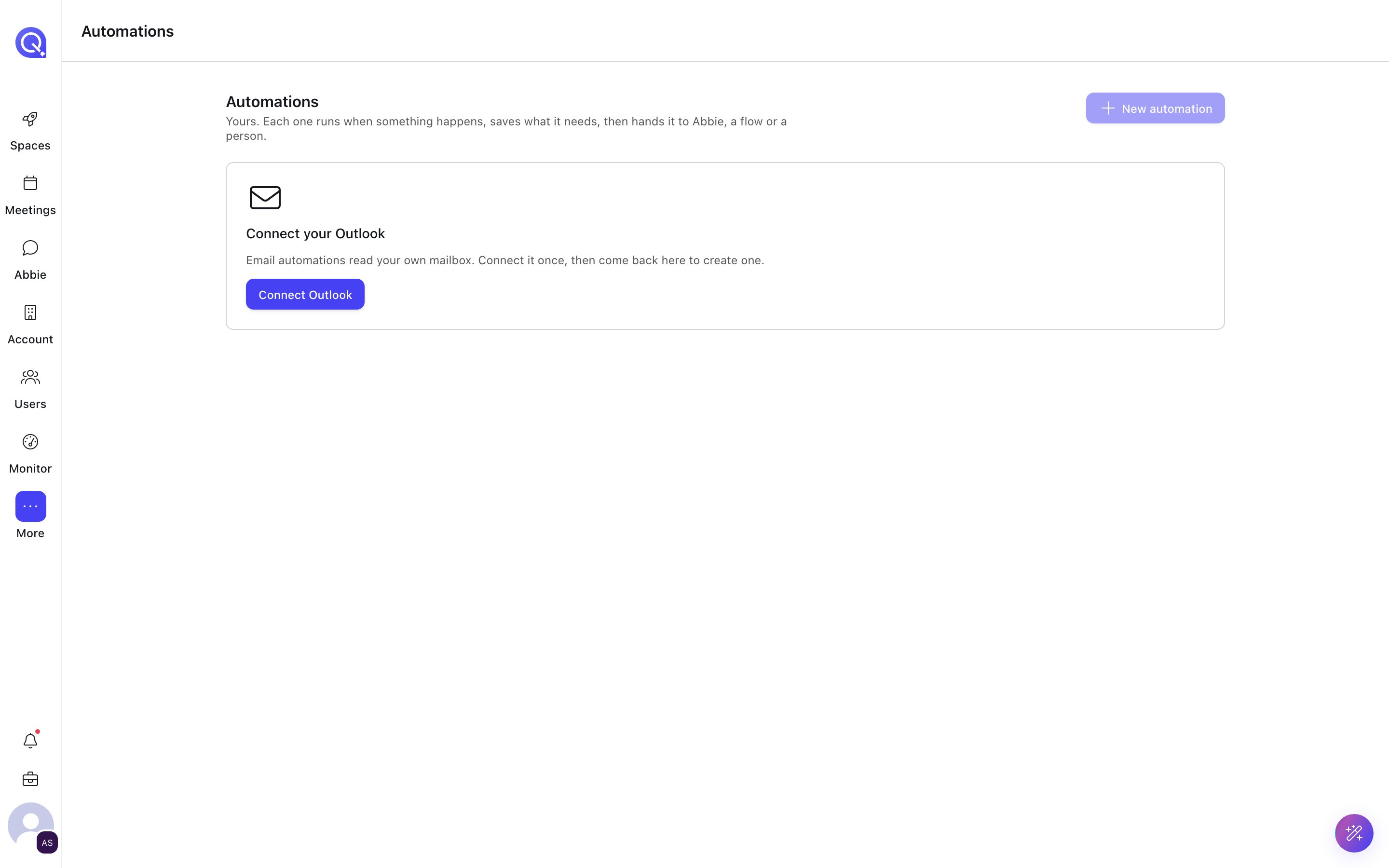
The Automations page showing a Connect your Outlook card with a Connect Outlook button

The Automations page before Outlook is connected.

Email automations read your own mailbox. If it is not linked, the page shows Connect your Outlook; connect it once and you come straight back. See Microsoft 365 files and mail.

Create an email automation

Choose New automation (or New email automation on an empty page). The editor has four parts.
1

When mail arrives in your mailbox

Add From senders (an address, or a domain like @brokerco.example) and Subject contains any of words. Fill in one or both. When both are filled, mail must match both. Matching is not case-sensitive.
2

Save a copy to

Choose the space folder the matching email is saved into.
3

Then

Pick What happens with each email:
  • Ask Abbie: each email becomes an item in Abbie’s backlog, titled with the automation’s name and the subject. Write what she should do.
  • Run a flow: starts a published flow with the saved email. See the Mail trigger.
  • Notify someone: tells a member of the destination space, in the app and by email, following their notification settings.
4

Options

Choose whether the action also runs on mail already in your inbox (off by default, so an import does not start hundreds of runs at once), and whether to save attachments as separate files. A preview lists the matching mail from the last few days and what would happen to each.
Give it a Name; it is shown in the space’s Automations list, in notifications and on Abbie’s items.

The list and run history

The list shows each automation’s rule, its action and its status, with Edit, Run history, Pause or Resume, and Delete. Needs attention collects the ones that cannot run, for example because the mailbox needs reconnecting or the flow they start was deleted or unpublished. Mail is still saved in that case, but nothing runs. Run history shows each email, what happened to it (an Abbie item opened, a flow run started, someone notified, or a failure with its error) and is kept for 90 days. You can also start an automation from any folder’s menu.