

One form, four places
The same bot settings form appears wherever a bot is configured:
A bot’s settings can only be edited while it is still scheduled to join in the future. Once it has
joined the call there is nothing left to reconfigure, and the cog is replaced by a removal action.
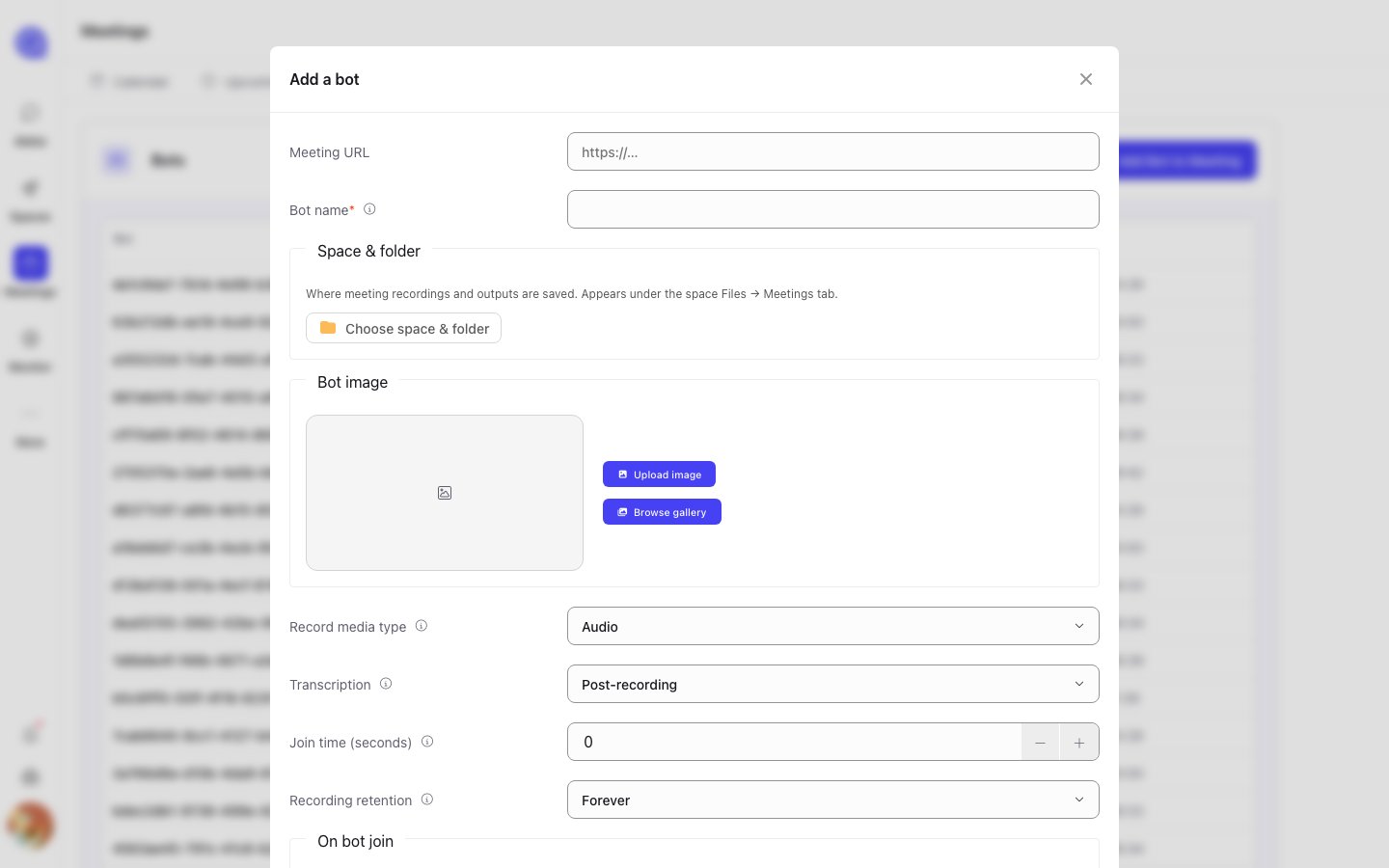
The bot settings form, opened from Add Bot to Meeting.
Bot name
string
required
The participant name shown to everyone else in the meeting. This is what the other attendees see
in the participant list, so make it recognisable — your organisation’s name reads better to
external guests than a generic one.The Add calendar wizard pre-fills this with
QuivaWorks Notetaker. Add a bot starts
blank, and will not submit until you give the bot a name.Space & folder
Where the meeting’s outputs are saved. Choosing a Space and a folder here means the recording, transcript and summary are filed automatically as soon as they exist — they show up under the Space’s Files → Meetings tab. Press Choose space & folder to open the folder picker. Leaving it unset means nothing is filed automatically; you can still share a recording into a Space afterwards. See Sharing to a Space.Bot image
The picture the bot shows as its camera feed while it is in the call.- Upload image — a JPG or PNG, cropped to 16:9.
- Browse gallery — pick from the images already available in your account.
- Remove image — go back to no image.
Recording
enum
default:"Audio"
What the bot captures. Audio, Video, or Audio & Video.
enum
default:"Post-recording"
When the transcript is produced.
- Post-recording — transcribed after the meeting ends.
- Real-time — transcribed as people speak. This is what enables the live transcript page. Without it, there is nothing to follow during the call.
- Disabled — no transcript at all.
number
default:"0"
How many seconds after the meeting’s scheduled start the bot should join.
0 means it joins at
the start time.enum
default:"Forever"
Forever keeps recordings until you delete them. Timed reveals a second field —
Recording keep (hours) — after which the recording is deleted automatically.
If you want to follow a meeting live, you must set Transcription to Real-time before the
bot joins. It cannot be switched on mid-call, and a bot that recorded with post-recording
transcription has no live view to go back to.