

Cases are set up per space. Which case types your space offers, what they are called, and the
stages they move through are as configured for your space. If a space has not declared any, it
uses a single default type labelled Case.
Case types
A space declares its case types in its configuration. Each type says:
Names, stages and icons are not fixed. Two spaces can offer different case types, and a space can
offer several.
Starting a case
Starting a case happens from the client it belongs to, using the button your space has set up for it.1
Start the case
Choose the button for the case type you want. If you started it from a place that does not
already belong to a client, a Whose is this? dialog opens first. Click the client the case
belongs to.
2
Choose how to fill it in
If the case type can read a document, a dialog offers a drop zone, and an Enter details
button for filling in the form by hand. Without that option, the form opens directly.
3
Save
The case is created and opens on its own page.
A case page
A case opens on its own page inside the space. The breadcrumb shows the case under its client, and the page follows the layout your space gives that case type. A page can hold:- a heading built from the case type’s heading fields
- the case’s fields and current stage
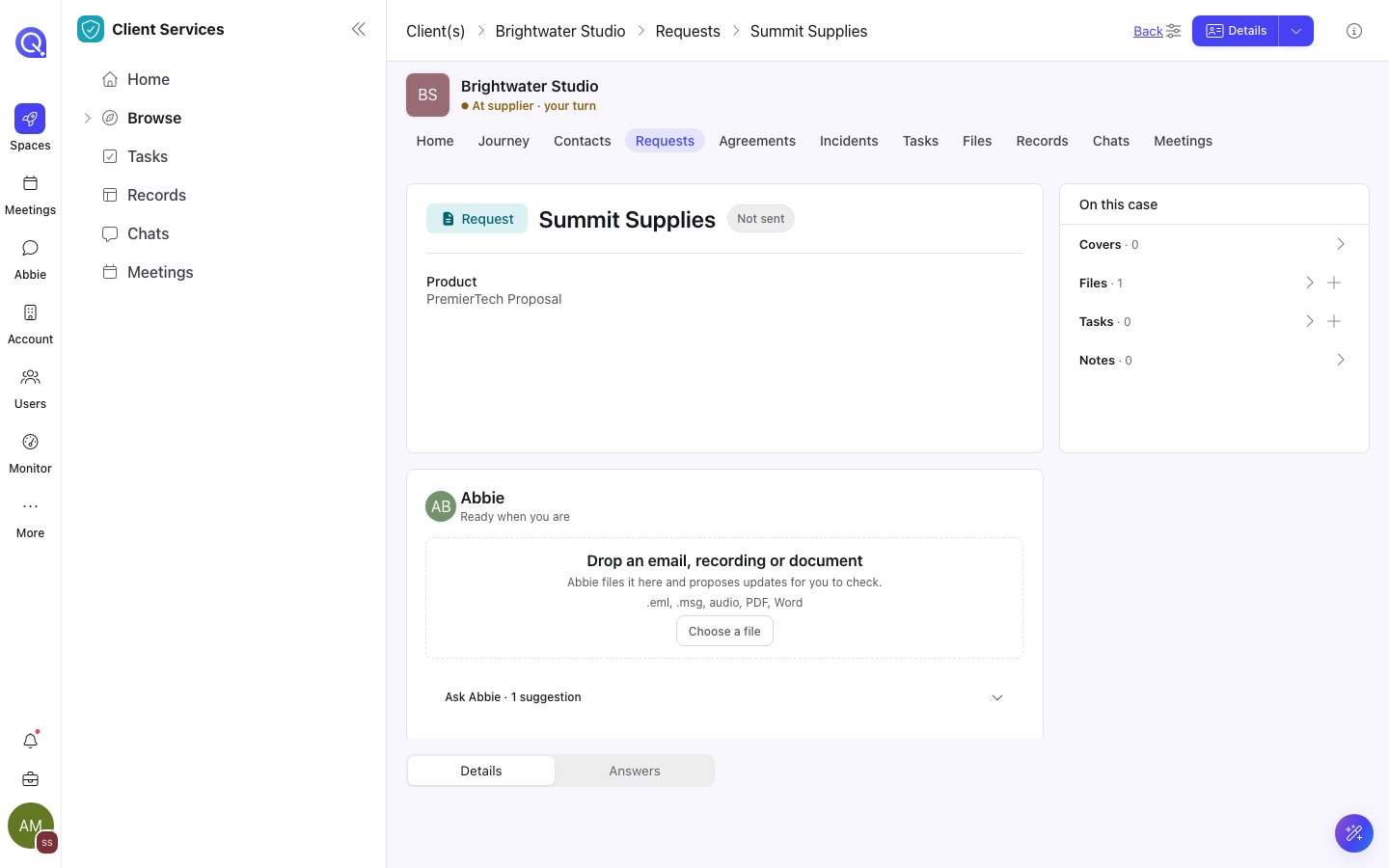
A case page: details on the left, what is on the case on the right, and Abbie's drop zone.
Tabs on a record page
A case page is a record page, and its layout is not fixed. To change it, select Customise (the sliders icon) in the space header, then Save or Cancel.- Add tab adds a tab. Choose what it shows, for example Fields, Records, Tasks, Files, Form, List, Comments or History.
- In a side panel, Add to this panel adds a row: Files, Tasks, Comments, History, Records, List, Versions, People, Chats, Meetings or Notes. Removing a row leaves its data alone.
Starting or refreshing a case from a document
When a case type is set up to read documents, you can drop a file instead of typing.- To start a case, open the start dialog and drop the document into the drop zone. Abbie reads it and fills in the case from what it finds.
- To refresh a case, click the update button on the case page. It is labelled Update from a document unless your space names it differently. Drop a document and the case’s fields are brought up to date from it.
Related
Entities & Contacts
The clients a case belongs to.
Records
The record sets a case’s fields come from.
Tasks
Work attached to a case.
Menu and pages
How case pages sit in a space’s menu.