

Tasks
A task is a unit of work that lives inside a Space. It carries a title, a status, the people responsible for it, and whatever dates, tags, attachments and notes the work needs. Every task is named after its Space. A Space has a short prefix — 2 to 12 uppercase letters, numbers or underscores — and each new task takes the next number in that Space’s series, giving references likeOPS-7. The reference is minted when the task is created and does not change.
Tasks in different Spaces are entirely separate series. Two Spaces can each have a task numbered 7;
the prefix is what tells them apart.
Fields on a task
The author, created date and updated date are stamped by QuivaWorks and shown in the task’s
details popover.
Task templates
A task template pre-fills the fields above and can seed a set of actions onto the task, so a piece of work you repeat doesn’t have to be assembled by hand every time. Click Use template on the task creation dialog to open a picker scoped to your account’s vertical. Choosing one fills in:A template’s assignees, priority, tags and folder are plain values, not one Space’s configured
lists — there is no Space until the task is created from it. If a value doesn’t match anything in
the Space you create the task in, it’s still applied; a stale priority or tag would render as
nothing on the board the same way a hand-typed one would.
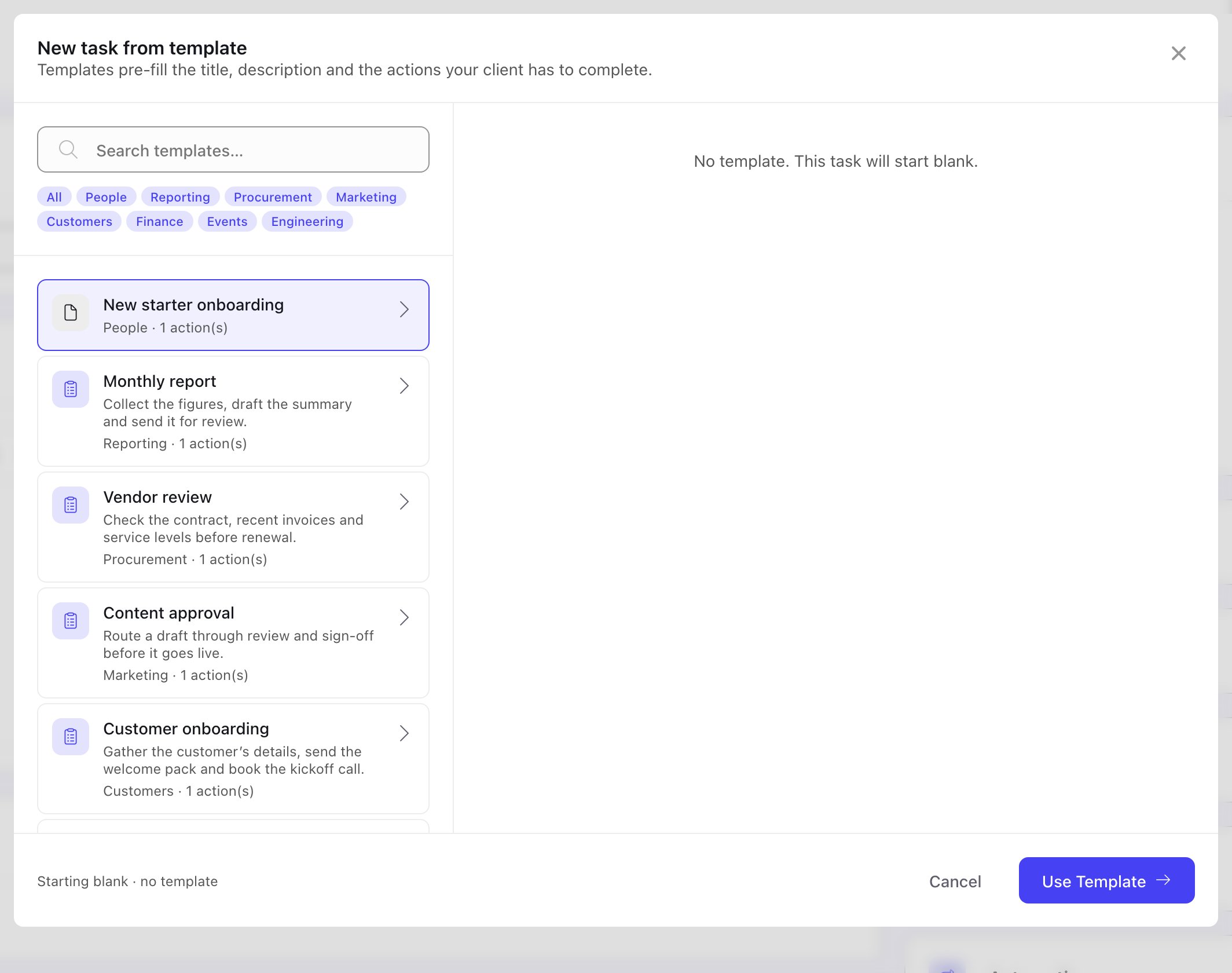
The New task from template picker, opened with Use template in the task creation dialog.
Statuses, priorities and tags
Statuses, priorities and tags are configured per Space, not globally. Open a Space, click the cog in its header to open Edit Space, then go to the Tasks menu — it has tabs for Statuses, Priorities, Tags and Board.Statuses
A status has a name, a colour, an order, a visibility toggle that controls whether it appears as a board column, a Complete flag, and optionally a role. A new Space starts with six statuses:
Rename them, recolour them, reorder them, add your own, or remove the ones you do not use.
A role gives a status a machine-readable meaning — To do, In progress or Done — so
automation can move a task by what a stage means rather than by an id. The three dropdowns under
the status list are where you set them, and
task actions are what read them. Leave them unset and
nothing changes; a status never needs a role to be used by hand.
Priorities
A priority has a name, an icon, an icon colour, and an optional default flag. Exactly one priority is the default; if none is marked, the first in the list is used. A Space that has not configured its own priorities uses these:Tags
A tag has a name, a background colour and a text colour. A Space starts with no tags — you add the ones your work actually needs.Ids stay stable
Each status, priority and tag has an id derived from its name when it is first created. Renaming the item does not change its id, so tasks already carrying it keep working. This is why renaming “Testing” to “QA” is safe.The Tasks menu is not offered on the built-in Spaces that QuivaWorks provides itself — their
statuses, priorities and tags are fixed.
Assignees, reporter, watchers and mute
Assignees are who is doing the work. Assignment matters beyond display: only a task’s assignees get the completion control on its task actions. Reporter is a single person — who the work is reported to. Watchers are separate and self-serve. Anyone viewing a task can Start watching or Stop watching it; you subscribe yourself rather than being assigned as a watcher by someone else. The watcher count is shown on the task. Mute is per-user too. Muting a task stops it interrupting you — it does not silence the task for everyone else.Due dates and scheduled dates
A task can carry a due date, a scheduled at date, or both. They are independent:- Due date — the deadline. Shown in the list view’s Due column and on the Schedule view.
- Scheduled at — when the work is planned to start. The task list’s Scheduled filter shows tasks that have one.
Subtasks
A task can be broken into subtasks. Subtasks are returned nested on their parent, so opening a task shows its subtasks without a separate lookup. The Sub Tasks section on the task form is where you add them and change their status. Subtask progress can be shown on the board card as a count, a percentage, or both — configured in Edit Space → Tasks → Board.Moving a subtask's parent
Moving a subtask's parent
When a task is reparented or moved to a different Space or contact, you can ask for its
subtasks to move with it. Otherwise they stay where they are.
Deleting a task that has subtasks
Deleting a task that has subtasks
Deleting a task offers to delete its subtasks as well. If you decline, the subtasks remain.
Time tracking
Time tracking lives in the Time Tracking section of the task form. It has two parts:- An estimate — how long the work should take.
- Individual time logs — each one a duration, a start date, and an optional description.
w = weeks, d = days, h = hours, m = minutes. One week is 5 days; one day is 8 hours.
Spent, remaining and the progress percentage are calculated by QuivaWorks from the logged
entries — you never enter them. Only the estimate is stored on the task itself.
Logging time needs a saved task, so the log controls stay disabled while a task is still being
created. Set the estimate then, and log time afterwards.
Comments
Comments sit at the bottom of the task. Each comment can carry attachments, be replied to, and collect emoji reactions.Internal and public comments
The composer has two modes:Internal
Staff-only. Hidden from client and collaborator users.
Public
Visible to everyone who can see the task, clients included.
Mentions
Typing@ offers the people you can mention. On an internal comment, client and collaborator
users are left out of that list — an internal note cannot mention someone who is not allowed to
read it.
Views
The task panel has three views, switched from the toolbar. Your choice is remembered per Space and is also carried in the URL, so a filtered view can be linked and shared.List
A table of tasks.
Board
One column per status.
Schedule
A calendar of dates and events.
List
Columns are Title, Priority, Created, Status, Due and Assignees. Rows can be selected for bulk actions.Board
The board renders one column for each status that is marked visible, in the Space’s configured order. Dragging a card to another column changes that task’s status; dragging within a column reorders it. Customise board (available to administrators) turns on editing of the columns themselves — add a column, hide one, reorder them, or remove one. A minimap gives quick horizontal navigation on boards too wide to fit the screen. What appears on a card is configured in Edit Space → Tasks → Board. Each of these can be shown or hidden independently:- Title
- Task id
- Priority — as an icon, or an icon with its name
- Assignees
- Tags
- Subtask progress — as a count, a percentage, or both
- Action progress — as a count, a percentage, or both
Schedule
The Schedule view is a calendar with day, week, month, year and list modes. It shows three kinds of entry, each of which can be toggled on or off:This view is called Schedule, and it is more than a deadline calendar — recurring automation
events appear alongside task dates. There is no separate “Calendar View”.
Finding tasks
Filters
The toolbar carries:- Search — matches a task’s title and description
- Assignees
- Priority
- Status
- Tags
- Active / Scheduled / Archived — which set of tasks the list is drawn from
My tasks
There is also a cross-Space view of your own work. It returns every task, in any Space, that is assigned to you and not archived — restricted to tasks that have a due date or a scheduled date, since it is a schedule rather than a backlog. A task assigned to you with neither date set will not appear there.Filtering through the API
The task list endpoint acceptsstatus (comma-separated for several at once), priority,
assignees (comma-separated, any match), reporter, created_by, title (a term search),
folder, source, parent, archived, scheduled, exclude_subtasks, created_at,
updated_at and scheduled_at, plus external_id (an exact match), limit, offset, sort_by
and sort_order. sort_by accepts activity_at as well as created_at and updated_at. The date
parameters take a single start date or a {start},{end} range.
The list returns results and results_total, which counts the tasks on this page rather than
all matching tasks. When another page exists the response also carries has_more: true.
To keep tasks in step with another system, with external ids, versions, the changes feed and
webhooks, see Task sync.
Subtasks are always fetched alongside their parents and nested under them; exclude_subtasks only
drops them from the top level of the list.
Folders and contacts
A Space anchors its tasks on a contact. When a task is created with a contact’s identity — an email address, for example — QuivaWorks finds or creates that contact and files the task under the key derived from it. The Folder field on the task form is therefore a picker of the Space’s contacts, not a folder hierarchy, and it offers a New contact option at the bottom. Filtering by folder means “every task for this one contact”.If a task is created with an identity but the contact link cannot be made, the task is still
created — losing the work would be worse than losing the link. The API response then carries a
base_record_skipped field explaining why the link was not made.