

Where calendars live
Calendar connections are made in your personal Settings → Calendars. The list shows every calendar you have connected, with its platform, its status and when it was added.Calendars are personal. You OAuth against your own Google or Microsoft account, and the
connection is yours. Client users do not see the Calendars section at all.
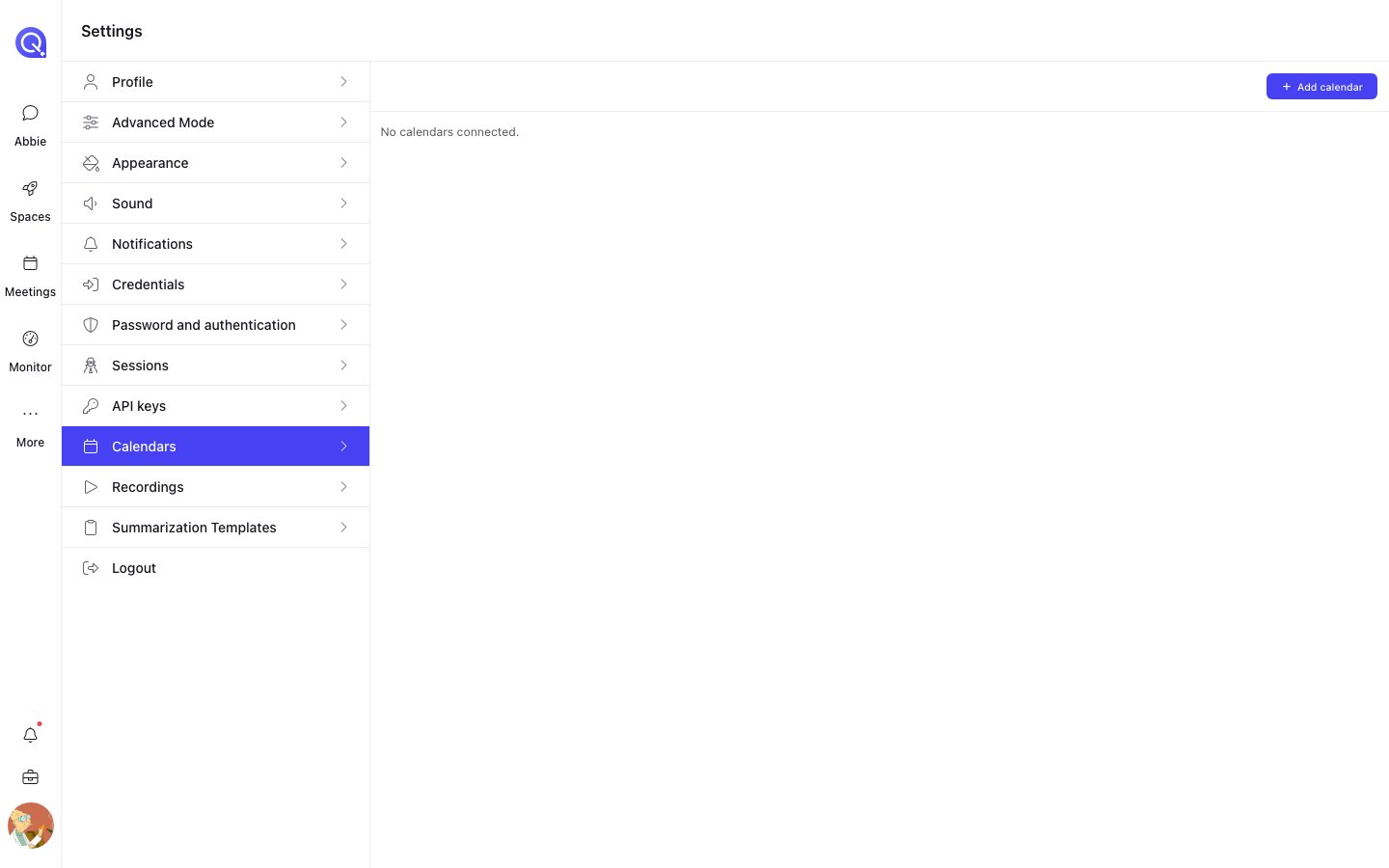
Settings → Calendars, before any calendar is connected.
Adding a calendar
Add calendar opens a two-step wizard.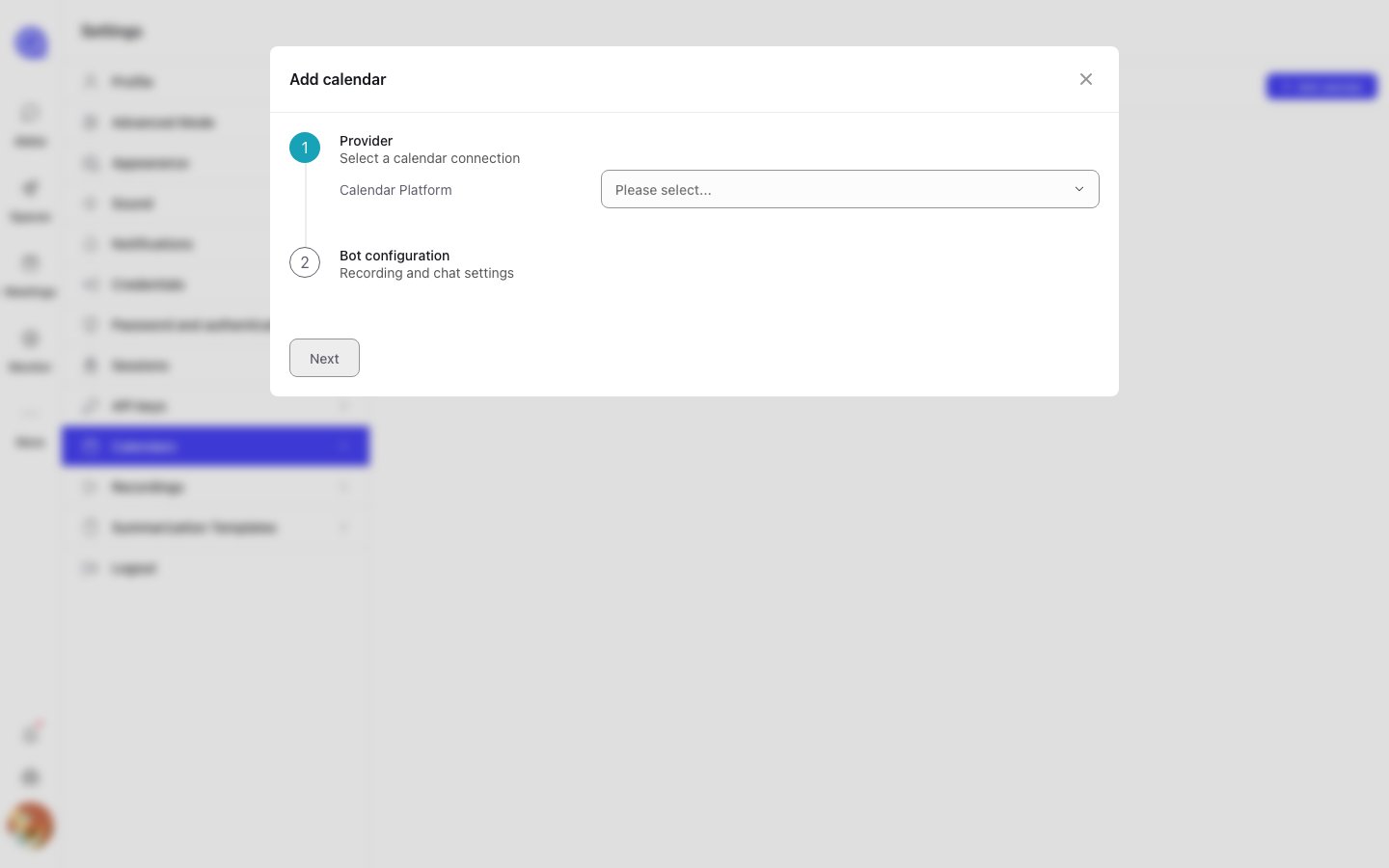
The Add calendar wizard: pick a provider, then configure the bot.
1
Choose a platform and a connection
Pick Google Calendar or Microsoft Outlook.QuivaWorks then lists the accounts you have already connected for that platform. Choose one,
or press Connect new account to authorise a new one. That opens the provider’s consent
screen in a new browser tab.Once you have approved it, come back to the QuivaWorks tab — the connection is picked up
automatically. Cancel stops it waiting.
2
Configure the bot
Decide whether the bot joins everything, then set the defaults it will use.Join all meetings — on by default. The bot automatically joins every scheduled meeting on
this calendar. Turn it off to keep the calendar connected but only send the bot to events you
pick by hand.Below it is the full bot settings form: the bot’s name and image,
the Space and folder its output goes to, what it records, how it transcribes, and the chat
messages it posts when it or a participant joins.Create Calendar saves it. The calendar takes a couple of seconds to appear in the list.
Connection status
Only connections that carry an expiry are offered for selection — a connection that never
completed its OAuth handshake will not appear in the list.
Opening a calendar
Clicking a row in the Calendars list opens that calendar, showing:- The connected account’s email, the platform, the calendar ID and when it was added.
- That calendar’s own events, on a calendar view with a time filter.
- A Settings action, and a Delete action.
Calendar bot settings
The cog on an open calendar edits the bot settings the calendar applies to new meetings. It is the same form as step 2 above, with one extra control at the bottom: Apply to existing bots — off by default. Changing a calendar’s settings does not update bots that are already scheduled. Turn this on to push the new settings onto them as well.Without Apply to existing bots, a settings change only affects meetings that have not been
scheduled a bot yet. This catches people out when they change the Space & folder destination and
find the next few meetings still filing to the old one.
Removing a calendar and removing a connection
These are two different things, and the difference matters.
Deleting a calendar does not delete recordings that have already been made.
What to do next
Bot settings reference
Every field on the form you just filled in.
Scheduling bots
Putting a bot on a single event when Join all meetings is off.