

Files
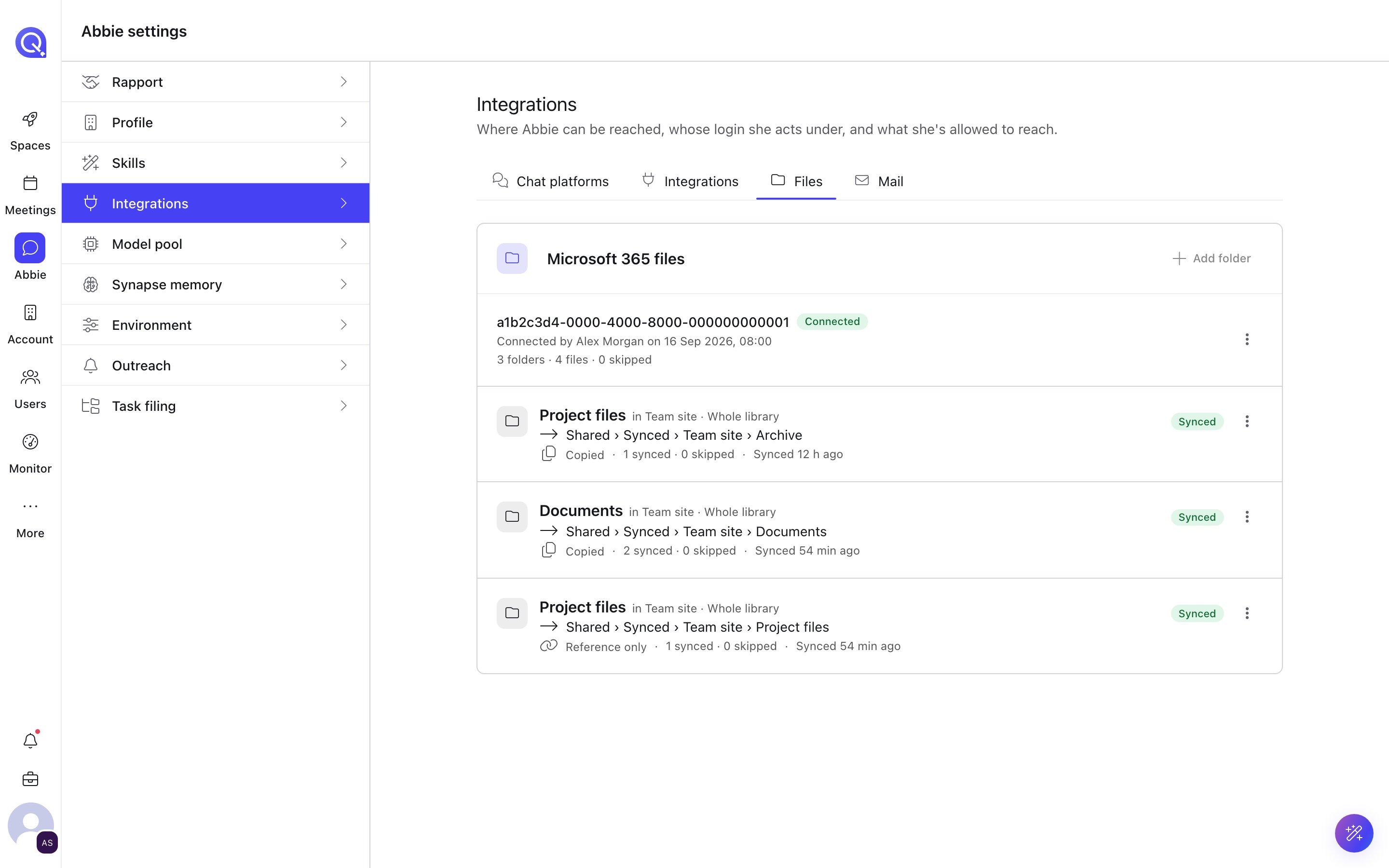
Abbie settings, Integrations, Files: the Microsoft 365 files card with a connected tenant and its synced folders.
1
Connect Microsoft 365
On the Microsoft 365 files card, choose Connect Microsoft 365. Microsoft sign-in opens in a new window.
2
Add a folder
Choose Add folder, pick the site and library, then the folder, and the space it syncs into.
3
Set the sync rules
Choose how files are stored: Keep a copy in the space (recommended: files open instantly and stay readable if SharePoint is unavailable) or Reference only (nothing is stored; Abbie fetches the file from SharePoint each time, which is slower). Then set the file types to sync, a maximum file size, how often to check (every 15 minutes, hourly or daily) and whether to skip files with a sensitivity label.
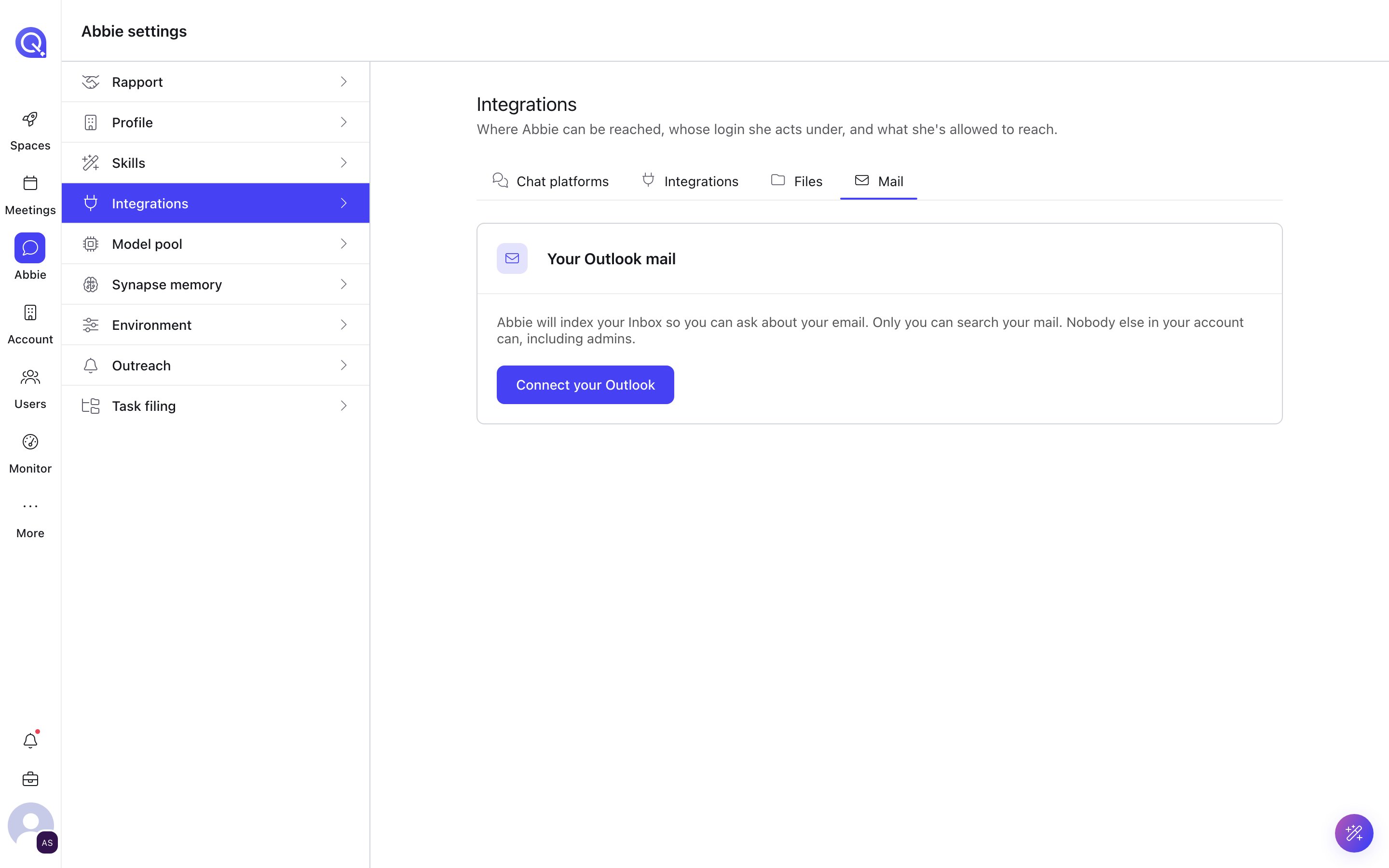
Abbie settings, Integrations, Mail: the Your Outlook mail card before the mailbox is connected.
1
Connect your Outlook
On the Your Outlook mail card, choose Connect your Outlook. If your organisation has not approved QuivaWorks Mail yet, an admin approves it first and you sign in afterwards.
2
Choose folders
Pick the mail folders to index and how often to check for new mail. Choose Start indexing. The first sync usually takes a few minutes.
Filing mail into a space
A mail filter saves matching mail from your Outlook into a folder of a space, so the team can find it and Abbie can cite it.- In a space, open the folder’s menu and choose File mail here (or open the space’s Mail filters and choose New filter).
- Under Match mail, add senders (an address, or a domain such as
@brokerco.example) and, optionally, words the subject must contain. Fill in one or both; when both are filled, mail must match both. - Choose the folder to Save into. Matching mail from the last few days is imported too.
- Optionally save attachments as separate files so each can be previewed and searched on its own.