

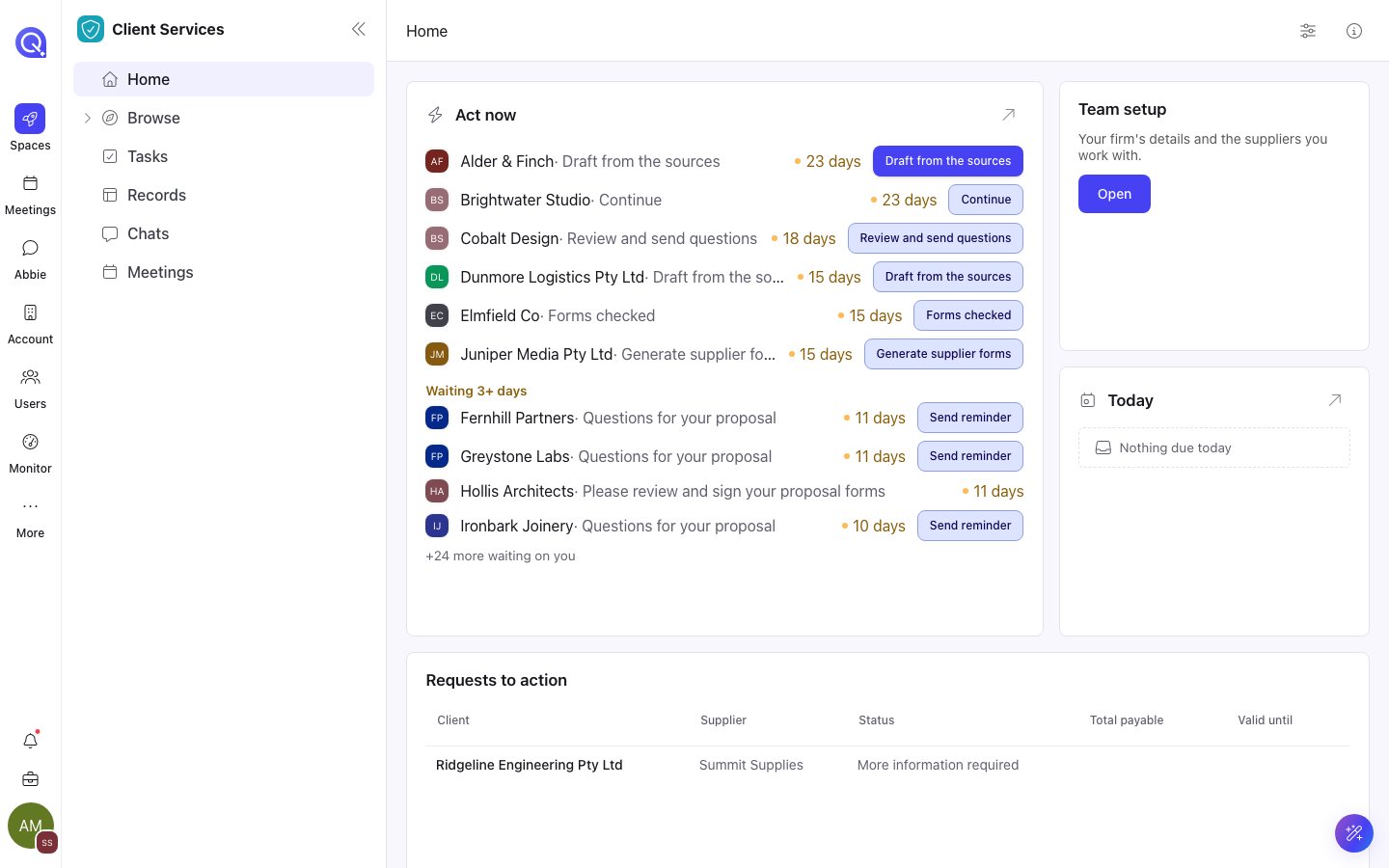
A space Home: an Act now card, Today, a setup link and a list card.
Who can change Home
Admins of the account can customise Home and any card page. Customising is not available on mobile. Everyone else sees the page as saved. In a space that is locked by the account that provided it, an admin can still arrange their own copy of the page.The default Home
Until someone saves a layout, Home shows a default set of cards. A card appears only if the space has what it needs: a contact record for the journey cards, or the Tasks, Files, Records, Meetings or Chats feature turned on.
If the space had a Stats dashboard set up before Home existed, it appears as Stats cards on Home until Home is first saved.
Card pages
A space can have more pages of cards besides Home. Each is a named page in the space menu and opens at?page=<id>. A card page with nothing on it shows This page has no cards yet.
To add a card page, use Add a page under Edit space → Pages and actions. See Menu and pages.
Customise a page
1
Open Customise
Select Customise (the sliders icon) in the space header. The page switches to edit mode and Cancel and Save replace it.
2
Arrange the cards
Drag a card by its bar to move it. Drag an edge or corner to resize it. Each card has Remove on its bar, and Edit where it has settings. Cards sit in one grid, so on Home and card pages there are no section headings to name.
3
Add a card
Select Add a card. The panel offers Suggested cards built from your record sets and statuses, then a Cards list. Custom figure or chart counts or totals your records as a figure, chart or table: Figure, Figure with trend, Over time, By category, Over time by category, Share, Breakdown table or Progress to a target. Pick a card and it is added to the page. Records and List open their settings next so you can choose a record set. When a card on the page shows a record set, Case pages beside Add a card sets up or edits the page a record of that set opens on. See Cases.
4
Save or discard
Select Save to keep the layout. A message confirms it: Home saved. or Page saved. Select Cancel to leave without saving. If you changed anything you are asked Discard changes? before the changes are lost.
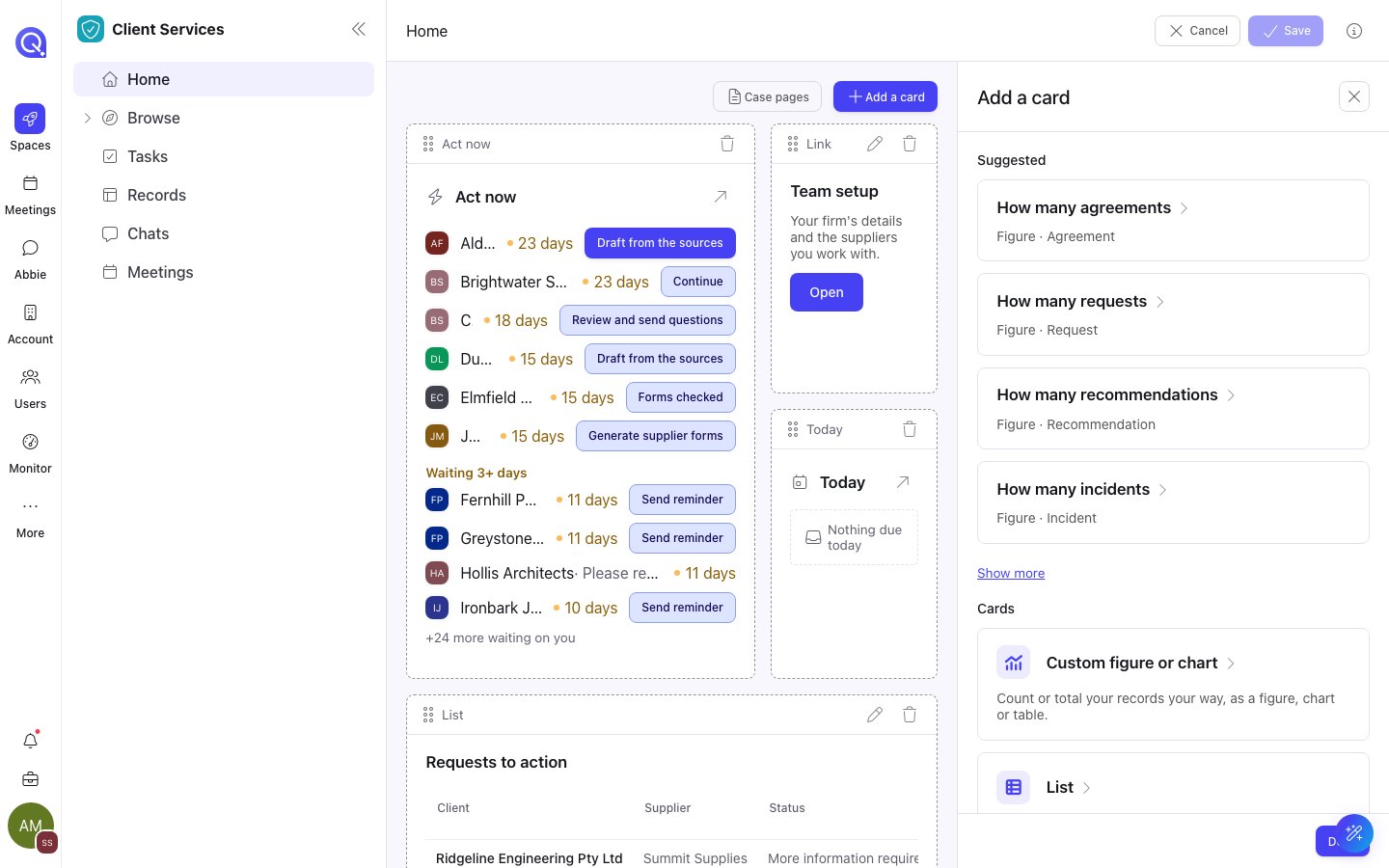
Customise mode: each card has a bar, and Add a card lists suggested and custom cards.
Card types
Which cards are offered depends on the page. For example, By status, Needs you and Coming up are offered on a record set’s own page, and Journey on client Home only.The Stats card
A Stats card holds several charts and figures on one time range. Arrange its charts in place while customising. A card with no charts shows No charts yet. Open the card’s settings with Edit to set:
Only the figures set to follow the card’s range change when a viewer picks a period. Figures with their own window keep it.
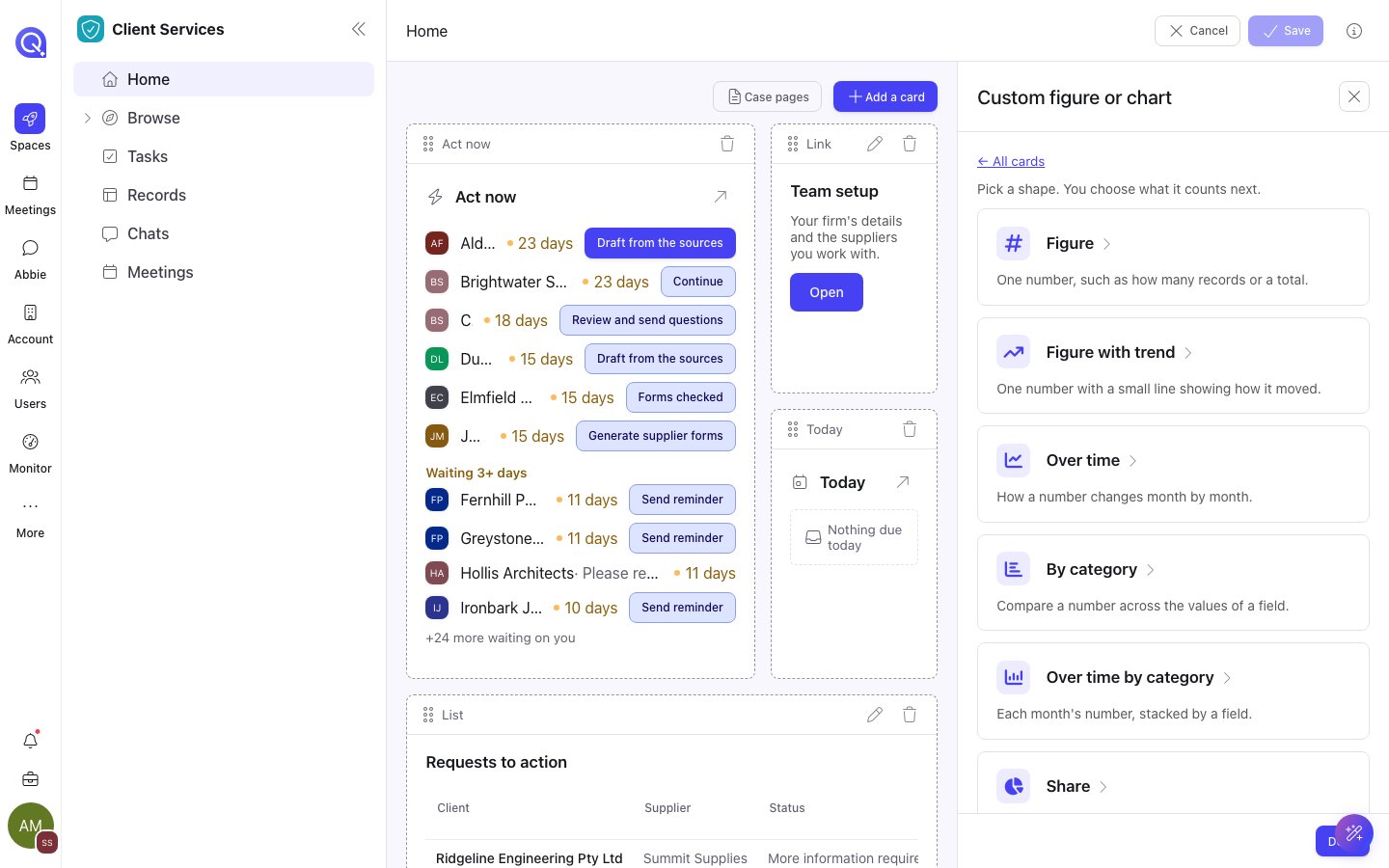
Custom figure or chart: pick a shape, then choose what it counts.
Client Home
Opening a client or contact folder lands on its first client page, or on the client’s Home if none is set. See Entities and contacts. Client Home shows the layout saved for client folders in the space. Until one is saved it shows the default cards above, with Journey across the top. A saved layout applies to every client in the space.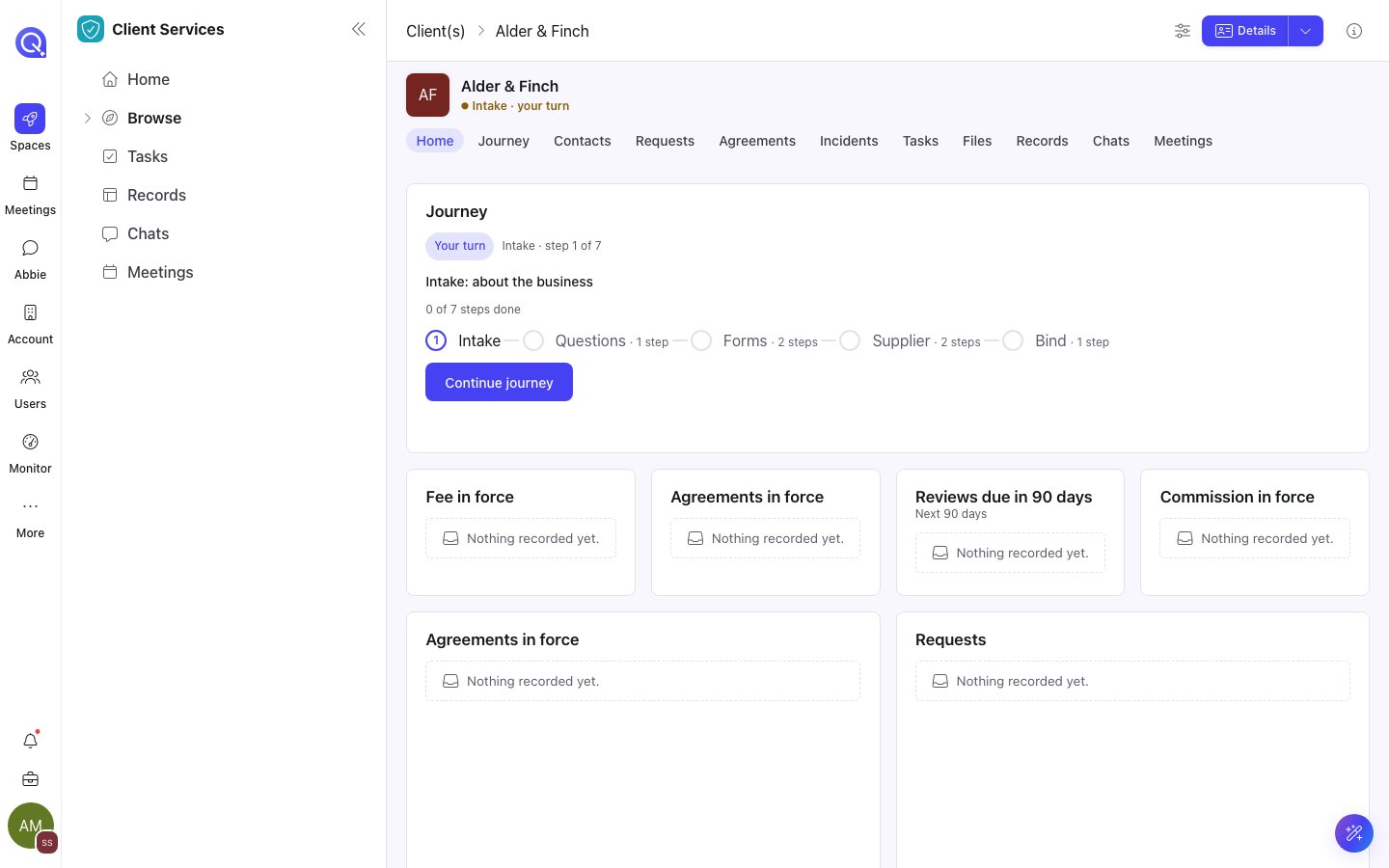
A client's Home: its journey, then cards for that client only.
Menu and pages
The space menu, default tabs and adding pages.
Spaces
Create and configure a space.
Entities and contacts
Contacts, organisations and client folders.