

The space menu
Every space has a menu down the left side, labelled Space menu. It lists the pages of the space, the Folders tree, and a block for your clients.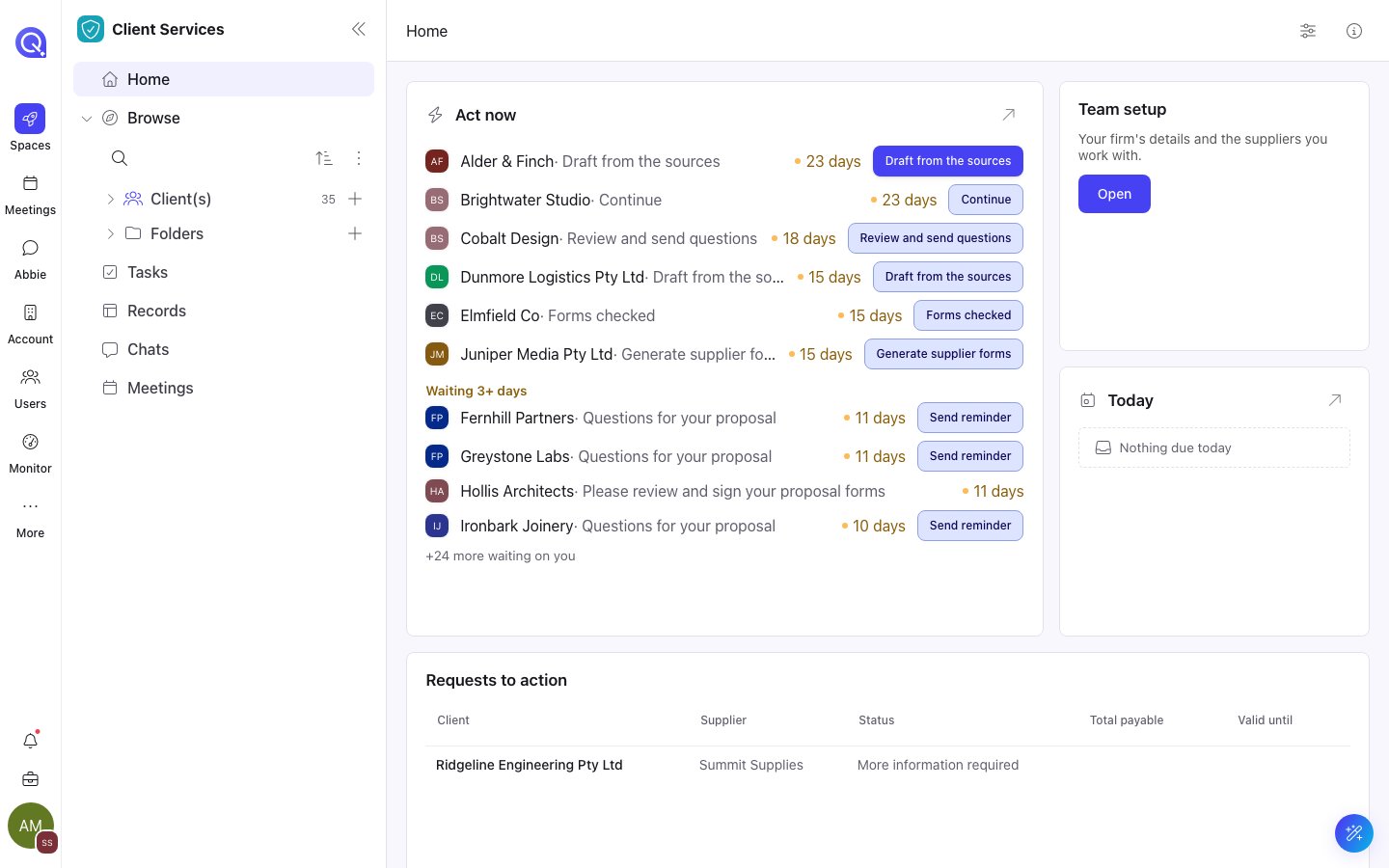
The space menu with Browse expanded: clients and Folders sit inside it.
Rows with a caret expand in place. Click the caret to open or close a row, and click the name to open the page.
When the space shows clients, Files is drawn as Browse, with Folders inside it. Rename the page under Pages and actions to keep your own name.
Which pages appear
A space starts with a default set of pages. Each one shows only when it applies.
A page also disappears when its tab is listed under Hidden tabs in General, or when it is turned off in Pages and actions. Spaces that receive work from linked accounts show a smaller set; see Linked accounts and products.
Pages and actions
Open Edit space and choose Pages and actions to arrange the menu.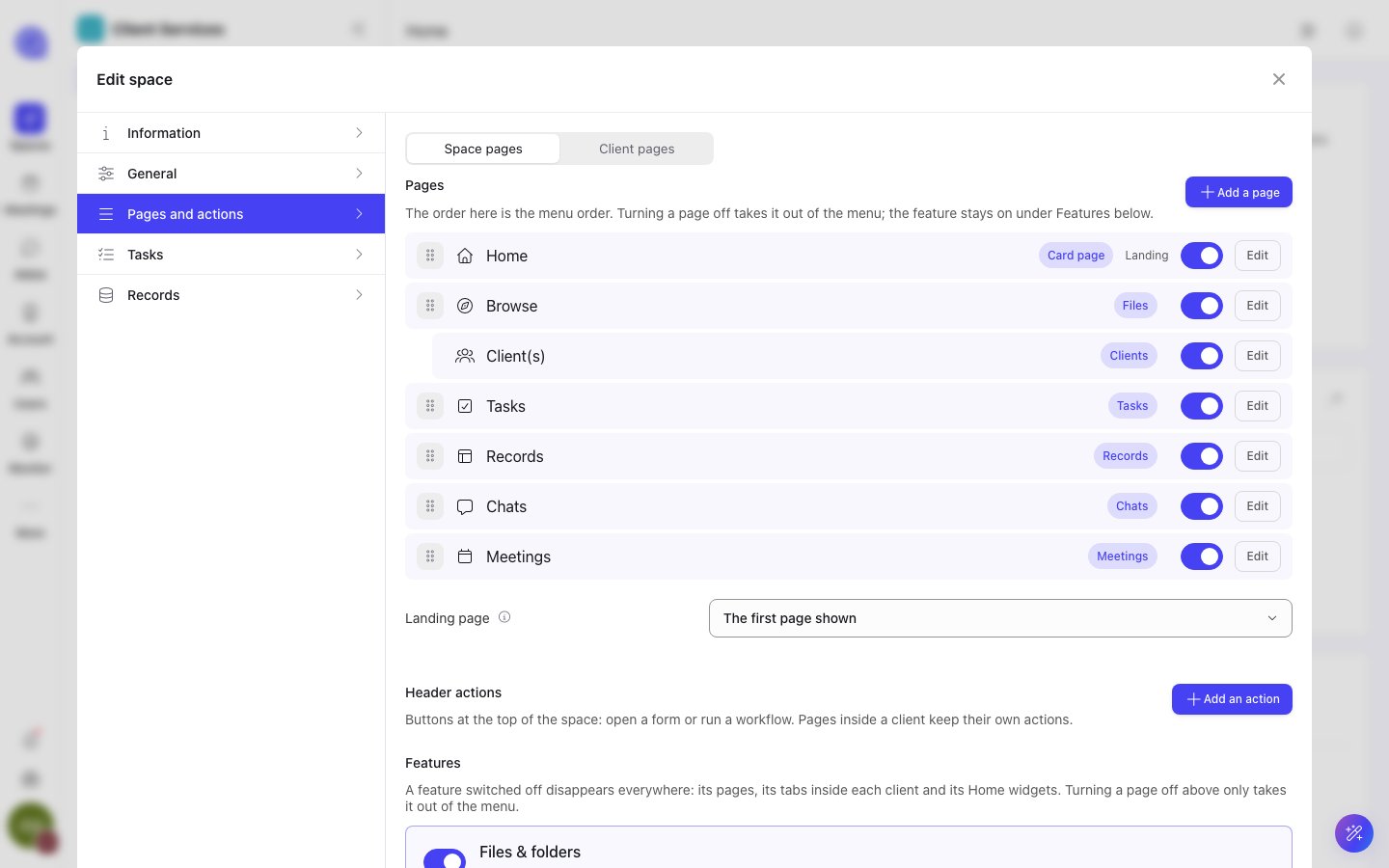
Edit space, Pages and actions: the page list in menu order, Landing page, Header actions and Features.
1
Open Edit space
Click the space name in the menu (Space settings), then choose Pages and actions.
2
Set the order
The Pages list is the menu order. Drag a row by its handle, or focus the handle and use the arrow keys.
3
Turn pages on or off
The toggle on each row shows or hides the page in the menu. The feature itself stays on under Features.
4
Rename a page
Click Edit on a row, type a name, and press Enter.
5
Pick the landing page
Choose a page under Landing page. This is where the space opens. If that page is off or removed, the space opens on the first page shown.
Add a page
Click Add a page and pick a type. Pages you add can be removed with the bin button. The default pages can only be turned off.
Every type except Card page can appear once, and a type is offered only when the space supports it. A space can hold up to 30 pages, and record set pages count towards that limit.
Client-level pages
The same editor has a client-level view: the tabs inside every client. The order is the tab order, a page turned off leaves the tabs, and a client link opens the first client page shown, or Home when there is none. On a space with a contact record, switch from Space pages to Client pages to edit the tabs inside every client. A client that has a journey also gets a journey tab, named as configured for your space; the default is Journey.Header actions
Pages and actions also holds the buttons at the top of the space. Under Header actions, click Add an action to open a form or run a workflow. Each action sits as a button, a secondary button, in the More menu, or Not shown. Use the move up, move down and remove buttons to arrange them. A row marked Needs a fix was refused when you saved and shows what to correct. Client pages have their own Client actions.Record set pages
A record set page lists the records of one record set as its own page in the menu. It opens at:Deep links
Add these to the space URL to open a page or a settings screen directly.Old links with
?panel=overview still work and open Home.Home and cards
Build the Home page and card pages.
Spaces
What a space is and how to create one.
Records
Record sets, records and their views.