

Image Analysis
Assistants can analyse images shared in a conversation. Simply attach an image and ask the assistant to work with it. What assistants can do with images:- Describe visual content — photos, screenshots, diagrams
- Extract text from images (receipts, forms, screenshots)
- Analyse charts, graphs, and data visualisations
- Identify objects, people, and scenes
- Examine technical diagrams and architectural drawings
- Compare multiple images
- Upload a screenshot of an error and ask the assistant to diagnose it
- Share a product photo and ask for a description suitable for an e-commerce listing
- Attach a chart and ask the assistant to summarise the key trends
- Share a handwritten form and extract the data as structured text
File Generation
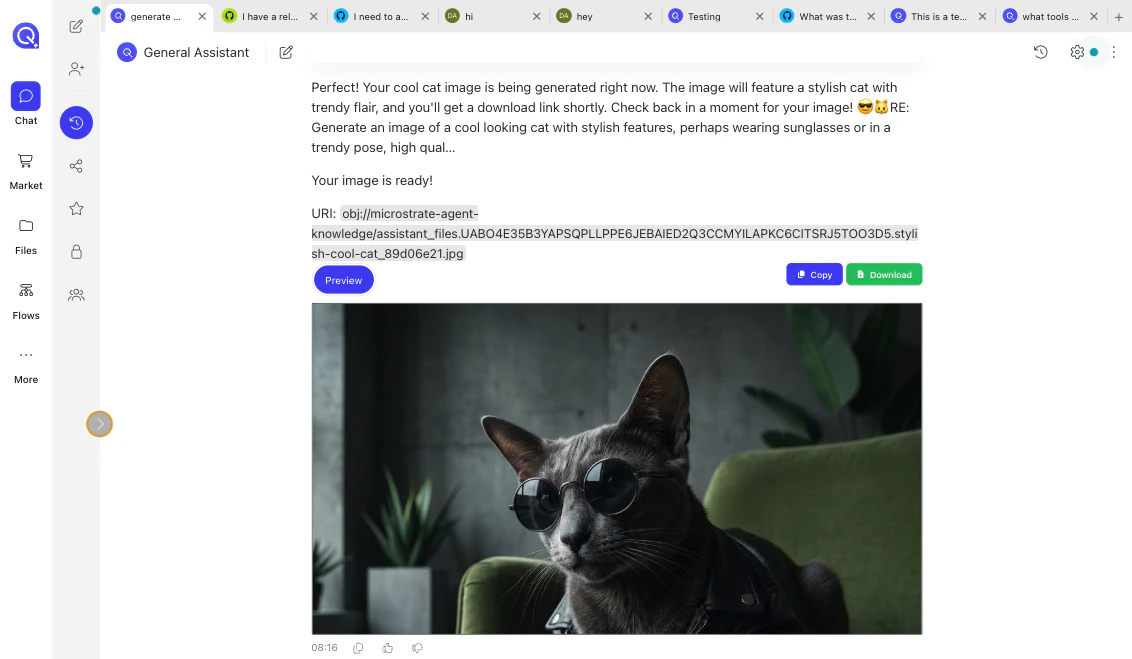
Assistants can generate and export files in common business formats. Generated files can be previewed in the conversation, edited iteratively, and exported for download or deployment. Supported output formats:Word Documents (.docx)
Reports, proposals, contracts, documentation, and any other formatted text content
PowerPoint Presentations (.pptx)
Slide decks, pitch presentations, summaries, and training materials
Excel Spreadsheets (.xlsx)
Data tables, financial models, tracking sheets, and structured data
CSV Files (.csv)
Raw data exports, bulk imports, and machine-readable structured data
PDF Documents (.pdf)
Formatted reports, contracts, and shareable documents with embedded fonts and styling
SVG Diagrams (.svg)
Scalable vector graphics for charts, flowcharts, and technical diagrams
- Generate complete documents from descriptions or data
- Edit and refine generated files — ask the assistant to revise content, styling, or layout
- Preview files directly in the conversation before downloading
- Create interactive HTML/CSS/JavaScript applications (see App Deployment below)
- Generate Mermaid diagrams — flowcharts, entity relationships, timelines — as a standalone output, rather than embedded inside a Word, PDF, PowerPoint, or Excel file
- “Create a project proposal document based on the brief I’ve shared”
- “Generate a slide deck summarising our Q3 results”
- “Export this table of data as a CSV”
- “Generate an Excel tracker for this list of tasks”
- “Create an SVG diagram showing this system architecture”
- “Create a Mermaid flowchart showing the process steps”
Simple App Deployment
Assistants can build and deploy interactive web applications. When an assistant generates an HTML/CSS/JavaScript application, you can preview it in the conversation. If JavaScript features are restricted in the preview, the assistant can deploy the complete application to a unique public URL. How it works:- Ask the assistant to build a web app describing what you need
- The assistant generates the HTML, CSS, and JavaScript
- You preview the application in the conversation
- If JavaScript is blocked in the preview (which prevents interactive features from working), ask the assistant to deploy it
- The assistant publishes the assets to a randomly generated subdomain at
subdomain.quiva.ai - You receive a public URL to view and share the fully functional app
- Create interactive tools, calculators, and dashboards with full JavaScript functionality
- Build data visualisations and charts from provided data
- Deploy simple forms, landing pages, or prototypes instantly
- Share live, interactive applications without any hosting setup
- “Build a simple ROI calculator for this pricing model and deploy it”
- “Create an interactive chart of this data and make it shareable”
- “Generate a one-page landing page for this product concept”
- “Build a task tracker app and deploy it so my team can use it”
- “Create a scheduling tool for event bookings”
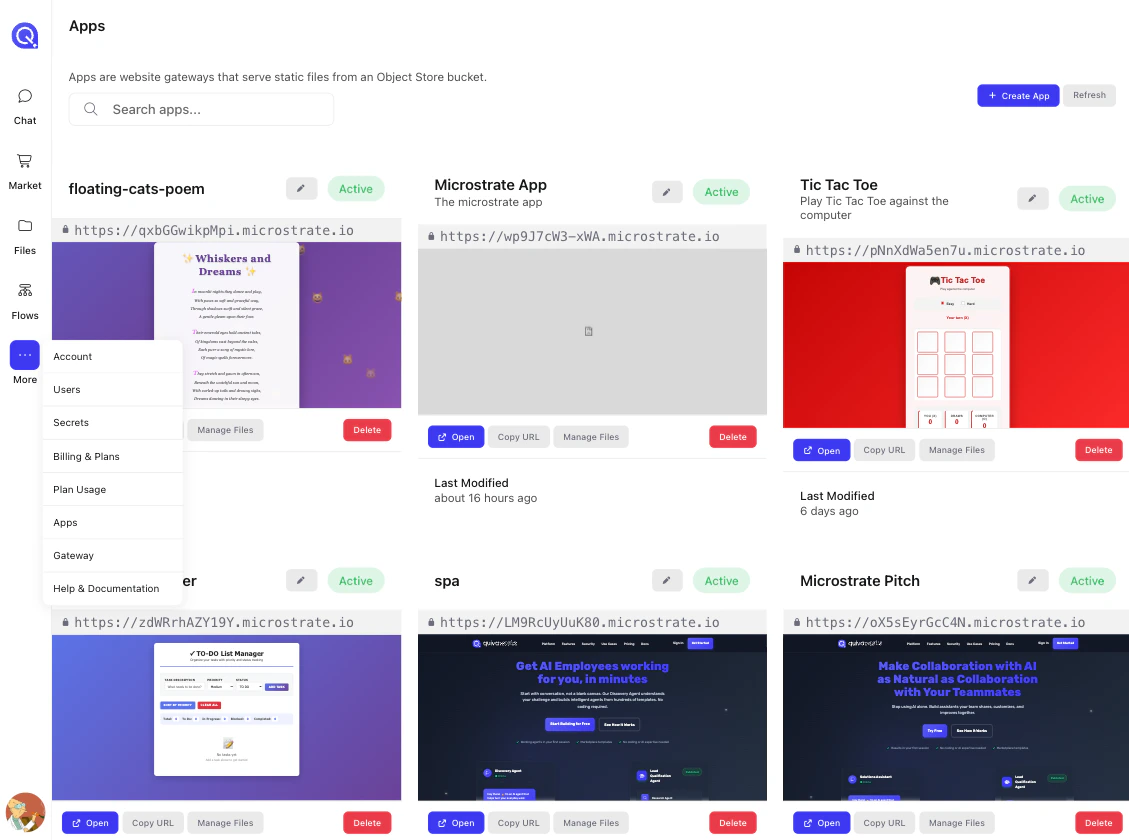
Deployed apps are publicly accessible via their URL. Don’t deploy content that includes sensitive or private data.
Built-in Tools
Every assistant comes with a set of built-in tools enabled by default. These are available without any integration setup.Research & Web
Research & Web
- Web Search — Search the web for recent news, facts, and general information
- Content Fetching — Retrieve and parse any URL as markdown content
Data & Computation
Data & Computation
- Math Evaluation — Solve mathematical expressions accurately
- JSON Extraction — Extract values from JSON using JSONPath expressions
- Regular Expressions — Pattern matching and text extraction using Go RE2 syntax
- Date/Time Parsing — Parse and format dates and times with timezone support
- Data Encoding/Decoding — Convert data using Base64 and other encoding schemes
- Cryptographic Hashing — Generate MD5, SHA-256, and other standard hashes
Task & Workflow
Task & Workflow
- Escalation — Route requests to a human supervisor when the assistant can’t or shouldn’t proceed
This is the always-on baseline. Beyond it, an assistant with Knowledge configured also gets document search, and the platform gives every assistant a much larger set of tools — spanning knowledge, workflow, and integration categories — that it discovers and calls as needed at run time rather than carrying all of them in context.
Multi-Assistant Capabilities
For tool-heavy tasks or large documents, assistants automatically use sub-assistants behind the scenes to do the work.- Sub-assistants handle individual tool calls or document retrieval, with results consolidated back to the main assistant
- Assistant-to-assistant communication lets you explicitly link specific assistants together, so a primary assistant can delegate to a specialist. Linking is deny-by-default — you add each target assistant yourself, and a specialist can’t delegate any further (a one-level depth cap)
Learn more about Multi-Assistant Systems
How to build systems where assistants work together →
Next Steps
Tools & Connectors
Connect to external systems via MCP integrations
Multi-Assistant Systems
Link assistants together for complex workflows
Knowledge
Add documents and context to your assistant
Flows
Automate assistant tasks with triggers and steps