

Generating a summary
Summaries are produced on request, not automatically. Open a recording, go to its Summary tab, choose a template, and press Generate summary.1
Pick a summarization template
The dropdown offers Default (system prompt) plus every template saved in your account.
The default is a general-purpose meeting summary.
2
Generate
Press Generate summary. It takes a little while — the whole transcript is being read.
3
Read it
The summary renders in place, and can be copied. It is also downloadable from the recording’s
toolbar while the Summary tab is open.
A summary is written from the transcript. If the transcript has errors, fix them first — see
Editing the transcript. Correcting the transcript
after generating a summary does not update the summary.
Summarization templates
A template is a reusable instruction describing what a summary should contain and how it should be laid out. Instead of getting the same generic summary every time, you can have one template for internal stand-ups, another for client calls, another for interviews. Templates live in Settings → Summarization Templates, and the cog next to the template dropdown on a recording opens the same place.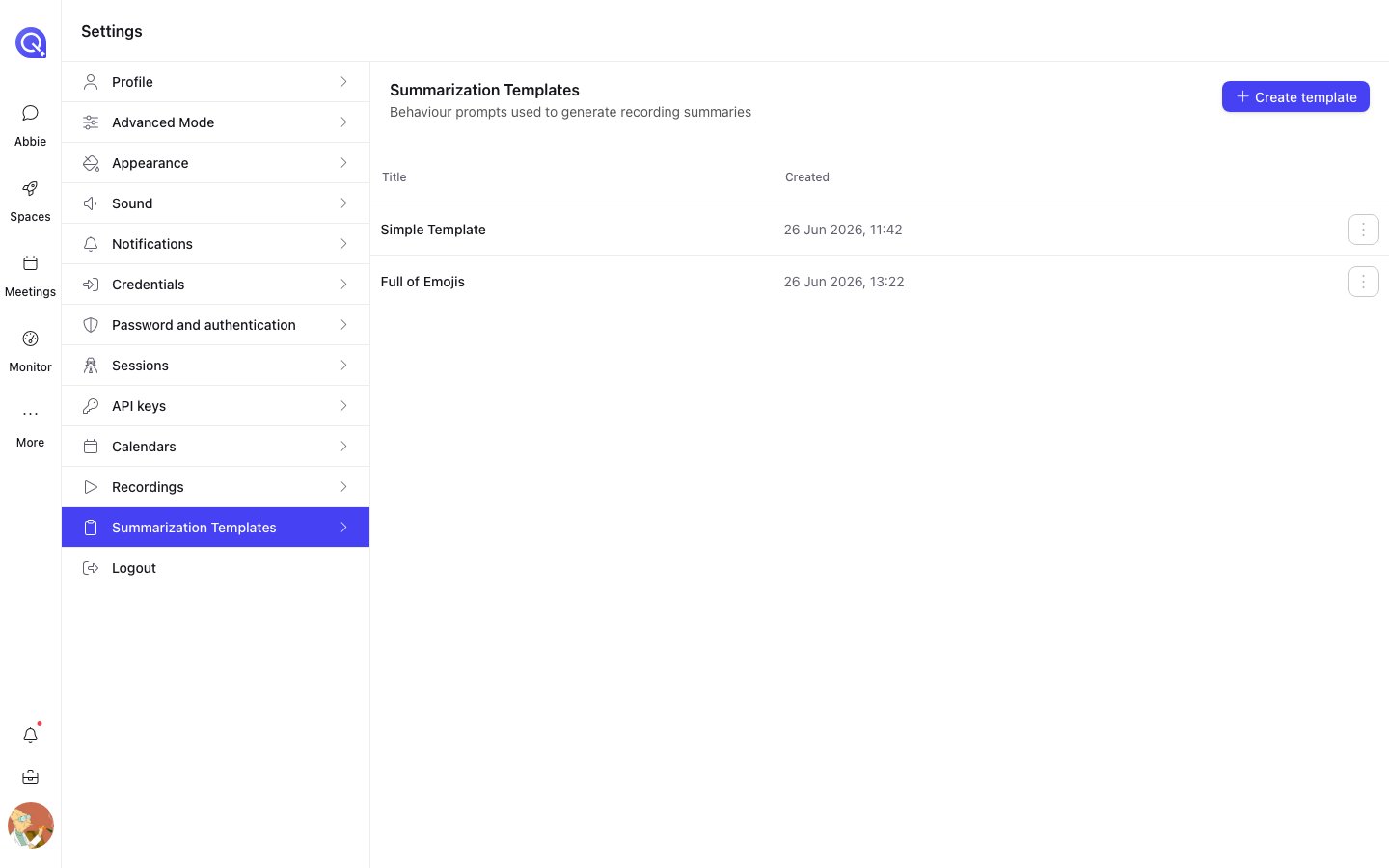
Settings → Summarization Templates.
Creating one
Create template asks for:string
required
What the template is called. This is what appears in the dropdown when generating a summary, so
name it after the kind of meeting it is for.
enum
default:"Default instruction"
What seeds the editor:
- Default instruction — the standard system instruction, as a starting point to edit.
- Blank — start from nothing.
- An existing template — copy one you already have and adjust it.
enum
default:"Plain Text"
How the summary is laid out: Plain Text, Markdown, or Word Style.
string
required
The instruction itself — what you want the summary to cover. This is the part that does the work.
Writing a good instruction
Be specific about structure and about what matters. A template that says “Summarise the meeting” gets you what the default already gives you. Useful things to ask for:- The sections you want, in the order you want them.
- Decisions made, separated from things merely discussed.
- Action items, with who owns each one.
- Anything left unresolved, or explicitly deferred.
- What to leave out — small talk, scheduling chatter, the first two minutes of people joining.
Who can change a template
Everyone can use every template. Only the creator can change or remove one — the actions menu is
disabled on rows you do not own, and opening someone else’s template shows it read-only.