

A journey is not a form flow. A flow cuts one form into sections that Abbie asks
about in a conversation. A journey is a list of steps, each with an owner and buttons, that a
specific client moves through over days or weeks.
Rounds
Each time you start a journey for a client you start a round. A client can have several rounds over time, one after another, but only one open round per journey. Every round shows:
A step that is waiting on your team shows a Your turn pill. Home has a Your turn card for
the rounds with you and a Waiting on others card for the rounds you have handed off. See
Home and cards.
Build a journey
You build a journey in the form editor, on the form of a record set. Reach the editor from Manage Record Sets, as described in Building a form.1
Open the Journey tab
In the form editor header, switch from Editor to Journey. The tab is offered to
root users, administrators and developers only.
2
Make the form a journey
A form with no journey says This form has no journey. Click Make this form a journey. It
starts with one step.
3
Add and order the steps
The Steps column on the left lists the steps. Use Add a step (or Add a step after
this one), then move a step up or down, or remove it.
4
Set up each step
Select a step and fill in its settings on the right. The middle shows a preview of a round on
that step.
5
Set how it starts, then save
Under Starting it, give the journey a Name and choose what to Suggest it for. Then
Save the form.
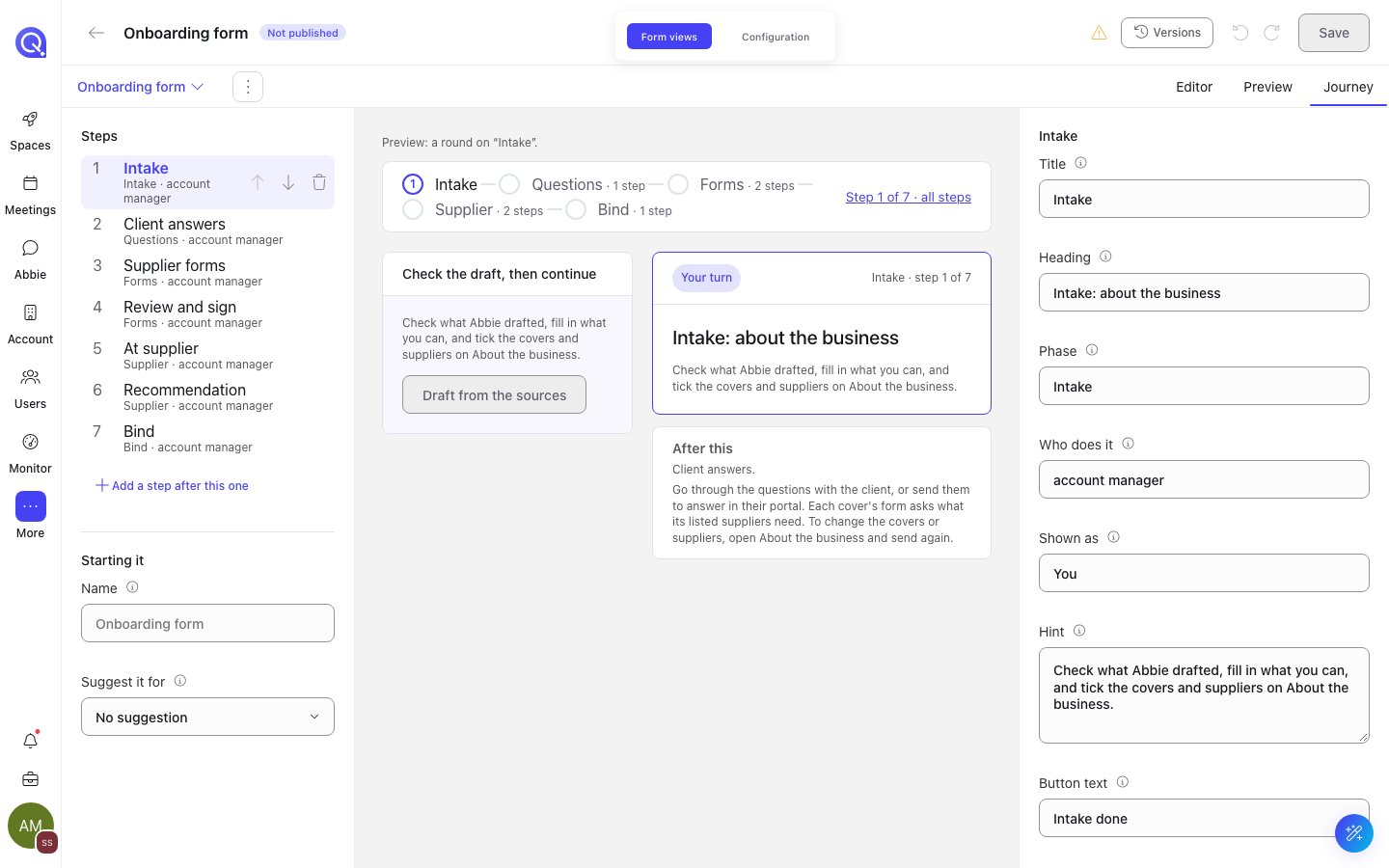
The journey designer on the form editor's Journey tab: steps on the left, a preview, and the selected step's settings.
A step’s settings
Starting it
The Journey tab
Once a space has a record set with a journey, a client’s folder gets a journey tab. Its name is whatever the journey is called for your space; the default is Journey. It shows the client’s rounds and, for an open round, the steps with the current one marked.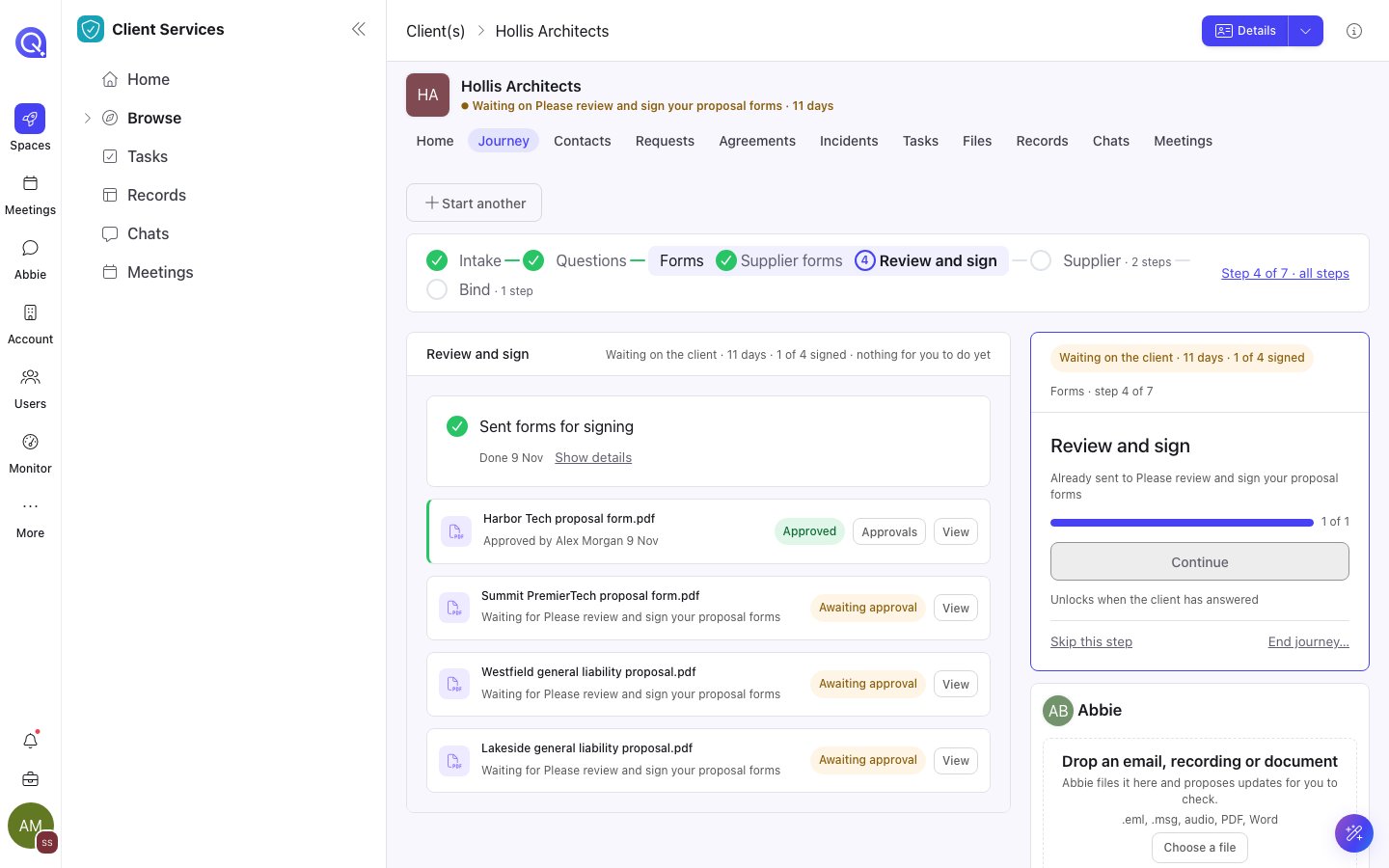
The Journey tab: the round's steps across the top and the current step's card on the right.
Start a journey
1
Open the client list
In the space, open the page that lists your clients (contacts or organisations, as configured
for your space) and click Start a journey.
2
Pick who
Search for the client, or use New to add one. If your space has more than one journey,
choose which.
3
Start it
Click Start followed by the journey’s name. You land on the client’s journey tab, on the new
round.
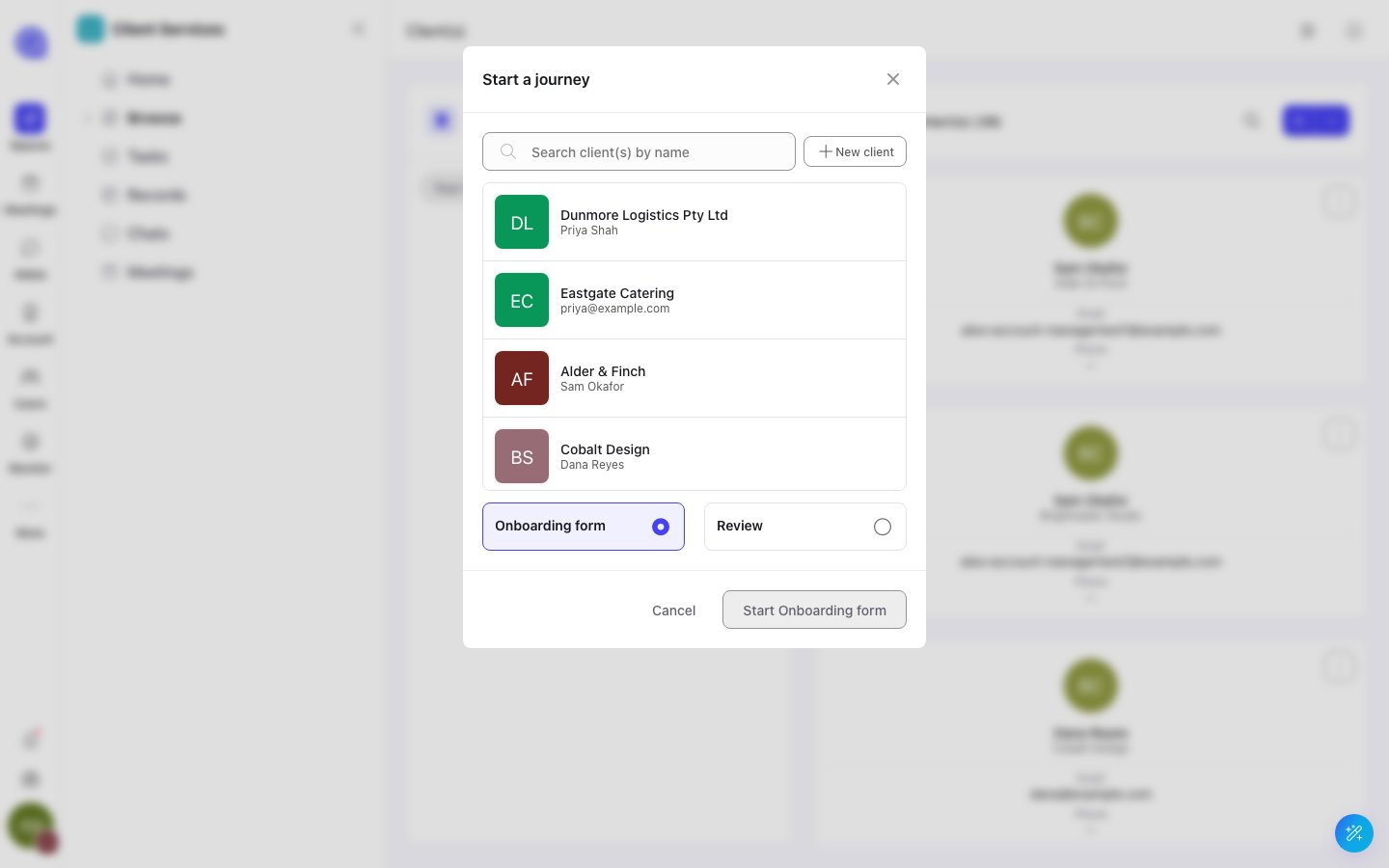
Start a journey: pick the client and the journey.
If the client already has a round open on that journey, the dialog says [name] already has a round
open, at “[step]” and offers Open it. Finish that round before starting another.
Steps that involve many people
Some clients have members filed under their folder: the people at a supplier, or the team on a project. A members step works with all of them. On a members step, the journey lists each member with a status pill, a Search members box and paging. For each member you can open their forms, see their answers, or fill a form in with them. Three actions run across every member:
Sending runs in the background. Close the dialog and it carries on; if some members fail you can
Retry them or Carry on an interrupted send. Failed members are listed under Not sent.
Ask Abbie
Abbie can explain a journey and change it for you. Ask her:- “What are the steps in the supplier onboarding journey, and who is each waiting on?”
- “Reword step 2 and add a step after it for contract review.”
- “Set up a journey for onboarding a new client project: kickoff, access, first review.”
The API
Members steps are also available over the API, for staff:
See the Records section of the API reference for the request and response fields.
Building a form
The form editor a journey is built in.
Form flows
The conversational alternative for one long form.