

Fast, Auto and Thorough
Next to the message box is a small chip showing the current mode and model. Selecting it opens a panel with three modes:
The same panel has a model picker: Auto lets Abbie pick the model, or you can pin any active provider, or one specific model.
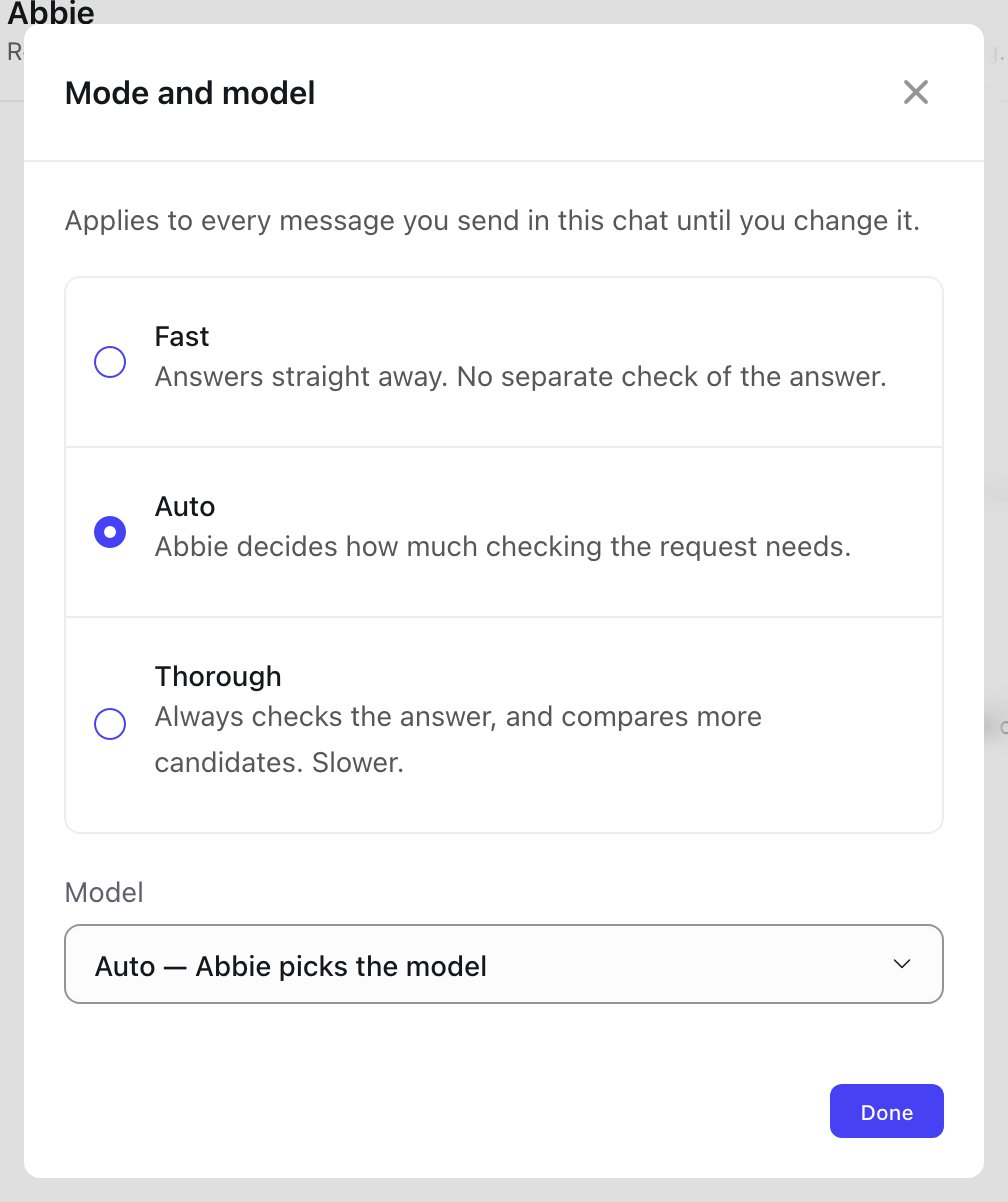
The Mode and model panel, opened from the mode chip next to the composer.
When a request splits into more than a few pieces
Up to 6 independent pieces of work run automatically, without asking. Past that, Abbie shows a card first — “This splits into N pieces of work” — listing what those pieces are, with three options:- Run all N in parallel
- Run as (a smaller capped number)
- Don’t run this
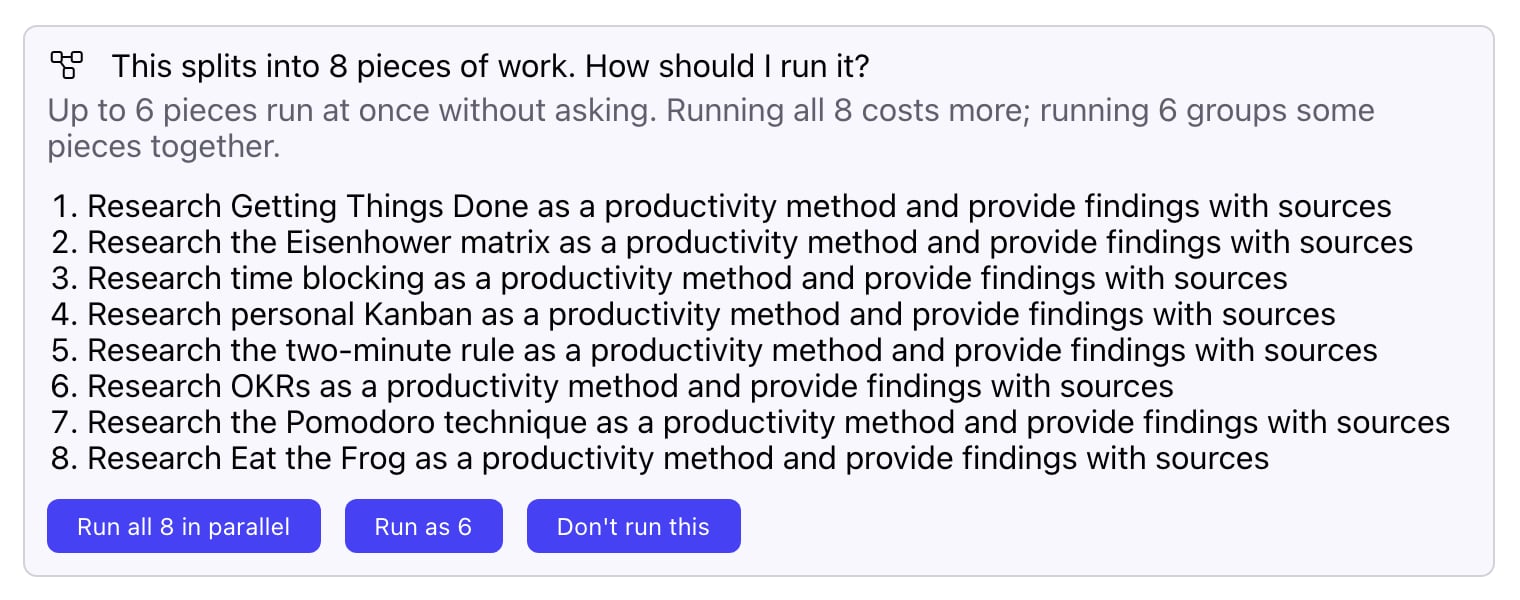
A fan-out approval card. Nothing runs until you choose.
The run strip
Selecting the strip’s header expands it into blocks, appended one at a time as the run progresses — a plan line, then one block per expert slot, then judge and verify where they ran. The line at the top summarises the plan itself, for example:Split into 3 tasks · will be checked · running 3 in parallelor, for a request that’s being answered several different ways at once rather than split into parts:
Comparing 3 models · will be checked · running 3 in parallelA one-task, fast-mode reply is plainer still — just One task, not checked. See What each stage means for what’s actually happening behind each block. Selecting a completed block expands it to show which model handled it, how long it took, and, for a signed-in session, a link into the full cognition log for that step.

The top of an expanded run strip: its header line, then the plan line and its numbered task list.
What it cost
Each run strip has a credit icon. Selecting it breaks down what that run was charged, grouped into what it actually paid for — answering the question, checking the answer, and working out what to do before anything started — rather than a single opaque per-run price. Checking your own work is charged like anything else, and the breakdown is there so that’s visible rather than hidden inside one number.Collapsed and expanded
While a run is fresh, the strip shows every block in full. Once you’ve moved on to read older messages, it collapses to a one-line summary — for example, “Thought for 12s · 3 steps · 6 credits” — how long the reply took, how many steps it went through, and, once the run has ended and the cost is known, what it was charged. Expand it again any time to see the detail.If a run is taking a while, that’s usually a harder request working through several draft attempts rather than something stuck. See Confidence and verification for what each stage is actually checking, and Stopping a run if you’d rather cancel it.