

Before you begin
Have ready:- An email address to own the account
- A unique account name — this is the identifier people sign in with
- The country or region your business is registered in
Step 1: Sign up
1
Open the signup page
2
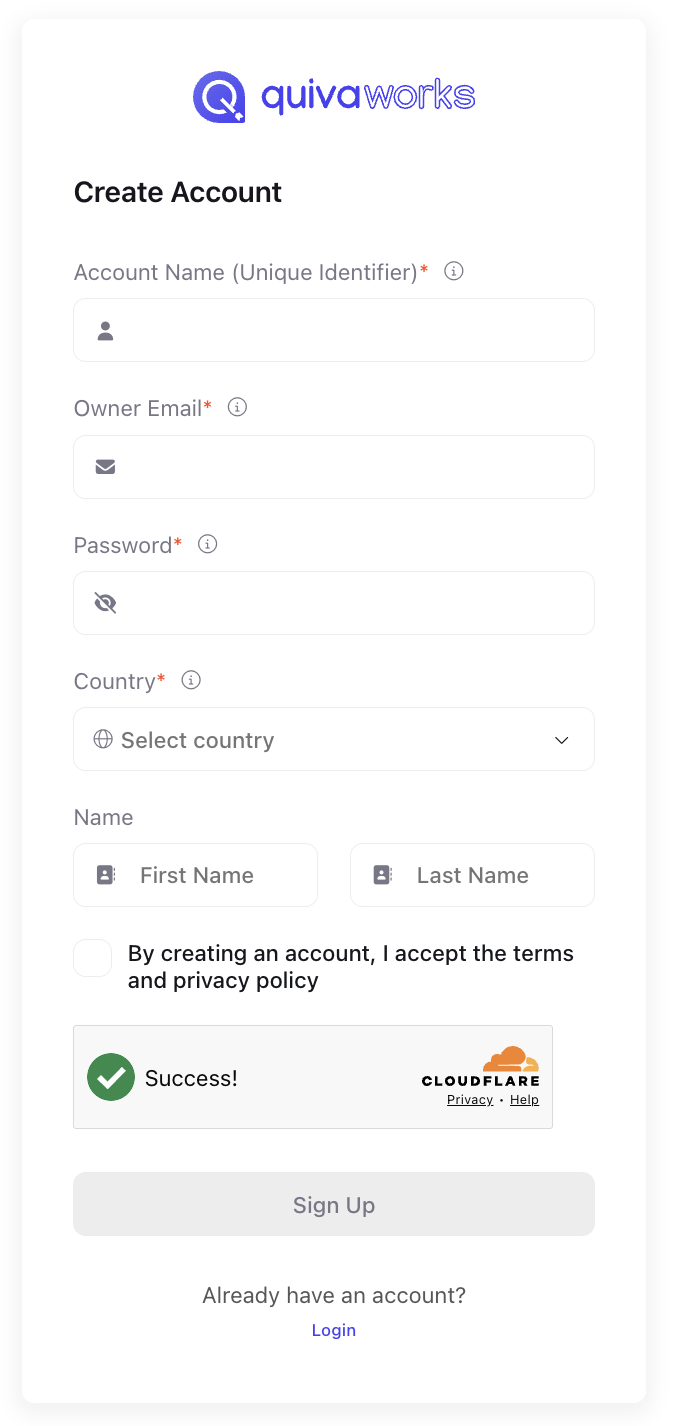
Fill in the form
- Account Name (Unique Identifier) — a unique identifier for the account, for example
acme-ops. Minimum two characters. - Owner Email — your master login. It must be globally unique.
- Password
- Country — where the business is registered, or where you work from if you operate as an individual.
- Name — first and last name.
3
Accept the terms
Tick the box to accept the Terms of Service and Privacy Policy.
4
Pass the human check
A Cloudflare Turnstile check runs on the form.
5
Sign Up
Click Sign Up.
About account names
The account name works like an account ID. It is what lets the same email address be used across several QuivaWorks accounts — each one needs its own unique name, and members use it when signing in to your account specifically.Account names are case-insensitive. They are lowercased and trimmed when stored, so
AcmeOps and acmeops are the same name and cannot both be taken.Password requirements
Your password must be:- At least 8 characters and at most 72
- Both upper and lower case letters
- At least one number
- At least one special character
Step 2: Verify your email
QuivaWorks emails you a confirmation. You can use either half of it.- Verification code
- Magic link
- Open the “Confirm Your Email Address” email.
- Find the 6-digit code.
- Enter it on the verification screen.
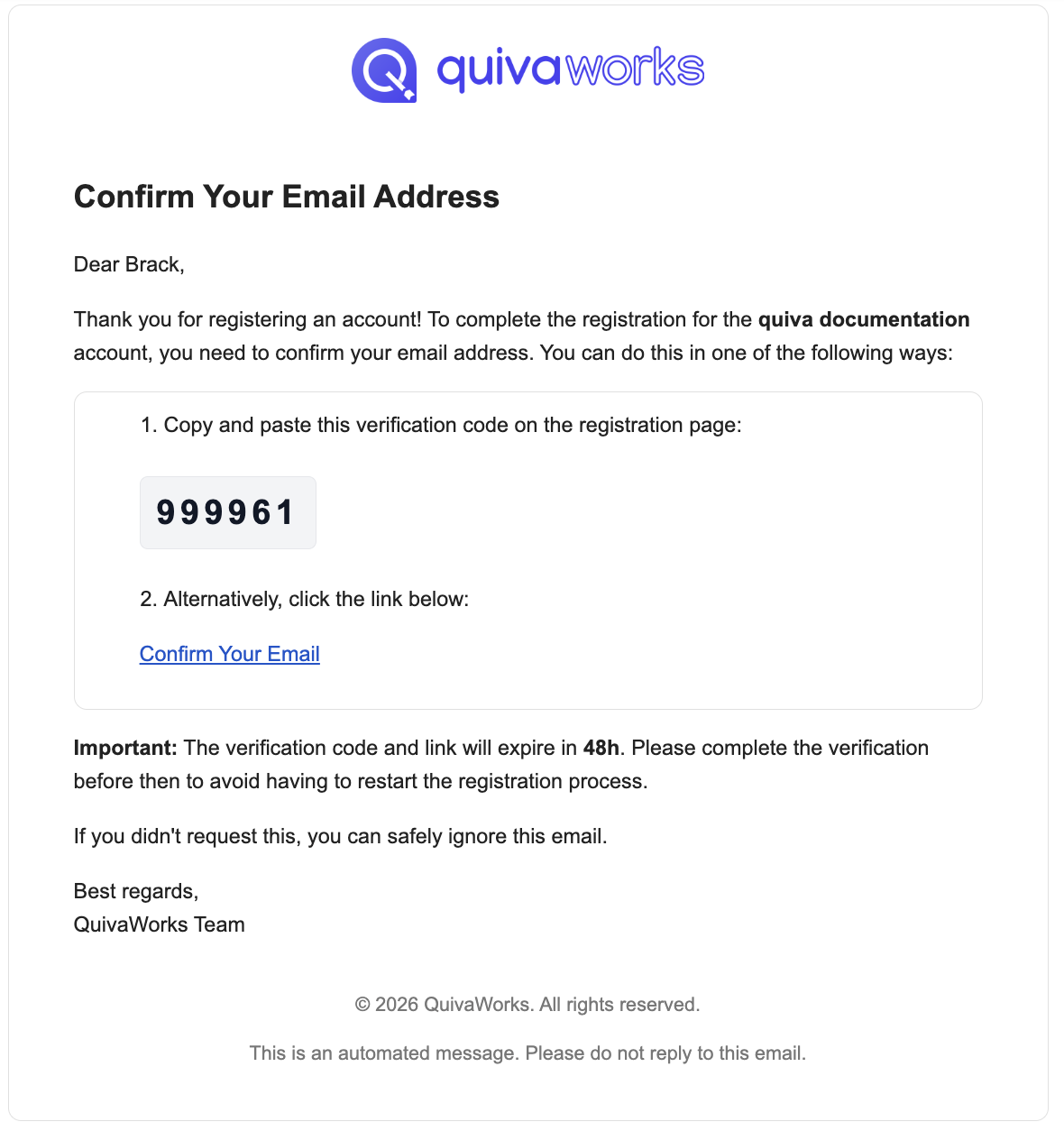
Verification codes and links stay valid for 2 days. If the email has not arrived after a few minutes, check your spam folder.
Step 3: Choose how your data is hosted
The first time you sign in, an account with no hosting set is shown the screen “Choose the way your data is hosted”. This is not gated on your plan. You choose two things:- Number of mesh nodes — either 1 or 3. More nodes mean automatic backups across multiple servers, traffic spread across them, and data kept in step across locations.
- Region (or Replica regions if you picked 3) — the region your data is held in.
Step 4: Secure your account
After signup you are offered multi-factor authentication. It is worth doing straight away, though you can choose Set Up Later and come back to it.- Pick a method:
- Passkey — sign in with touch, facial recognition, a device password or a PIN.
- Authenticator app — a time-based code from an app such as Google Authenticator or Authy.
- Follow the setup steps.
- Save your recovery codes. You get 10 of them, and they are what gets you back in if you lose your device.
Step 5: Plans and credits
You are not asked to choose a plan while signing up. Plans, credits and top-ups are all managed afterwards from Billing & Plans in the sidebar.Plans, credits and top-ups
Compare Free, Pro and Team, and see what a credit buys →
Troubleshooting
The verification email hasn't arrived
The verification email hasn't arrived
- Check your spam or junk folder.
- Give it a few minutes.
- Confirm you typed the address correctly — the code goes to the Owner Email on the form.
That account name is already taken
That account name is already taken
Account names must be unique across all QuivaWorks accounts, and they are matched case-insensitively, so changing only the capitalisation will not help. Try a different identifier — your team or product name with a suffix usually works.
The password is rejected
The password is rejected
It needs 8 to 72 characters, upper and lower case, a number and a special character, and it must not be a common word. Generating one in a password manager avoids all four problems.
The human check keeps failing
The human check keeps failing
Reload the page, disable browser extensions for a moment, make sure JavaScript is enabled, or try a different browser.
Using one email for several accounts
The same email address can own or belong to several QuivaWorks accounts, each under its own account name. To move between them, sign out, then sign in with the account name of the one you want. Each account has its own resources, billing and users.Next steps
Configure your account
Details, branding, escalations and retention
Invite your team
Add people and assign roles
Build your first assistant
Put an assistant to work
Explore the marketplace
Browse pre-built solutions
Need help?
Documentation
Browse the guides
Community
Connect with other users
Help Centre
Get in touch