

Seats
A seat is one non-suspended person on the account.Free
2 seats. To add a third person, move to a paid plan.
Pro and Team
Unlimited seats. The plan is a flat monthly price — adding people does not change it.
- Suspended users. Suspending someone frees their seat immediately. You do not have to delete them to get it back.
- Clients. A user with the client role never consumes a seat, on any plan.
QuivaWorks does not charge per user. Pro and Team are flat monthly subscriptions, and what you are billed for is usage — credits, storage and meeting hours. Plans and pricing →
Inviting someone
1
Open Users
Open Users in the sidebar.
2
Click Invite
The Invite button is in the top right. It only appears for root and admin.
3
Fill in the invitation
- Email — where the invitation goes
- Role — one of admin, developer, monitor, billing, collaborator or client
- First Name and Last Name
4
Send
Click Invite.
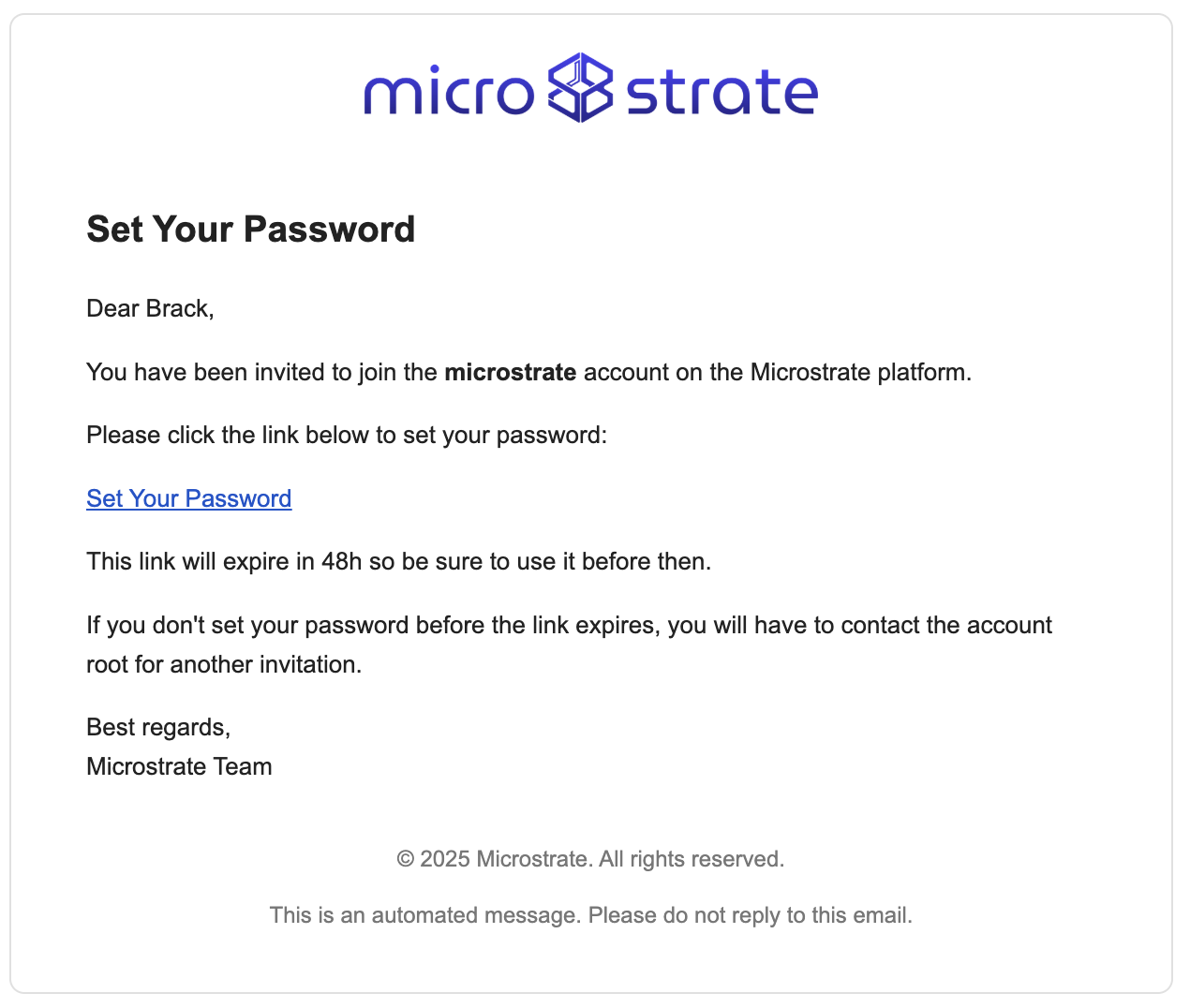
There is no “resend invitation” control. If an invitation does not arrive, check the recipient’s spam folder and confirm the address on the list is right.
The Users page
The list is titled Manage Users and has five columns: Name, Email, Role, Status and Last Login. Status is one of Active, Suspended or Invitation Pending. Above the table are a search box and two filters, Role and Status, so you can pull out (for example) everyone suspended, or everyone holding admin. Click a person’s name to open them. Their card carries the Role dropdown with Update Role, and a dot menu with everything else.Roles
Root
The account creator. Cannot be assigned to anyone.
Admin
Full management except closing the account.
Developer
Secrets, Monitor and Flows. Reads the member list.
Monitor
Monitor, and reads the member list.
Billing
Billing & Plans. No Users, no Account.
Collaborator
No Flows, Users, Secrets or Gateway.
Client
External, passwordless, scoped by grant. No seat.
Changing a role
Open the person, pick a role from the Role dropdown and click Update Role. A root user’s row shows their role as fixed text with no dropdown and no dot menu, so root users cannot be re-roled, suspended or deleted from this page.Scoping a client to specific resources
For a user with the client role, root and admin see an extra dot-menu item: Manage Resources. It grants access to named Spaces, flows, assistants, records, record configurations, files, folders and tasks, with Read, Write and Delete on each — plus Execute where the type supports it. A client with no grants sees nothing. More on the client role →Suspending users
Suspend blocks someone from signing in, without deleting anything they own.1
Open the person
Click their name on the Users page.
2
Suspend
Dot menu (⋮) → Suspend.
Logging a user out
Logout in the dot menu revokes that person’s tokens and ends their sessions everywhere. Use it when a device is lost, when you suspect unauthorised access, or alongside a suspension.Deleting users
1
Open the person
Click their name on the Users page.
2
Delete
Dot menu (⋮) → Delete, then confirm.
Recovery codes
Root and admin can view or reissue another person’s recovery codes from their dot menu. Both entries are hidden while an invitation is still pending.- View recovery codes — shows the codes currently in force.
- Issue new recovery codes — confirms first, warning that the user’s old codes will no longer be valid, then shows the new set.
Whenever recovery codes are viewed, the user is emailed a “security codes viewed” notice, so nobody’s codes can be read without them knowing.
Onboarding and offboarding
Bringing someone in
Bringing someone in
- Pick the narrowest role that lets them do the job — collaborator or client is often enough for someone outside the core team.
- Invite them, and check the invitation arrived.
- For a client, set their resource grants with Manage Resources before you tell them to sign in. Until you do, they will see an empty dashboard.
- Encourage them to set up two-factor authentication and store their recovery codes.
When someone leaves
When someone leaves
- Logout — ends their existing sessions straight away. Suspension alone does not.
- Suspend — blocks any new sign-in and frees the seat.
- Check whether anything they owned needs handing over.
- Delete when you are sure, or leave them suspended — a suspended user costs you nothing.
Reviewing access
Reviewing access
The Last Login column and the Role filter are the two tools for this. Look for people who have not signed in for a long time, and for elevated roles that outlasted the reason they were granted.Remember that developer and monitor can both read the whole member list, so “they only have monitor” is not the same as “they cannot see who works here”.
Troubleshooting
An unsuspend was refused
An unsuspend was refused
Un-suspending takes a seat back, so it is checked against the same limit as an invitation. Free up a seat or move to a paid plan first.
A suspended user still has access
A suspended user still has access
Suspension blocks new sign-ins; it does not end sessions that already exist. Use Logout in their dot menu.
Someone cannot change a role
Someone cannot change a role
Only root and admin can. Root itself cannot be assigned or changed by anybody — a root row has no role dropdown.
Somebody cannot find the Users page
Somebody cannot find the Users page
Billing and collaborator do not get the Users item, and clients see only their own dashboard. Everyone else does — but developer and monitor get read-only access.
Related
Roles & Permissions
What each of the seven roles can reach
Client Portal
What a client user actually sees
Plans & Pricing
Seats, credits and what is actually billed
Authentication
Passkeys, two-factor and recovery codes
Sessions
Active logins and how to end them
Security Overview
Protecting your account