

Client users see a shorter list. Advanced Mode, API keys, Calendars, Recordings and Summarization Templates are hidden for them.
Profile
Your avatar and your name.- Avatar — Upload a picture, or Remove the one you have.
- Name — first and last name, then Save.
Appearance
Pick a theme: Light, Dark or Auto. Auto follows your system setting.Sound
Turns the product’s notification sounds on and off.Notifications
Every kind of notification has its own In app and Email toggle, grouped by what it is about.Tasks
Tasks
Status changes, assignment changes, mentions and watcher updates. These can be delivered both in app and by email.
Abbie
Abbie
Abbie run completed, check-ins, follow-ups, suggestions, conversation mentions, rapport suggestions, correction suggestions, skill suggestions, authorisation requests and decision requests.Email is not available for Abbie notifications yet — the toggles are in-app only.
Billing
Billing
Low credit balance and auto top-up failed. In-app only for now.
Delivery
Delivery
Two controls that apply across everything above:
- Email grouping — batches email rather than sending one per event.
- Quiet hours — a start and end time during which you are not disturbed.
Time zone
Quiet hours, reminders and every other wall-clock decision follow the time zone stored on your profile. QuivaWorks reads your browser’s time zone and, when it differs from the one on file, asks whether to adopt it rather than switching silently. Declining is remembered on that device only, so travelling with a laptop does not quietly change your quiet hours on your phone.Credentials
This section changes the email address you sign in with. It is also the address that receives system notifications and password-reset mail. Enter the new address and click Request change. If you have two-factor authentication set up, you will be asked to pass it first.Password and authentication
Everything about how you prove who you are, in one place.Changing your password
Click Change password, enter your current password and the new one twice. A password must be 8 to 72 characters and contain an uppercase letter, a lowercase letter, a digit and a special character. Common words are rejected.If you have two-factor authentication enabled, a Confirm that it’s you step runs before the change is applied.
Passkey
Passwordless sign-in using touch, facial recognition, a device password or a PIN. Use Add to register one and Manage to review what is registered. Passkeys also work at the login page itself, through Login with Passkey.Two-factor authentication
Under Authenticator App, click Add and scan the code with an authenticator app. After that, signing in asks for the six-digit code as well as your password.Recovery codes
Recovery codes get you back in if you lose your two-factor device. There are ten of them.- View — shows your current codes.
- Get New — issues a fresh set. The previous ten stop working immediately.
Sessions
Every device you are currently signed in on, one card each. A card shows the account name, your role, location, IP address, device, browser and when it expires. Your current session is marked Your session.- Terminate session ends that one.
- Terminate sessions, at the top of the page, ends them in bulk.
How long a session lasts
- Session token: 24 hours
- Refresh token: 7 days
API keys
Keys for reaching QuivaWorks programmatically. The table lists Name, Account, Last 4 Characters, Created and Expires.Creating a key
1
Open API keys
Settings → API keys.
2
Add
Click Add and give the key a descriptive name.
3
Copy it now
Copy the key, or use Download Credentials. It is not shown again.
4
Store it somewhere safe
A password manager or your secret store — never version control.
Prefixes
ms-— a normal key.msr-— a restricted key, pinned to specific endpoints when it was created.
Expiry
Expiry defaults to 90 days, but it is configurable when you create the key — and a negative value produces a key that never expires. Because expiry varies key to key, check the Expires column rather than assuming a fixed lifetime.Scope
A key is scoped either to you or to the account.Deleting a key
Use the key’s menu → Delete Key. Access stops immediately and anything using it breaks.There are no usage logs for API keys. If you need to know a key is no longer in use, rotate it and watch for what breaks.
The other sections
- Advanced Mode — reveals the more technical surfaces in the product.
- Calendars — connects your calendars, so the notetaker can join your meetings. See Connecting a calendar.
- Recordings — your meeting recordings. See Recordings.
- Summarization Templates — the templates used to summarise meetings. See Summaries and templates.
- Logout — signs you out, after a confirmation.
Working in more than one account
An account is a separate tenancy with its own people, resources and billing. If you belong to more than one, you don’t need to sign out to move between them — the account switcher keeps up to 6 sessions in this browser and lets you jump between them directly.Where the account you’re in is shown
Sidebar avatar
Your profile picture in the sidebar carries a small badge with the current account’s initials.
Profile menu
Opening the profile menu heads with the account name, your email and your role, above Switch
account.
Browser tab title
Once this browser holds more than one session, the tab title names the current account.
The Accounts modal
Lists every account you can switch to — see below.
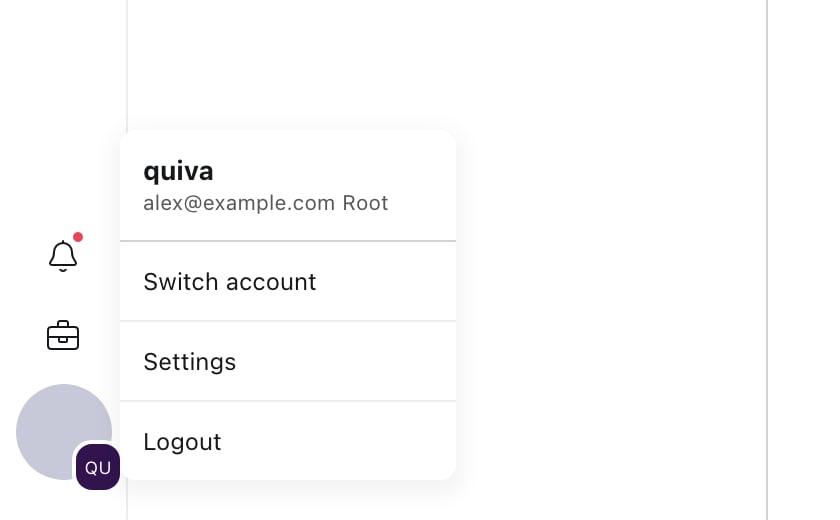
The profile menu, with the account name, your email and role, and Switch account.
The Accounts modal
Choosing Switch account from the profile menu opens Accounts, laid out in sections:1
Current account
The session for this tab, marked with a Current pill. If this browser also has a default
session, it carries a Default pill; a session whose token has expired shows Signed out
instead.
2
Signed in on this browser
Every other session stored in this browser. Click a row to switch to it directly, no sign-in
needed. A row for a lapsed session reads Sign in again to <account> instead.
3
Other accounts you belong to
Accounts you’re a member of but have no session for in this browser. Signing in to one of these
opens a new tab. This section shows your role on each account, and can fail to load — a
Retry button appears if it does.
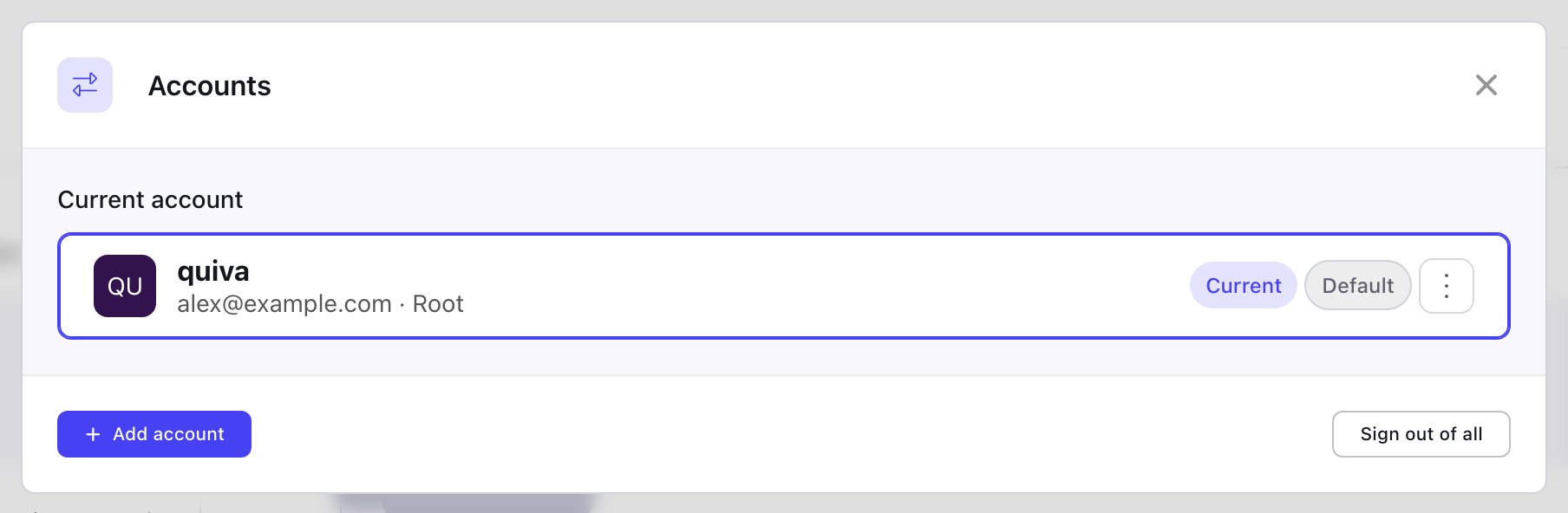
The Accounts modal with a single signed-in account.
Adding and removing sessions
- Add account opens the login page in a new tab so you can sign in to another account. It’s disabled once this browser holds 6 sessions — sign out of one first.
- Sign out of all ends every session in this browser, current one included, after a confirmation.
- A row’s own Sign out ends just that one session.
These are separate from the sessions listed under Settings → Sessions (Session
Management), which cover every active login to one account across
every device — not the handful of accounts this one browser happens to be signed in to.
Troubleshooting
Can't change my password
Can't change my password
- Check the current password is right.
- The new one needs 8–72 characters with upper case, lower case, a digit and a special character, and must not be a common word.
- If two-factor is enabled, the change only lands after the Confirm that it’s you step.
- Use Forgot Password on the login page if the current password is the problem.
Lost my two-factor device
Lost my two-factor device
On the sign-in screen, switch to the Recovery Code tab and use one of your ten codes. Once you are in, remove the old device under Password and authentication, add a new one, and issue a fresh set of codes with Get New.If you have lost the codes too, ask a root or admin user to issue new ones for you from the Users page.
API key not working
API key not working
- Check the Expires column — the lifetime is set per key, not fixed.
- Check the key was not deleted.
- Check the header format:
Authorization: Bearer YOUR_KEY. - A personal key carries your own access; if you are hitting a permission wall, your role may be the reason.
Not receiving email
Not receiving email
- Check your spam folder and any filters.
- Confirm the address under Credentials is the one you expect.
- Check the Notifications section — the kind of message you are waiting for may have its Email toggle off, or fall inside your quiet hours.
- Abbie and billing notifications are in-app only for now; no email is sent for those.
Can't reach a setting or page
Can't reach a setting or page
Some surfaces depend on your role: Billing & Plans needs root, admin or billing; the Account page needs root or admin; closing the account needs root. Clients also have several personal settings hidden.What each role can reach →
Keeping your account safe
Turn on two-factor
Nothing enforces it, so it is on you. A passkey is the strongest option.
Store recovery codes properly
A password manager. Not email, not a note on your desktop.
Review your sessions
Terminate anything you do not recognise, and anything on a device you no longer have.
Be careful with Copy token
It is a live credential. Copy one only when you need it.
Rotate API keys
Replace a key before its Expires date and delete the ones nothing uses.
Act on security email
A notice about something you did not do is worth chasing immediately.
Related
Authentication
Passkeys, two-factor and recovery codes in full
API Keys
Scopes, restricted keys and rotation
Sessions
Active logins and how to end them
Roles & Permissions
What your role can reach
Security Overview
Protecting your account
Help Centre
Account and technical questions