> ## Documentation Index
> Fetch the complete documentation index at: https://docs.quiva.ai/llms.txt
> Use this file to discover all available pages before exploring further.
# Spaces Overview
> What a Space is, how its panels fit together, and how to create and configure one
## What a Space is
A **Space** is a self-contained area of work in QuivaWorks. It holds files and folders,
tasks, records, chat sessions and meetings — all under one identifier, with its own
statuses, priorities and tags.
You might run one Space for supplier contracts, one for client onboarding, and one for
the internal requests your operations team handles. Each keeps its own task board and its
own configuration; nothing leaks between them.
There is no container object between your account and a Space. Your **account** holds
your people and your billing; a **Space** holds work. Anything you may have read about a
separate "workspace" object with its own users and data does not exist in QuivaWorks.
### Spaces do not have their own members
Permissions in QuivaWorks are **account-wide**, not per-Space. A person has one role for
the whole account — `root`, `admin`, `developer`, `monitoring`, `billing`, `collaborator`
or `client` — and that role applies in every Space they can reach.
That has two practical consequences:
* There is no member list, no invite button and no per-Space Admin/Editor/Viewer setting
on a Space. People are invited at the account level.
* **Creating a Space, and opening a Space's settings, is limited to the `root` and
`admin` roles.** Everyone else sees the Space but not the New Space button or the
settings cog.
How account roles are assigned and what each one can do.
## The panel model
A Space is **one page**, not a set of sub-pages. Everything inside it — the folder you are
looking at and the panel you are looking at it through — lives in the URL.
The panel row sits under the space header:
| Panel | What it shows |
| ------------------- | ------------------------------------------------------------------------------------- |
| **Overview** | A dashboard of the current folder — file count and size, task counts by status, chats |
| **Files & Folders** | The folder browser: upload, create folders, navigate |
| **Tasks** | The task list, with List, Board and Schedule views |
| **Records** | The record sets attached to this Space, and the records in them |
| **Chats** | Chat sessions belonging to this Space or folder |
| **Meetings** | Meetings indexed into this Space — see [Meetings](/meetings/overview) |
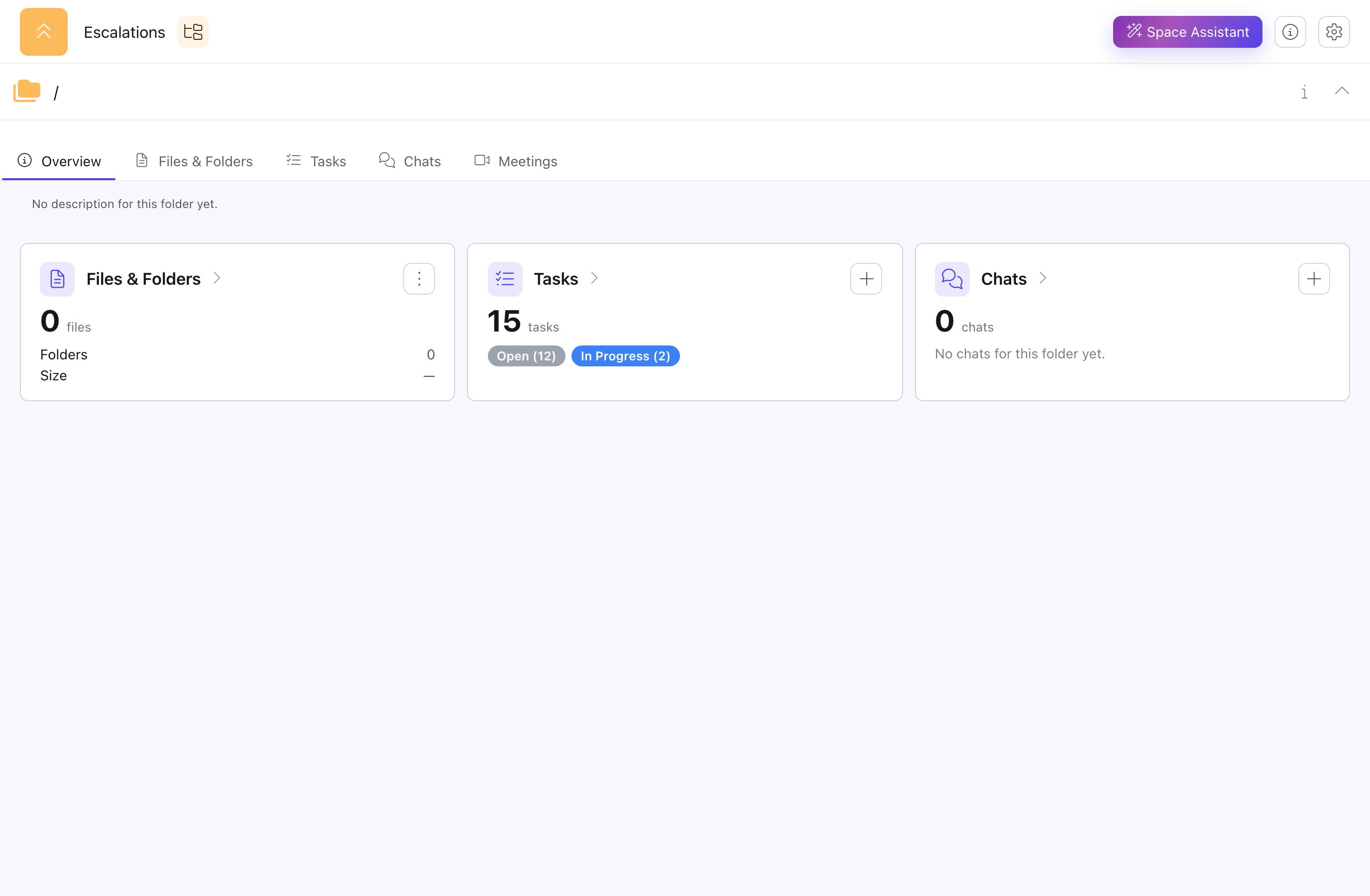 Switching panels changes the `panel` query parameter rather than navigating somewhere
else, so a panel is directly linkable:
```
/spaces/CONTRACTS?panel=tasks
/spaces/CONTRACTS/acme-supplies?panel=records
```
The second form is the important one. **Panels follow you into a folder.** When you open a
folder inside a Space, the same six panels stay on screen and now describe that folder —
its files, its tasks, its records, its chats. The Space root is simply the outermost
folder.
**Board is a view, not a panel.** The Tasks panel offers three views — List, Board and
Schedule — chosen with the switcher at the top right of the panel. There is no separate
board panel, and `?panel=board` matches nothing.
## Creating a Space
From the Spaces list, choose **New Space**. The create dialog walks through five steps.
A **name** (required) and an optional **description**. The description is rich text.
The Space's identifier — 2 to 12 characters, uppercase letters, numbers and
underscores only. Suggestions are offered from the name you typed.
The priority levels tasks in this Space may use. Pre-filled with the five defaults;
exactly one is marked as the default.
Optional task tags. A new Space starts with none.
An optional image for the Space, shown on its card in the Spaces list and in its
header.
**The prefix cannot be changed after the Space is created.** It becomes the visible
reference on every task in the Space — a Space with the prefix `LEADS` produces
`LEADS-1`, `LEADS-2` and so on. Choose it carefully.
A new Space also arrives with a default status list. You can edit it immediately, and at
any time afterwards.
### What a new Space starts with
Six statuses, in this order. The first, **Backlog**, is preselected as the Space's
default status for new tasks.
| Status | Notes |
| ----------- | ------------------------------- |
| Backlog | Default status for new tasks |
| In Progress | |
| Blocked | |
| Testing | |
| Review | |
| Completed | Marked as a **complete** status |
A status marked *complete* is treated as closed: it no longer triggers further
actions such as recurring events or overdue checks.
Five priorities: **Lowest**, **Low**, **Medium**, **High**, **Highest**. **Medium** is
the default.
None. Tags are added in the Space's settings, or during creation.
## Configuring a Space
The cog in the Space header opens **Edit Space**. It has five menus.
The Space image, its **name**, its **owner** (shown, not editable) and its
**description**. Name and description are edited in place, one at a time.
**Default view** — the panel that opens first when someone enters this Space. Choose
from Overview, Files, Tasks, Records or Chats.
Five tabs:
* **Statuses** — add, rename, recolour and reorder the Space's statuses. Each status
carries four settings: *Order* (its position, and its column position in Board
view — drag to reorder), *Default* (the status preselected on a new task), *Board*
(whether the column appears in Board view at all) and *Complete* (whether the
status counts as closed).
Below the list, three dropdowns give the Space's statuses their **roles** — *To do*,
*In progress* and *Done*. These are what
[task actions](/spaces/task-actions#actions-move-the-task) move a task through, so
automation names a meaning rather than an id you might later rename. Each may be
left *Not set*.
* **Priorities** — the priority levels available to tasks here, each with an icon and
colour. One is the default.
* **Tags** — the tags available to tasks here, each with a colour.
* **Board** — which fields appear on a task card in Board view. A live sample card
renders your Space's real statuses, priorities and tags as you edit.
* **Assistants** — the assistants offered from the Tasks panel, and which one the
Assistant button opens.
**Base record** — the record kind this Space's tasks are tracked against, and what
this Space calls one. **Assistants** — the assistants offered from the Records panel.
A **Form views** tab also appears when an attached record set exposes more than one
form.
**Assistants** — the assistants offered from the Files panel.
Statuses, priorities and tags belong to **one Space**. Changing them in one Space does not
touch any other. Each Space's Tasks, Records and Files panels also get their own,
independent assistant selection.
### Deleting a Space
Delete is available from the Edit Space dialog on any Space you created — the two
built-in system Spaces have no delete. It asks you to type the Space's name to confirm,
because it removes **every task and every file in the Space** along with it. There is no
undo.
If the Space's files cannot all be listed at the moment you try, the delete refuses and
changes nothing rather than half-deleting the Space — retry it later.
## The Spaces list
`/spaces` lists every Space you can reach, grouped into cards.
Switching panels changes the `panel` query parameter rather than navigating somewhere
else, so a panel is directly linkable:
```
/spaces/CONTRACTS?panel=tasks
/spaces/CONTRACTS/acme-supplies?panel=records
```
The second form is the important one. **Panels follow you into a folder.** When you open a
folder inside a Space, the same six panels stay on screen and now describe that folder —
its files, its tasks, its records, its chats. The Space root is simply the outermost
folder.
**Board is a view, not a panel.** The Tasks panel offers three views — List, Board and
Schedule — chosen with the switcher at the top right of the panel. There is no separate
board panel, and `?panel=board` matches nothing.
## Creating a Space
From the Spaces list, choose **New Space**. The create dialog walks through five steps.
A **name** (required) and an optional **description**. The description is rich text.
The Space's identifier — 2 to 12 characters, uppercase letters, numbers and
underscores only. Suggestions are offered from the name you typed.
The priority levels tasks in this Space may use. Pre-filled with the five defaults;
exactly one is marked as the default.
Optional task tags. A new Space starts with none.
An optional image for the Space, shown on its card in the Spaces list and in its
header.
**The prefix cannot be changed after the Space is created.** It becomes the visible
reference on every task in the Space — a Space with the prefix `LEADS` produces
`LEADS-1`, `LEADS-2` and so on. Choose it carefully.
A new Space also arrives with a default status list. You can edit it immediately, and at
any time afterwards.
### What a new Space starts with
Six statuses, in this order. The first, **Backlog**, is preselected as the Space's
default status for new tasks.
| Status | Notes |
| ----------- | ------------------------------- |
| Backlog | Default status for new tasks |
| In Progress | |
| Blocked | |
| Testing | |
| Review | |
| Completed | Marked as a **complete** status |
A status marked *complete* is treated as closed: it no longer triggers further
actions such as recurring events or overdue checks.
Five priorities: **Lowest**, **Low**, **Medium**, **High**, **Highest**. **Medium** is
the default.
None. Tags are added in the Space's settings, or during creation.
## Configuring a Space
The cog in the Space header opens **Edit Space**. It has five menus.
The Space image, its **name**, its **owner** (shown, not editable) and its
**description**. Name and description are edited in place, one at a time.
**Default view** — the panel that opens first when someone enters this Space. Choose
from Overview, Files, Tasks, Records or Chats.
Five tabs:
* **Statuses** — add, rename, recolour and reorder the Space's statuses. Each status
carries four settings: *Order* (its position, and its column position in Board
view — drag to reorder), *Default* (the status preselected on a new task), *Board*
(whether the column appears in Board view at all) and *Complete* (whether the
status counts as closed).
Below the list, three dropdowns give the Space's statuses their **roles** — *To do*,
*In progress* and *Done*. These are what
[task actions](/spaces/task-actions#actions-move-the-task) move a task through, so
automation names a meaning rather than an id you might later rename. Each may be
left *Not set*.
* **Priorities** — the priority levels available to tasks here, each with an icon and
colour. One is the default.
* **Tags** — the tags available to tasks here, each with a colour.
* **Board** — which fields appear on a task card in Board view. A live sample card
renders your Space's real statuses, priorities and tags as you edit.
* **Assistants** — the assistants offered from the Tasks panel, and which one the
Assistant button opens.
**Base record** — the record kind this Space's tasks are tracked against, and what
this Space calls one. **Assistants** — the assistants offered from the Records panel.
A **Form views** tab also appears when an attached record set exposes more than one
form.
**Assistants** — the assistants offered from the Files panel.
Statuses, priorities and tags belong to **one Space**. Changing them in one Space does not
touch any other. Each Space's Tasks, Records and Files panels also get their own,
independent assistant selection.
### Deleting a Space
Delete is available from the Edit Space dialog on any Space you created — the two
built-in system Spaces have no delete. It asks you to type the Space's name to confirm,
because it removes **every task and every file in the Space** along with it. There is no
undo.
If the Space's files cannot all be listed at the moment you try, the delete refuses and
changes nothing rather than half-deleting the Space — retry it later.
## The Spaces list
`/spaces` lists every Space you can reach, grouped into cards.
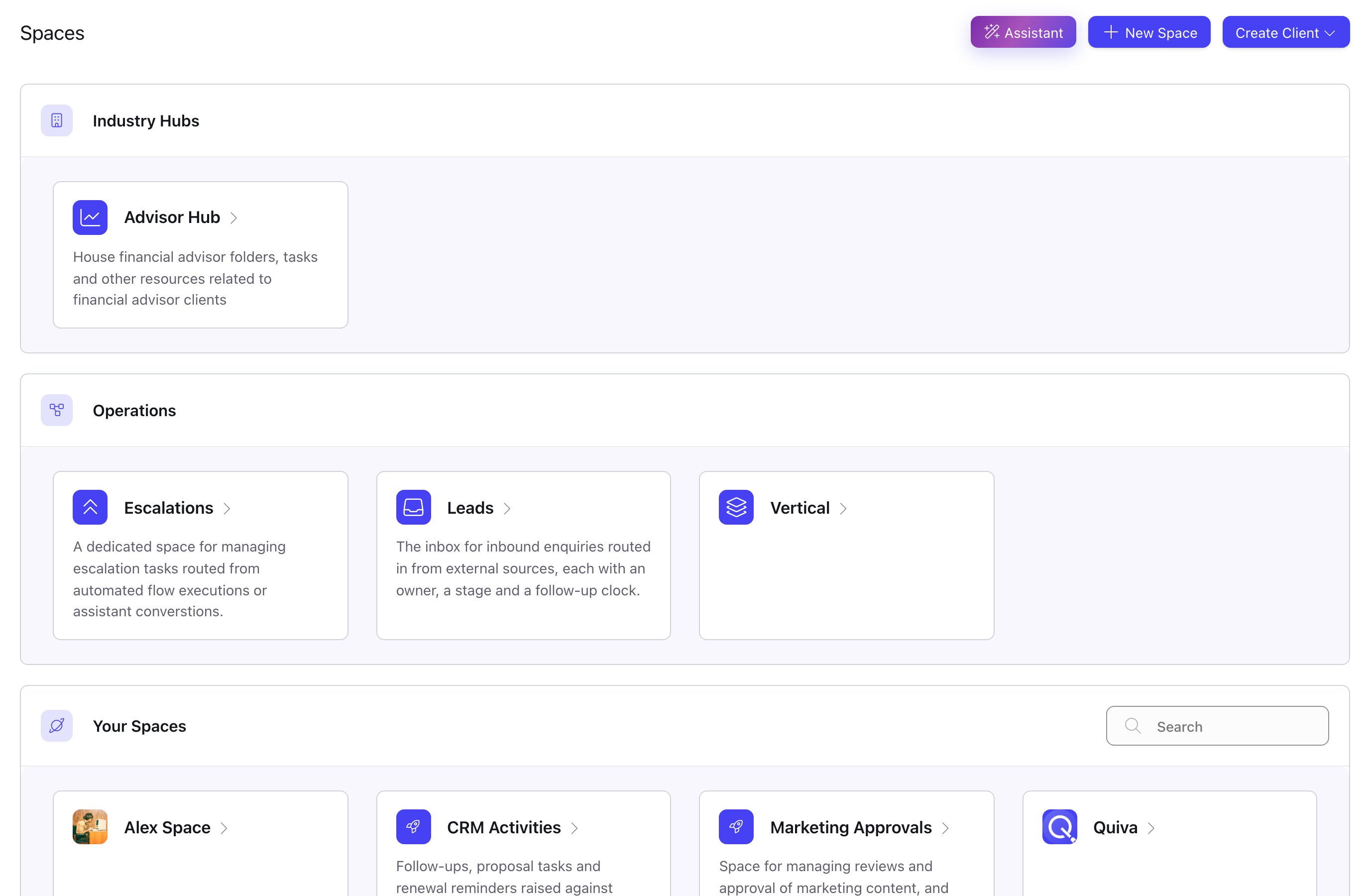 * **Operations** and **Industry Hubs** hold the built-in system Spaces. A group is only
drawn when the account actually has Spaces in it, so what you see here depends on how
your account is set up.
* **Your Spaces** holds every Space created in your account, sorted by name.
* The search box on Your Spaces filters that group only — system Spaces stay put.
Opening a Space takes you to its root folder on whichever panel its **Default view** names.
## Built-in system Spaces
Two Spaces exist in every account. They are not created by anyone and they cannot be
created or deleted — they are always there, ready to receive work.
`ESCALATE` — a dedicated space for managing escalation tasks routed from automated
flow executions or assistant conversations. When Abbie or a flow hands work back to a
person, the task lands here.
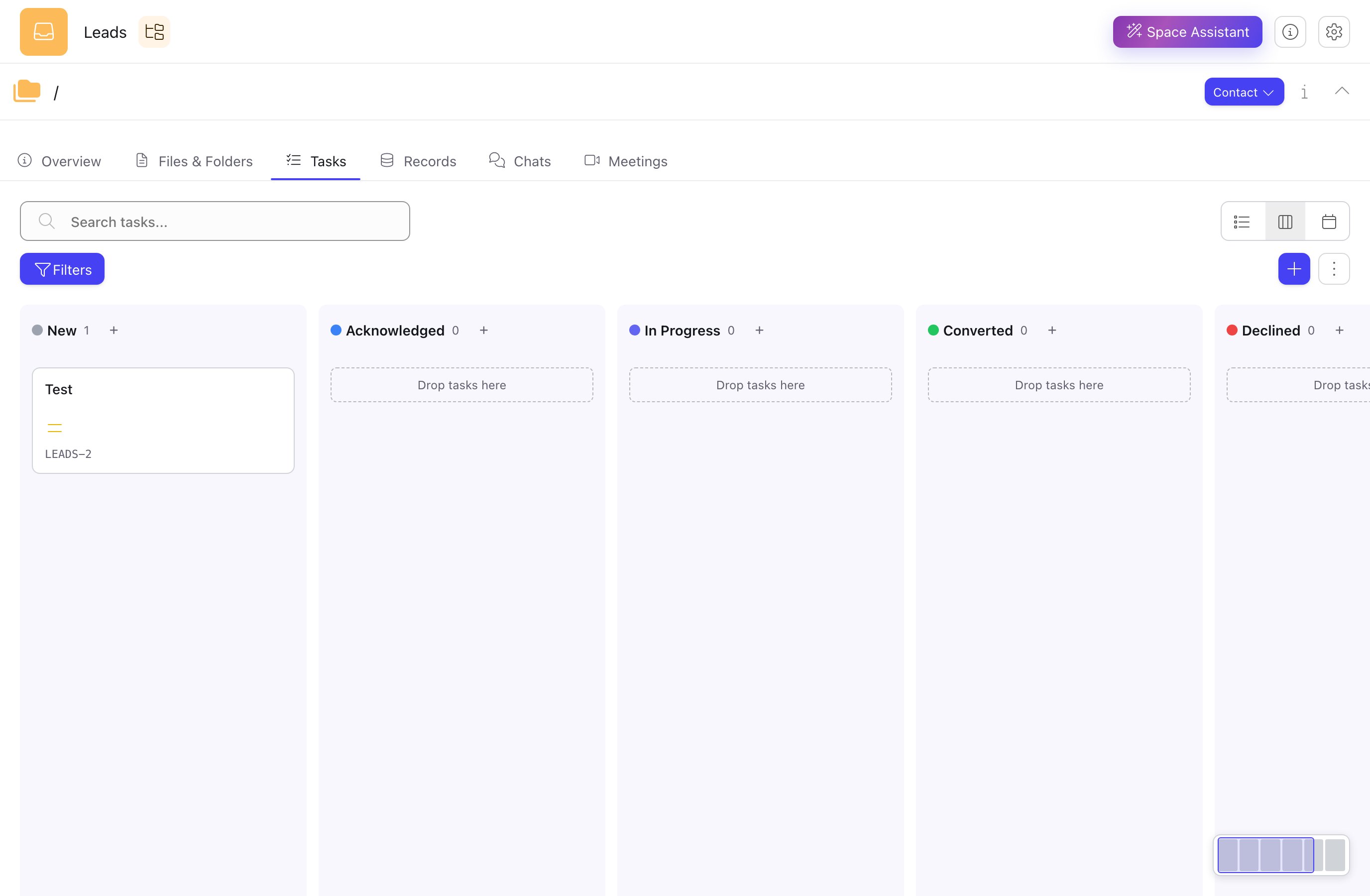
`LEADS` — the inbox for inbound enquiries routed in from external sources, each with
an owner, a stage and a follow-up clock. Opens on Overview by default.
### Their statuses
Both Spaces ship with a fixed status list that cannot be edited.
| Status | Complete |
| ------------------------- | -------- |
| Open | |
| In Progress | |
| Waiting For User | |
| Waiting For Internal Team | |
| Resolved | Yes |
| Cancelled | Yes |
**Open** is the default status for a new escalation. The Escalations space has **no
Records panel** — the panel row there is Overview, Files & Folders, Tasks, Chats and
Meetings.
| Status | Complete |
| ------------ | -------- |
| New | |
| Acknowledged | |
| In Progress | |
| Converted | Yes |
| Declined | Yes |
| Expired | Yes |
**New** is the default status for a new lead. Leads anchors its tasks on a contact
record, and calls one a **Contact**, grouped under an **Organisation**.
* **Operations** and **Industry Hubs** hold the built-in system Spaces. A group is only
drawn when the account actually has Spaces in it, so what you see here depends on how
your account is set up.
* **Your Spaces** holds every Space created in your account, sorted by name.
* The search box on Your Spaces filters that group only — system Spaces stay put.
Opening a Space takes you to its root folder on whichever panel its **Default view** names.
## Built-in system Spaces
Two Spaces exist in every account. They are not created by anyone and they cannot be
created or deleted — they are always there, ready to receive work.
`ESCALATE` — a dedicated space for managing escalation tasks routed from automated
flow executions or assistant conversations. When Abbie or a flow hands work back to a
person, the task lands here.
`LEADS` — the inbox for inbound enquiries routed in from external sources, each with
an owner, a stage and a follow-up clock. Opens on Overview by default.
### Their statuses
Both Spaces ship with a fixed status list that cannot be edited.
| Status | Complete |
| ------------------------- | -------- |
| Open | |
| In Progress | |
| Waiting For User | |
| Waiting For Internal Team | |
| Resolved | Yes |
| Cancelled | Yes |
**Open** is the default status for a new escalation. The Escalations space has **no
Records panel** — the panel row there is Overview, Files & Folders, Tasks, Chats and
Meetings.
| Status | Complete |
| ------------ | -------- |
| New | |
| Acknowledged | |
| In Progress | |
| Converted | Yes |
| Declined | Yes |
| Expired | Yes |
**New** is the default status for a new lead. Leads anchors its tasks on a contact
record, and calls one a **Contact**, grouped under an **Organisation**.
 ### What you can change on a system Space
A system Space accepts a small, fixed set of edits:
| Setting | Editable |
| --------------------------------- | -------- |
| Name | Yes |
| Description | Yes |
| Default view | Yes |
| Record sets attached to the Space | Yes |
| Base record | Yes |
| Statuses and default status | **No** |
| Priorities | **No** |
| Tags | **No** |
| Space image | **No** |
| Owner | **No** |
| Per-panel assistants | **No** |
The Edit Space dialog reflects this: on a system Space the Tasks and Files menus are not
shown at all, and Records offers only Base record (plus Form views where they apply).
Escalations has no Records menu either, matching its missing Records panel.
Statuses on the system Spaces are deliberately immutable. Automation addresses a Leads
stage by what it means — intake, acknowledged, working, won, lost, expired — so the stage
set has to stay stable across every account.
## Where to go next
The Tasks panel: List, Board and Schedule views, filters, and how a task is put
together.
Attaching record sets to a Space and working with the records inside them.
Folders, uploads, and everything the Files & Folders panel does.
The Schedule view, recurring work, and scheduled events on a task.
How work reaches the Escalations space and what to do with it once it arrives.
### What you can change on a system Space
A system Space accepts a small, fixed set of edits:
| Setting | Editable |
| --------------------------------- | -------- |
| Name | Yes |
| Description | Yes |
| Default view | Yes |
| Record sets attached to the Space | Yes |
| Base record | Yes |
| Statuses and default status | **No** |
| Priorities | **No** |
| Tags | **No** |
| Space image | **No** |
| Owner | **No** |
| Per-panel assistants | **No** |
The Edit Space dialog reflects this: on a system Space the Tasks and Files menus are not
shown at all, and Records offers only Base record (plus Form views where they apply).
Escalations has no Records menu either, matching its missing Records panel.
Statuses on the system Spaces are deliberately immutable. Automation addresses a Leads
stage by what it means — intake, acknowledged, working, won, lost, expired — so the stage
set has to stay stable across every account.
## Where to go next
The Tasks panel: List, Board and Schedule views, filters, and how a task is put
together.
Attaching record sets to a Space and working with the records inside them.
Folders, uploads, and everything the Files & Folders panel does.
The Schedule view, recurring work, and scheduled events on a task.
How work reaches the Escalations space and what to do with it once it arrives.