> ## Documentation Index
> Fetch the complete documentation index at: https://docs.quiva.ai/llms.txt
> Use this file to discover all available pages before exploring further.
# Summaries and Templates
> Generating a written summary of a meeting, and building reusable templates that control how it is written
## Generating a summary
Summaries are produced on request, not automatically. Open a recording, go to its **Summary** tab,
choose a template, and press **Generate summary**.
The dropdown offers **Default (system prompt)** plus every template saved in your account.
The default is a general-purpose meeting summary.
Press **Generate summary**. It takes a little while — the whole transcript is being read.
The summary renders in place, and can be copied. It is also downloadable from the recording's
toolbar while the Summary tab is open.
You can regenerate with a different template as many times as you like. Each generation replaces
what is displayed.
A summary is written from the transcript. If the transcript has errors, fix them first — see
[Editing the transcript](/meetings/recordings#editing-the-transcript). Correcting the transcript
after generating a summary does not update the summary.
## Summarization templates
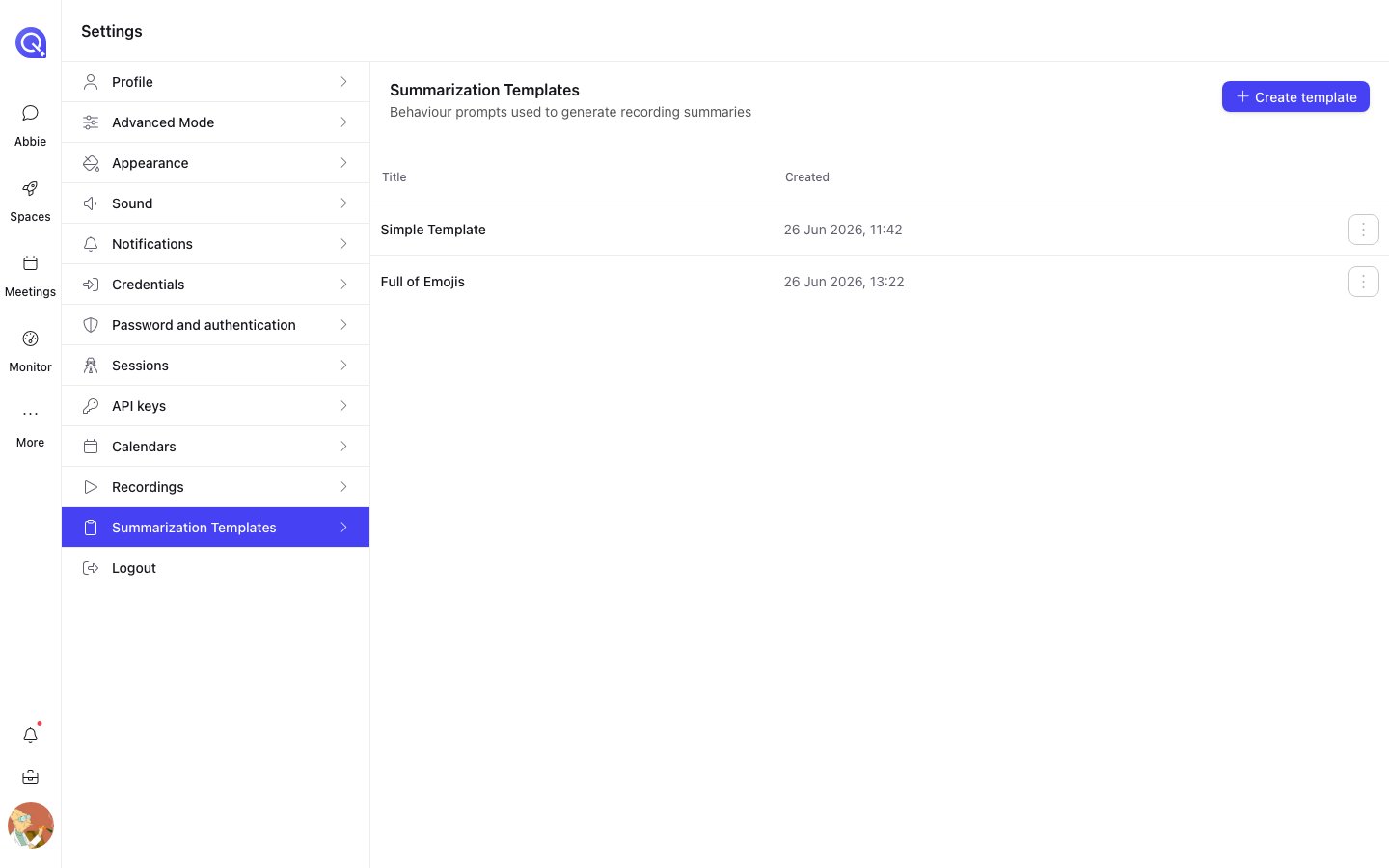
A template is a reusable instruction describing what a summary should contain and how it should be
laid out. Instead of getting the same generic summary every time, you can have one template for
internal stand-ups, another for client calls, another for interviews.
Templates live in **Settings → Summarization Templates**, and the cog next to the template dropdown
on a recording opens the same place.
 ### Creating one
**Create template** asks for:
What the template is called. This is what appears in the dropdown when generating a summary, so
name it after the kind of meeting it is for.
What seeds the editor:
* **Default instruction** — the standard system instruction, as a starting point to edit.
* **Blank** — start from nothing.
* **An existing template** — copy one you already have and adjust it.
How the summary is laid out: **Plain Text**, **Markdown**, or **Word Style**.
The instruction itself — what you want the summary to cover. This is the part that does the work.
The underlying system prompt can be viewed while you are writing, so you can see what your
instruction is being added to.
### Writing a good instruction
Be specific about structure and about what matters. A template that says *"Summarise the meeting"*
gets you what the default already gives you.
Useful things to ask for:
* The sections you want, in the order you want them.
* **Decisions made**, separated from things merely discussed.
* **Action items**, with who owns each one.
* Anything left unresolved, or explicitly deferred.
* What to leave out — small talk, scheduling chatter, the first two minutes of people joining.
Say what to do when something is absent. Without it you will get invented sections — an
*Action items* heading with a plausible-sounding item under it that nobody actually agreed to.
Something like *"If no decisions were made, write 'No decisions recorded' rather than inferring
any"* is worth the line.
### Who can change a template
| You are | You can |
| -------------------------- | ------------------------------ |
| The template's creator | Open, edit, delete, and use it |
| Anyone else in the account | Open it read-only, and use it |
Everyone can *use* every template. Only the creator can change or remove one — the actions menu is
disabled on rows you do not own, and opening someone else's template shows it read-only.
Because only the creator can edit a template, a template made by someone who has since left the
account cannot be changed by anyone. If a template is going to be relied on across a team, it is
worth knowing whose it is.
### Creating one
**Create template** asks for:
What the template is called. This is what appears in the dropdown when generating a summary, so
name it after the kind of meeting it is for.
What seeds the editor:
* **Default instruction** — the standard system instruction, as a starting point to edit.
* **Blank** — start from nothing.
* **An existing template** — copy one you already have and adjust it.
How the summary is laid out: **Plain Text**, **Markdown**, or **Word Style**.
The instruction itself — what you want the summary to cover. This is the part that does the work.
The underlying system prompt can be viewed while you are writing, so you can see what your
instruction is being added to.
### Writing a good instruction
Be specific about structure and about what matters. A template that says *"Summarise the meeting"*
gets you what the default already gives you.
Useful things to ask for:
* The sections you want, in the order you want them.
* **Decisions made**, separated from things merely discussed.
* **Action items**, with who owns each one.
* Anything left unresolved, or explicitly deferred.
* What to leave out — small talk, scheduling chatter, the first two minutes of people joining.
Say what to do when something is absent. Without it you will get invented sections — an
*Action items* heading with a plausible-sounding item under it that nobody actually agreed to.
Something like *"If no decisions were made, write 'No decisions recorded' rather than inferring
any"* is worth the line.
### Who can change a template
| You are | You can |
| -------------------------- | ------------------------------ |
| The template's creator | Open, edit, delete, and use it |
| Anyone else in the account | Open it read-only, and use it |
Everyone can *use* every template. Only the creator can change or remove one — the actions menu is
disabled on rows you do not own, and opening someone else's template shows it read-only.
Because only the creator can edit a template, a template made by someone who has since left the
account cannot be changed by anyone. If a template is going to be relied on across a team, it is
worth knowing whose it is.