> ## Documentation Index
> Fetch the complete documentation index at: https://docs.quiva.ai/llms.txt
> Use this file to discover all available pages before exploring further.
# Sharing to a Space
> Getting recordings, transcripts and summaries into the Space folder they belong to
## Two ways to file a meeting
A meeting's output can reach a [Space](/spaces/spaces) either automatically or after the fact.
The bot's **Space & folder** setting routes the meeting's output into that folder as soon as it
exists. Nothing to do afterwards.
**Share recording** copies whichever assets you choose into a folder you pick, at any time
after the meeting.
Both put the result in the same place: the Space's **Files → Meetings** tab, under the folder you
chose.
## Setting the destination up front
In [bot settings](/meetings/bot-settings#space--folder), **Choose space & folder** picks where the
meeting's outputs are saved. Set it on:
* A **calendar**, so every meeting on that calendar files to the same place.
* A **single event's bot**, for a one-off.
* An **on-demand bot** — and if you started it from a Space folder, that folder is already filled
in for you.
This is the better option when meetings map cleanly onto folders you already have — a client, a
project, a recurring engagement.
## Sharing after the fact
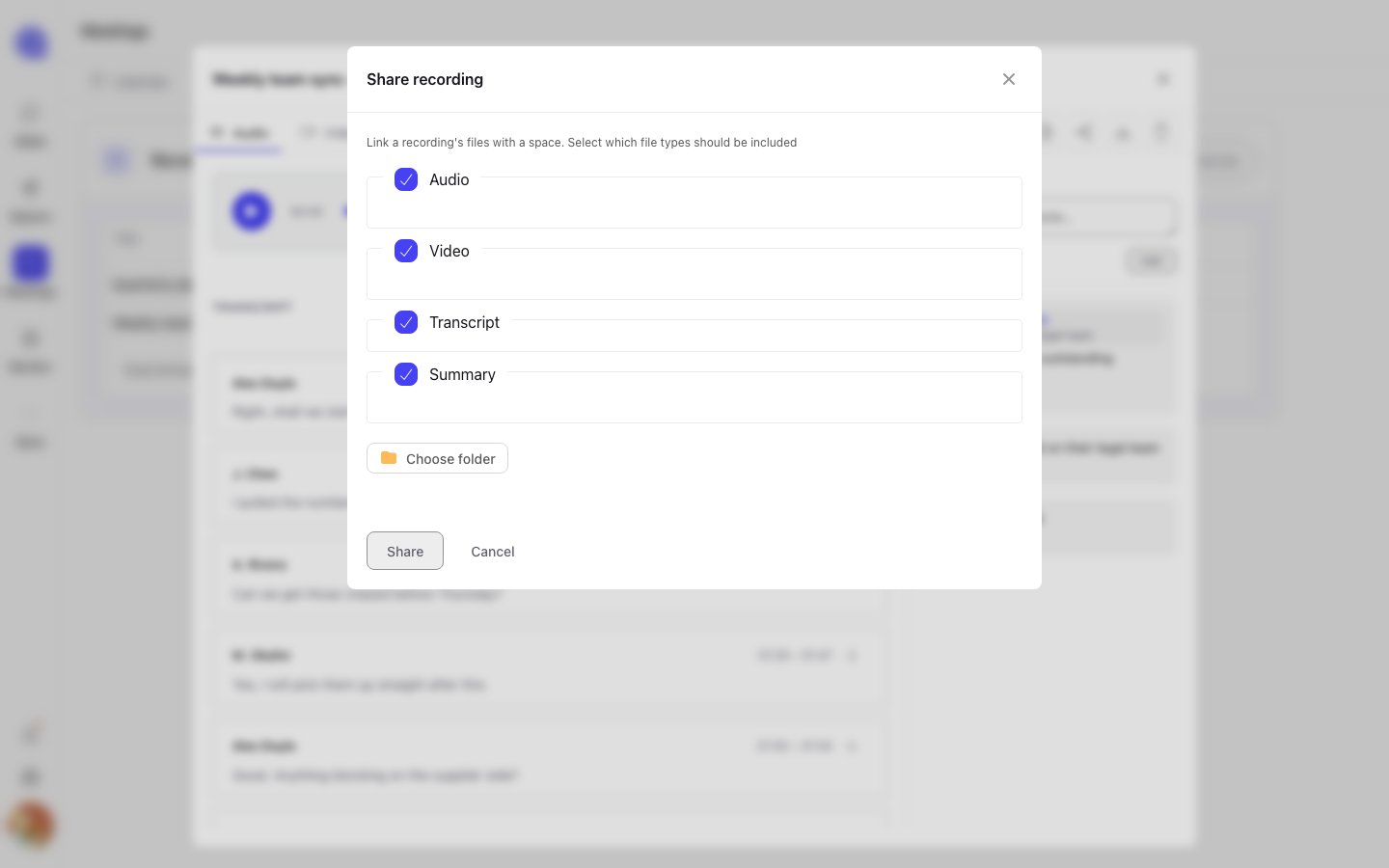
Open the recording and press **Share** in its toolbar. The share dialog asks two things.
Tick the assets you want copied:
| Asset | Default |
| -------------- | ------------------------------------- |
| **Video** | On, when the recording has video |
| **Audio** | On, when the recording has audio |
| **Transcript** | On |
| **Summary** | On, when a summary has been generated |
Assets the recording does not have are not offered. If you want the summary included, generate
it before sharing — see [Summaries](/meetings/summaries).
Pick a Space and a folder. You must select at least one asset and a destination before
**Share** will do anything.
 ## Where it lands
Shared files appear under the Space's **Files → Meetings** tab, in the folder you chose. From there
they behave like any other file in a Space — they show in the folder's Overview counts, and they
are reachable by anyone with access to the account.
Sharing **copies** the assets into the Space. The copy is independent of the original recording, so
deleting the recording afterwards — or letting a timed retention period expire it — does not remove
what you shared.
## Starting a meeting from a folder
The relationship works in both directions. A Space folder's **Meetings** panel has an **Add** menu
with **Add Bot to Meeting**, which opens the on-demand bot form with that folder already set as the
destination. Open the client's folder, send a bot to the call, and the recording comes back to the
folder it came from.
Sending a bot from a meeting URL.
How folders work in a Space, and how contacts get their own.
## Where it lands
Shared files appear under the Space's **Files → Meetings** tab, in the folder you chose. From there
they behave like any other file in a Space — they show in the folder's Overview counts, and they
are reachable by anyone with access to the account.
Sharing **copies** the assets into the Space. The copy is independent of the original recording, so
deleting the recording afterwards — or letting a timed retention period expire it — does not remove
what you shared.
## Starting a meeting from a folder
The relationship works in both directions. A Space folder's **Meetings** panel has an **Add** menu
with **Add Bot to Meeting**, which opens the on-demand bot form with that folder already set as the
destination. Open the client's folder, send a bot to the call, and the recording comes back to the
folder it came from.
Sending a bot from a meeting URL.
How folders work in a Space, and how contacts get their own.