> ## Documentation Index
> Fetch the complete documentation index at: https://docs.quiva.ai/llms.txt
> Use this file to discover all available pages before exploring further.
# Recordings
> Playing back a meeting, editing its transcript, annotating it, and downloading or deleting it
## Finding a recording
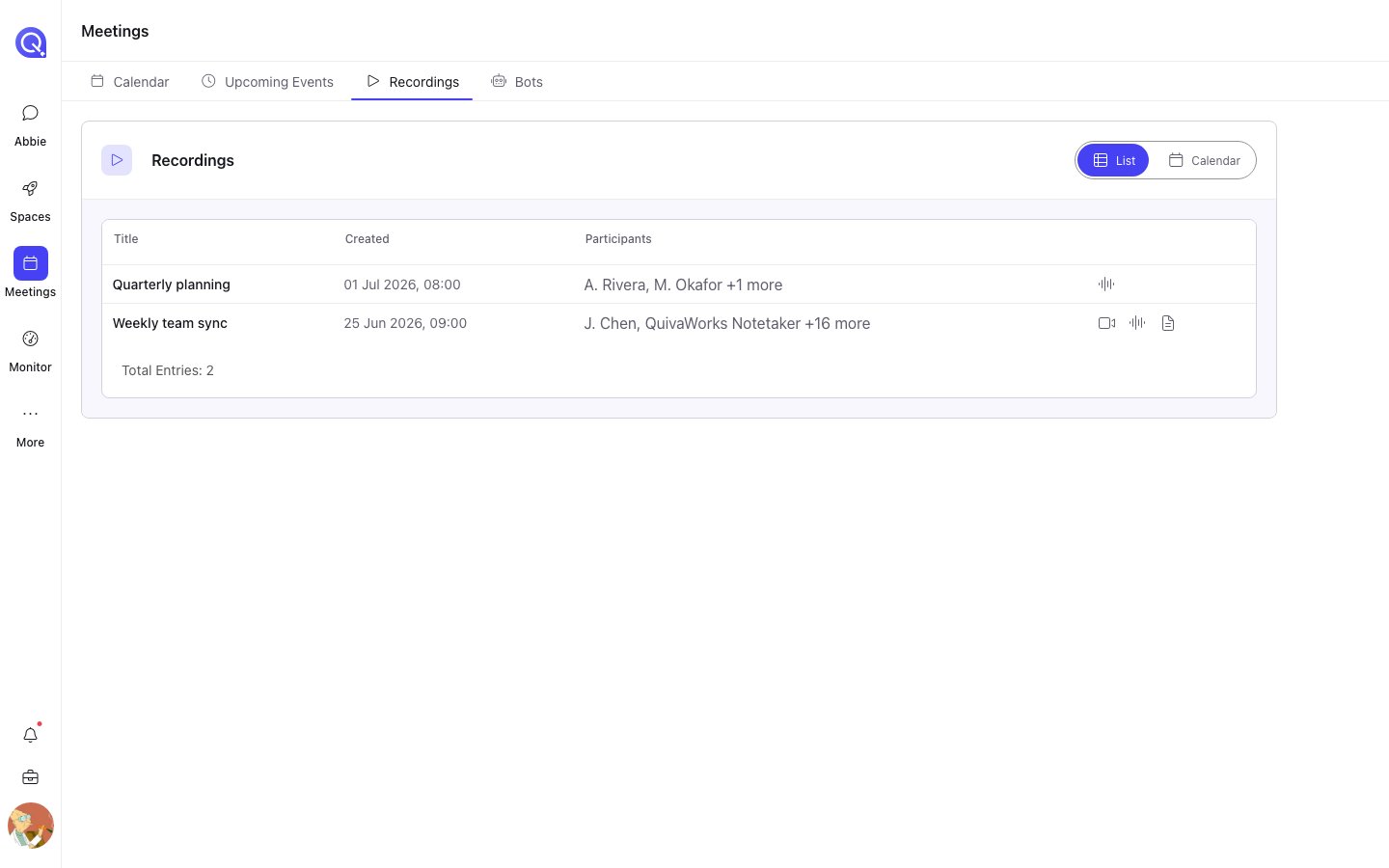
**Meetings → Recordings** lists everything that has been recorded, in two views:
* **List** — a table of title, date, participants, and icons showing which assets exist
(video, audio, summary).
* **Calendar** — the same recordings plotted by date.
The same list is available in your personal **Settings → Recordings**.
Where a meeting had more than two participants, the table shows the first two and a `+N more`
count. Clicking any row opens the recording.
 ## The recording
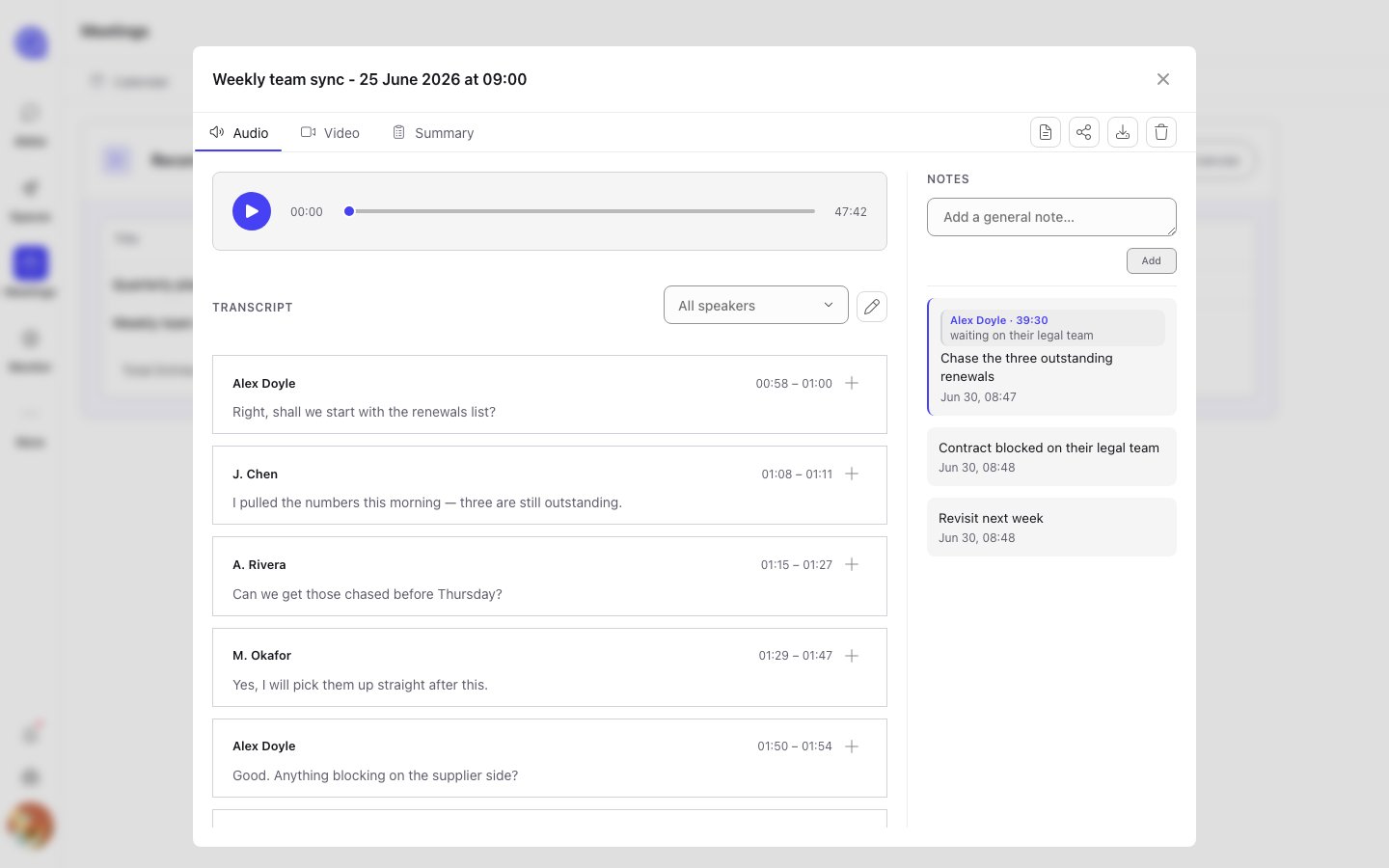
A recording opens with three tabs:
The audio player, with the transcript alongside it.
The video player, with the transcript alongside it.
The written summary, and the controls to generate one.
Which of Audio and Video have anything in them depends on the bot's **Record media type**. A bot
set to Audio only will show *No video available* on the Video tab.
The transcript scrolls alongside playback, so you can read along or jump to a moment.
## The recording
A recording opens with three tabs:
The audio player, with the transcript alongside it.
The video player, with the transcript alongside it.
The written summary, and the controls to generate one.
Which of Audio and Video have anything in them depends on the bot's **Record media type**. A bot
set to Audio only will show *No video available* on the Video tab.
The transcript scrolls alongside playback, so you can read along or jump to a moment.
 ## Editing the transcript
Transcripts are machine-generated and get names, jargon and acronyms wrong. The transcript panel is
editable, so those can be fixed.
There is also **find and replace** across the whole transcript — the fastest way to correct a name
that was misheard consistently throughout an hour-long call.
Edits are saved back to the recording, so the corrected text is what any summary generated
afterwards will be working from.
Fix the transcript *before* generating a summary. A summary is written from the transcript as it
stands at that moment — correcting the transcript afterwards does not update a summary that has
already been generated.
## Notes
Notes taken during the meeting on the [live transcript](/meetings/live-transcript) page appear
here, and more can be added afterwards. A note can be general to the meeting, or anchored to a
specific transcript segment — clicking an anchored note jumps to the moment it refers to.
Every note records its author. Everyone who can see the recording sees every note, but **only the
author can edit their own**.
## The toolbar
| Action | What it does |
| -------------- | --------------------------------------------------------------------------------------------------- |
| **Transcript** | Downloads the transcript as a file |
| **Share** | Copies selected assets into a Space folder — see [Sharing to a Space](/meetings/sharing-to-a-space) |
| **Download** | Downloads whichever tab you are on — the audio, the video, or the summary |
| **Delete** | Deletes the recording |
**Download** follows the active tab, so switch to Video before downloading if the video is what you
want.
**Delete** removes the recording. If you want to keep any of it, share it into a Space first — a
shared copy lives in the Space's files and survives the original being deleted.
## Recordings that disappear on their own
A bot configured with **Recording retention: Timed** deletes its recording automatically after the
set number of hours. Its bot status becomes **Media Expired**. Anything shared into a Space before
that point stays.
Generating a written summary, and controlling how it is written.
Getting a recording into the folder it belongs to.
## Editing the transcript
Transcripts are machine-generated and get names, jargon and acronyms wrong. The transcript panel is
editable, so those can be fixed.
There is also **find and replace** across the whole transcript — the fastest way to correct a name
that was misheard consistently throughout an hour-long call.
Edits are saved back to the recording, so the corrected text is what any summary generated
afterwards will be working from.
Fix the transcript *before* generating a summary. A summary is written from the transcript as it
stands at that moment — correcting the transcript afterwards does not update a summary that has
already been generated.
## Notes
Notes taken during the meeting on the [live transcript](/meetings/live-transcript) page appear
here, and more can be added afterwards. A note can be general to the meeting, or anchored to a
specific transcript segment — clicking an anchored note jumps to the moment it refers to.
Every note records its author. Everyone who can see the recording sees every note, but **only the
author can edit their own**.
## The toolbar
| Action | What it does |
| -------------- | --------------------------------------------------------------------------------------------------- |
| **Transcript** | Downloads the transcript as a file |
| **Share** | Copies selected assets into a Space folder — see [Sharing to a Space](/meetings/sharing-to-a-space) |
| **Download** | Downloads whichever tab you are on — the audio, the video, or the summary |
| **Delete** | Deletes the recording |
**Download** follows the active tab, so switch to Video before downloading if the video is what you
want.
**Delete** removes the recording. If you want to keep any of it, share it into a Space first — a
shared copy lives in the Space's files and survives the original being deleted.
## Recordings that disappear on their own
A bot configured with **Recording retention: Timed** deletes its recording automatically after the
set number of hours. Its bot status becomes **Media Expired**. Anything shared into a Space before
that point stays.
Generating a written summary, and controlling how it is written.
Getting a recording into the folder it belongs to.