> ## Documentation Index
> Fetch the complete documentation index at: https://docs.quiva.ai/llms.txt
> Use this file to discover all available pages before exploring further.
# Meetings Overview
> How the QuivaWorks notetaker joins your calls, records them, and files the results into a Space
## What Meetings is
QuivaWorks can send a **notetaker bot** into your video calls. The bot joins as an ordinary
participant, records the call, transcribes it, and leaves behind a recording, a transcript and —
on request — a written summary. Any of those can be filed into a [Space](/spaces/spaces) folder,
where the rest of your work on that client or project already lives.
There are two ways a bot gets into a meeting:
Connect Google Calendar or Microsoft Outlook. The bot can join every scheduled meeting
automatically, or you can schedule it onto individual events.
Paste the link to a call that is already running — or about to — and send a bot to it.
No calendar connection needed.
## The lifecycle
```
calendar event → bot scheduled → bot joins → recording
↓
transcript → summary → Space folder
```
Each step has its own surface in the product:
| Stage | Where you do it |
| -------------------------- | ------------------------------------------------------------------ |
| Connect a calendar | **Settings → Calendars** |
| Set what the bot does | [Bot settings](/meetings/bot-settings), reachable from four places |
| Put a bot on an event | **Meetings → Calendar** or **Upcoming Events** |
| Send a bot to a live call | **Meetings → Bots → Add Bot to Meeting** |
| Watch a call as it happens | The [live transcript](/meetings/live-transcript) page |
| Play back, edit, annotate | **Meetings → Recordings** |
| Write a summary | The recording's **Summary** tab |
| File it into a Space | **Share recording**, or the bot's own Space & folder setting |
## The Meetings page
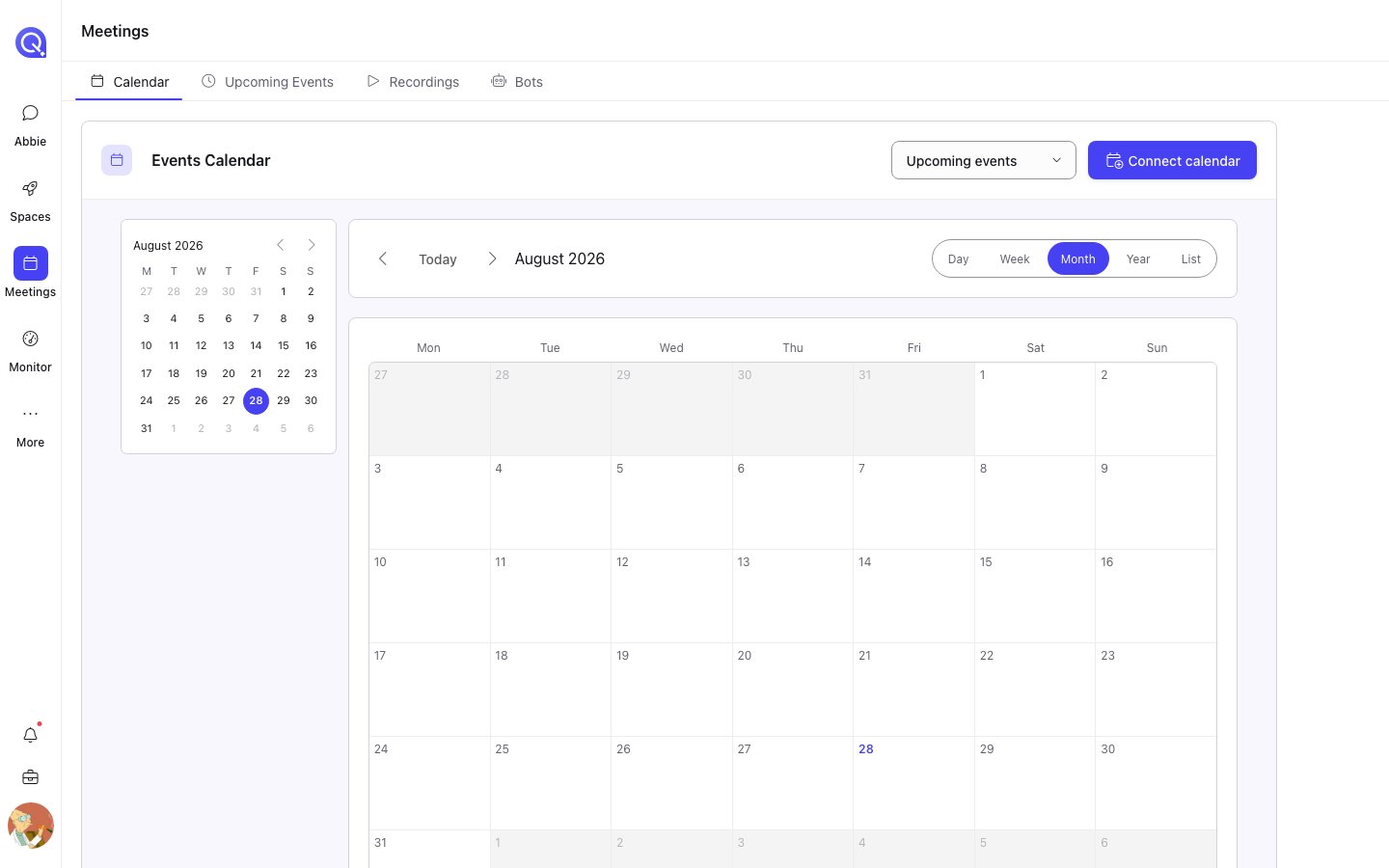
**Meetings** in the sidebar opens a page with four tabs:
Your connected calendars plotted on a month, week, day, year or list view.
The same events as a forward-looking list, with the per-event actions on each row.
Everything that has been recorded, as a list or on a calendar.
Every bot — scheduled, live and finished — with its status and the actions it allows.
The tab, the calendar view, the date, the time filter and the calendar sources are all held in the
URL, so any view you are looking at can be copied out of the address bar and shared.
 Calendar, Recordings and Summarization Templates also appear as sections in your personal
[Settings](/essentials/users/user-settings). Those are the same surfaces — Settings is where
calendars are connected; the Meetings page is where you work day to day.
## What is personal and what is shared
A calendar connection is **personal** — it is OAuthed against your own Google or Microsoft
account, and it is yours. Recordings, bots and summarization templates are visible across the
account.
Summarization templates have one extra rule: anyone can open a template and use it, but **only its
creator can edit or delete it**. See [Summaries and templates](/meetings/summaries).
Recording a conversation carries legal obligations that vary by country and by state. The bot
joins as a visible, named participant, and can be configured to announce itself in the meeting
chat when it arrives — see [On bot join](/meetings/bot-settings#on-bot-join). Getting consent from
participants remains your responsibility.
## Asking Abbie about a meeting
[Abbie](/abbie/getting-started/introduction) ships with a built-in **Meetings** skill, so she can
list recordings, read a transcript, summarise a meeting and share its files into a Space when you
ask her to in conversation — the same operations described on these pages, without opening them.
## Where to go next
The first thing to do — Google Calendar or Microsoft Outlook.
Every field on the bot settings form, and what it changes.
Putting a bot on an event, and the actions available at each point.
Getting recordings, transcripts and summaries into your Space folders.
Calendar, Recordings and Summarization Templates also appear as sections in your personal
[Settings](/essentials/users/user-settings). Those are the same surfaces — Settings is where
calendars are connected; the Meetings page is where you work day to day.
## What is personal and what is shared
A calendar connection is **personal** — it is OAuthed against your own Google or Microsoft
account, and it is yours. Recordings, bots and summarization templates are visible across the
account.
Summarization templates have one extra rule: anyone can open a template and use it, but **only its
creator can edit or delete it**. See [Summaries and templates](/meetings/summaries).
Recording a conversation carries legal obligations that vary by country and by state. The bot
joins as a visible, named participant, and can be configured to announce itself in the meeting
chat when it arrives — see [On bot join](/meetings/bot-settings#on-bot-join). Getting consent from
participants remains your responsibility.
## Asking Abbie about a meeting
[Abbie](/abbie/getting-started/introduction) ships with a built-in **Meetings** skill, so she can
list recordings, read a transcript, summarise a meeting and share its files into a Space when you
ask her to in conversation — the same operations described on these pages, without opening them.
## Where to go next
The first thing to do — Google Calendar or Microsoft Outlook.
Every field on the bot settings form, and what it changes.
Putting a bot on an event, and the actions available at each point.
Getting recordings, transcripts and summaries into your Space folders.