> ## Documentation Index
> Fetch the complete documentation index at: https://docs.quiva.ai/llms.txt
> Use this file to discover all available pages before exploring further.
# The Bots Tab
> Every notetaker in one table — its status, and what you can do to it at each stage
## The table
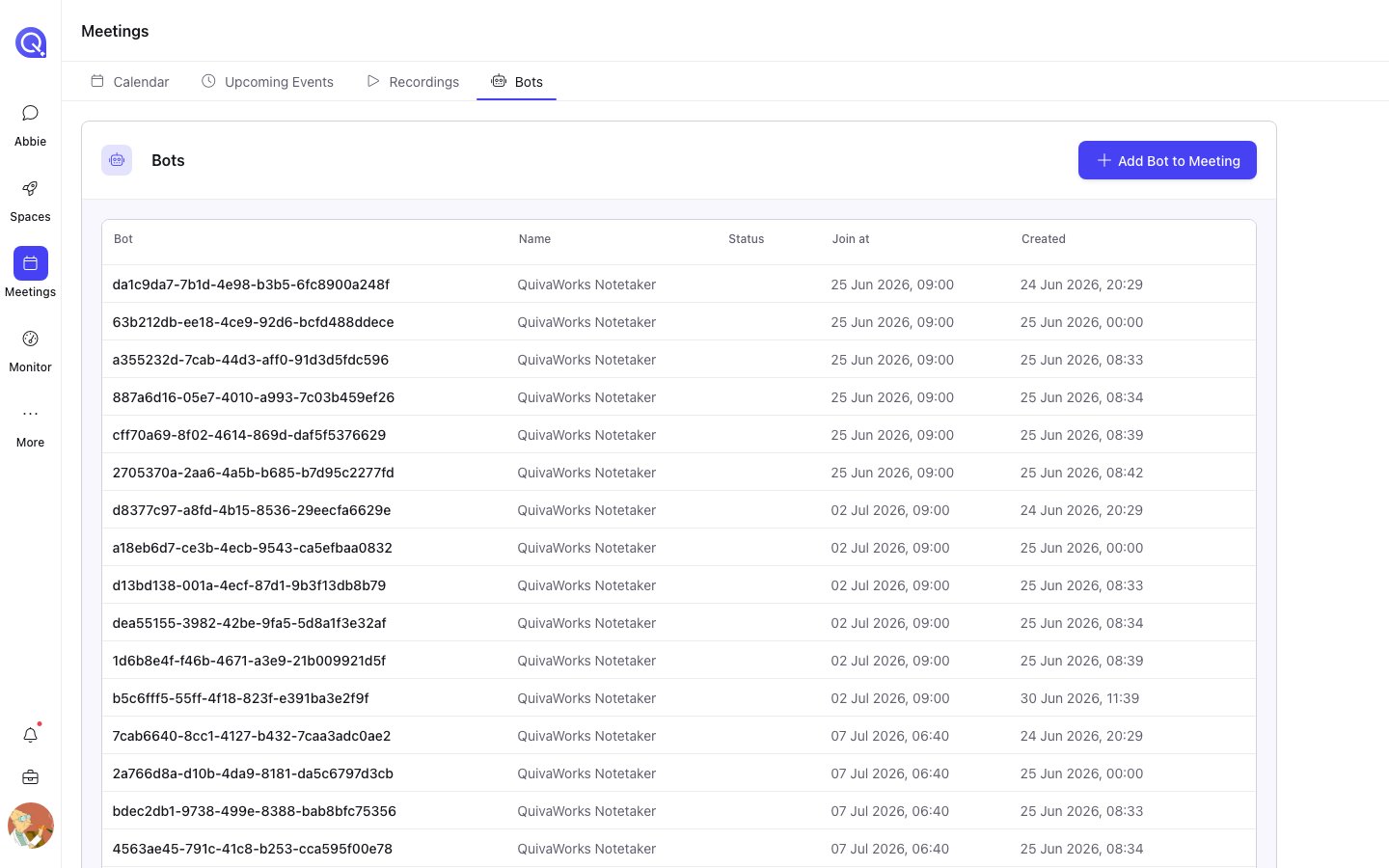
**Meetings → Bots** lists every bot in the account: scheduled, live and finished.
| Column | Shows |
| ----------- | ------------------------------------------- |
| **Bot** | The bot's identifier |
| **Name** | The participant name it uses in the meeting |
| **Status** | Where it is in its lifecycle |
| **Join at** | When it is due to join, or joined |
| **Created** | When it was created |
The table updates itself as bots progress — a bot joining a call changes status in place without a
refresh.
 ## Statuses
| Status | Meaning |
| -------------------------------- | -------------------------------------------------------------- |
| **Scheduled** | Created, waiting for its meeting |
| **Ready** | Ready to join |
| **Joining Call** | On its way in |
| **In Waiting Room** | Waiting to be admitted |
| **In Call Not Recording** | Inside the call, not yet recording |
| **Recording Permission Allowed** | Granted permission to record |
| **Recording Permission Denied** | Refused permission to record |
| **In Call Recording** | Inside the call and recording |
| **Recording Done** | Finished recording |
| **Call Ended** | The call is over |
| **Done** | Finished, with its output available |
| **Analysis Done** | Post-call processing finished |
| **Analysis Failed** | Post-call processing failed |
| **Media Expired** | The recording has passed its retention period and been removed |
| **Fatal** | The bot failed terminally |
## What you can do, and when
Actions are gated on the bot's status:
Available once the bot has a status **and** was configured with **Transcription: Real-time**.
Opens the [live transcript](/meetings/live-transcript) page in a new tab.
On a bot that has reached **Done**, the same action is offered as **Live Replay** — the
transcript replayed from the start rather than followed live.
Available while the bot is en route to, or inside, a call — **Joining Call**, **In Waiting
Room**, **In Call Not Recording**, either **Recording Permission** state, or **In Call
Recording**.
Asks for confirmation. Anything recorded before the kick is kept.
Available only while the bot's join time is still in the future. Once it has joined there is
nothing left to reconfigure, so the cog disappears.
Available from the two terminal states a bot can safely be removed from — **Scheduled** and
**Done**. Asks for confirmation.
A bot in a state that is neither in-call nor removable — **Fatal** or **Media Expired**, for
instance — shows no actions. There is nothing useful left to do to it from here.
## Adding a bot
**Add Bot to Meeting**, top right, sends a bot to a call from its URL. See
[On-demand bots](/meetings/on-demand-bots).
## Statuses
| Status | Meaning |
| -------------------------------- | -------------------------------------------------------------- |
| **Scheduled** | Created, waiting for its meeting |
| **Ready** | Ready to join |
| **Joining Call** | On its way in |
| **In Waiting Room** | Waiting to be admitted |
| **In Call Not Recording** | Inside the call, not yet recording |
| **Recording Permission Allowed** | Granted permission to record |
| **Recording Permission Denied** | Refused permission to record |
| **In Call Recording** | Inside the call and recording |
| **Recording Done** | Finished recording |
| **Call Ended** | The call is over |
| **Done** | Finished, with its output available |
| **Analysis Done** | Post-call processing finished |
| **Analysis Failed** | Post-call processing failed |
| **Media Expired** | The recording has passed its retention period and been removed |
| **Fatal** | The bot failed terminally |
## What you can do, and when
Actions are gated on the bot's status:
Available once the bot has a status **and** was configured with **Transcription: Real-time**.
Opens the [live transcript](/meetings/live-transcript) page in a new tab.
On a bot that has reached **Done**, the same action is offered as **Live Replay** — the
transcript replayed from the start rather than followed live.
Available while the bot is en route to, or inside, a call — **Joining Call**, **In Waiting
Room**, **In Call Not Recording**, either **Recording Permission** state, or **In Call
Recording**.
Asks for confirmation. Anything recorded before the kick is kept.
Available only while the bot's join time is still in the future. Once it has joined there is
nothing left to reconfigure, so the cog disappears.
Available from the two terminal states a bot can safely be removed from — **Scheduled** and
**Done**. Asks for confirmation.
A bot in a state that is neither in-call nor removable — **Fatal** or **Media Expired**, for
instance — shows no actions. There is nothing useful left to do to it from here.
## Adding a bot
**Add Bot to Meeting**, top right, sends a bot to a call from its URL. See
[On-demand bots](/meetings/on-demand-bots).