> ## Documentation Index
> Fetch the complete documentation index at: https://docs.quiva.ai/llms.txt
> Use this file to discover all available pages before exploring further.
# Email Trigger
> Trigger flows from incoming emails - automate email processing, support tickets, and lead capture
The Email trigger allows you to trigger flows when emails are received at a specific email address. Perfect for automating customer support, processing lead inquiries, handling support tickets, and any workflow that starts with an email.
When you add an Email trigger, you can generate unique email addresses for both draft and published versions of your flow. Any email sent to these addresses will trigger the corresponding version of your flow with the full email content and attachments.
***
## How It Works
1. Add an Email trigger to your flow
2. Click on "Trigger" in the left sidebar, then click "Get New" to generate unique email addresses
3. QuivaWorks generates two unique email addresses:
* One for triggering the **draft** version of your flow
* One for triggering the **published** version of your flow
4. Save the trigger configuration
5. Configure email forwarding or share the addresses with users
6. When emails arrive at these addresses, your flow triggers automatically with the full email content, attachments, and metadata
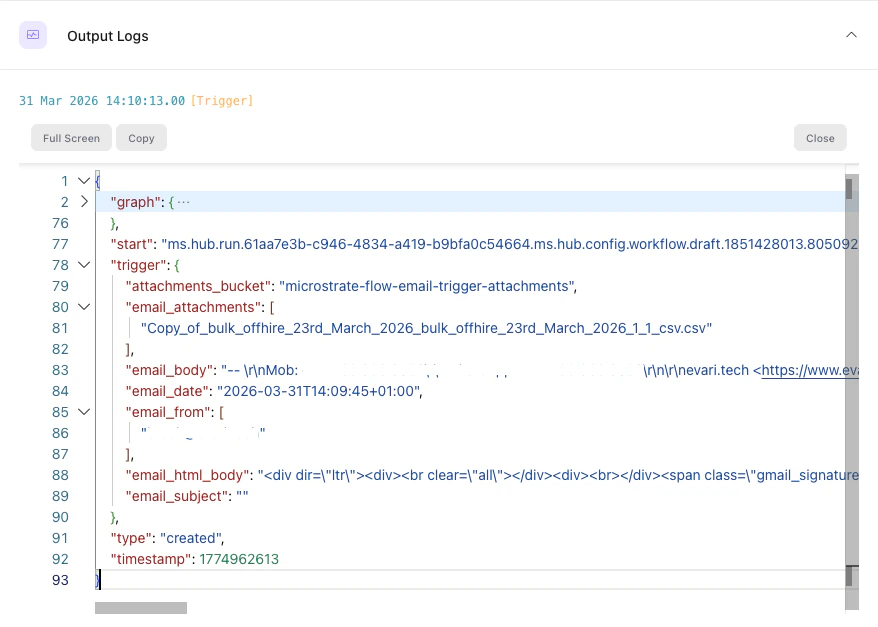
If your forwarding address requires verification, triggering the verification email will start a flow which can be viewed in the monitor (under the flow menu on the left). By clicking on the logs, you can view the trigger details including the complete body of the received email which allows you to click the verification link.
***
## Configuration
### Generating Email Addresses
When you add an Email trigger to your flow:
1. Click on **"Trigger"** in the left sidebar
2. Click the **"Get New"** button
3. QuivaWorks automatically generates two unique email addresses:
**Draft Flow Address:**
```
trigger+draftsparklyjollybubble650@quiva.ai
```
**Published Flow Address:**
```
trigger+sparklyjollybubble650@quiva.ai
```
**Important Notes:**
* The draft address triggers your draft flow (for testing before publishing)
* The published address triggers your live published flow
* Each flow gets unique addresses that are permanent and don't change
* Select each email address and copy them to your clipboard
### Email Forwarding
You can forward emails from your existing email address to the QuivaWorks email addresses. This allows you to use your branded email address (like [support@yourcompany.com](mailto:support@yourcompany.com)) while triggering QuivaWorks flows.
#### Gmail
1. Open Gmail Settings (click the gear icon, then "See all settings")
2. Go to the **"Forwarding and POP/IMAP"** tab
3. Click **"Add a forwarding address"**
4. Enter your QuivaWorks trigger email address (e.g., `trigger+sparklyjollybubble650@quiva.ai`)
5. Click **"Next"**, then **"Proceed"**, then **"OK"**
6. Gmail will send a confirmation email to the forwarding address
7. Check your QuivaWorks flow execution logs or use the draft address to retrieve the confirmation code
8. Enter the confirmation code in Gmail to verify
9. Select **"Forward a copy of incoming mail"** and choose the QuivaWorks address
10. Click **"Save Changes"**
[Official Gmail forwarding documentation](https://support.google.com/mail/answer/10957?hl=en)
#### Outlook / Hotmail
1. Open Outlook Settings (click the gear icon, then "View all Outlook settings")
2. Go to **Mail** → **Forwarding**
3. Check **"Enable forwarding"**
4. Enter your QuivaWorks trigger email address
5. Choose whether to keep a copy in Outlook
6. Click **"Save"**
[Official Outlook forwarding documentation](https://support.microsoft.com/en-us/office/turn-on-automatic-forwarding-in-outlook-7f2670a1-7fff-4475-8a3c-5822d63b0c8e)
#### Yahoo Mail
1. Click the **Settings icon** (gear), then **"More Settings"**
2. Click **"Mailboxes"** in the left sidebar
3. Select your email address
4. Click **"Forwarding"**
5. Enter your QuivaWorks trigger email address
6. Click **"Verify"** and follow the confirmation steps
7. Check **"Enable forwarding"**
8. Click **"Save"**
[Official Yahoo Mail forwarding documentation](https://help.yahoo.com/kb/SLN28204.html)
#### Apple iCloud Mail
1. Go to [iCloud.com](https://www.icloud.com) and sign in
2. Click **Mail**
3. Click the **gear icon** (bottom left), then **"Preferences"**
4. Click the **"General"** tab
5. In the "Forwarding" section, enter your QuivaWorks trigger email address
6. Choose whether to keep a copy in iCloud
7. Click **"Done"**
[Official iCloud Mail documentation](https://support.apple.com/guide/icloud/forward-emails-mm6b1a4f5e/icloud)
### Gmail Filters (Advanced)
For more control, you can create Gmail filters to forward only specific emails:
1. In Gmail, search for emails using the criteria you want (e.g., `subject:support`)
2. Click the search options dropdown and refine your criteria
3. Click **"Create filter"**
4. Check **"Forward it to"** and select your QuivaWorks address
5. Optionally, choose other actions (like skip inbox, apply label, mark as read)
6. Click **"Create filter"**
**Examples:**
* Forward only emails with "support" in subject
* Forward only emails from specific domains
* Forward only emails with attachments
* Forward only unread emails
### verification
If your forwarding address requires verification, triggering the verification email will start a flow which can be viewed in the monitor (under the flow menu on the left).
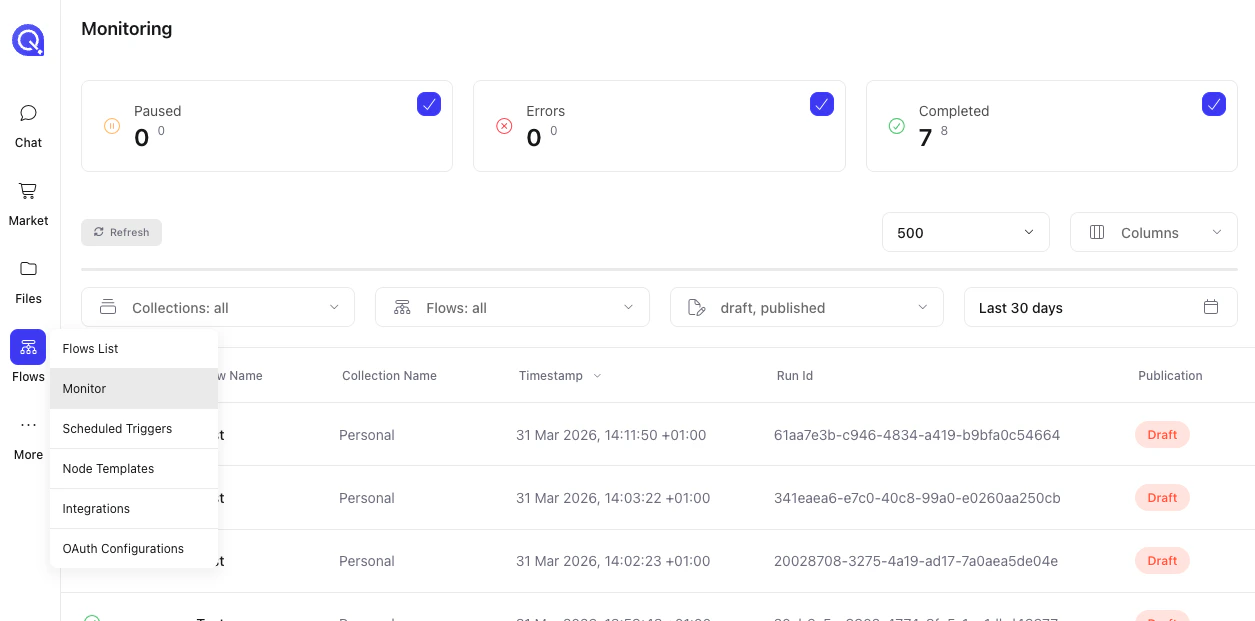 By clicking on the logs, you can view the trigger details including the complete body of the received email which allows you to click the verification link.
 ### Response Mode
**Run in Background (Default):**
Email triggers flow immediately, sender receives no automatic response. Flow processes email asynchronously. Best for most email automation scenarios.
**Send Auto-Reply:**
An auto-reply can be triggered in the flow by either setting up agent behaviour to use email tools, or by configuring a [HTTP request](/flows/steps/http-request)
***
## Accessing Email Data
### Email Metadata
All email information is available under `$.trigger.{{EMAIL_TRIGGER_ID}}` e.g. email\_trigger:
These are exampled of how you might access properties using [variable mapping](/advanced/variable-mapping/overview)
```
$.trigger.email_trigger.email_from
$.trigger.email_trigger.email_body
$.trigger.email_trigger.email_html_body
$.trigger.email_trigger.email_date
$.trigger.email_trigger.email_subject
$.trigger.email_trigger.attachments_bucket; bucket name of attachments
$.trigger.email_trigger.email_attachments; array of keys inside attachments_bucket
```
If you are running your agent off the back of an email trigger, they will have all this information available for them to make decisions on how to process this information.
***
## Use Cases
### Customer Support Automation
**Scenario:** Automate customer support ticket creation
**Flow:**
* Trigger: Email ([support@company.com](mailto:support@company.com) forwards to QuivaWorks)
* Agent: Analyze email content
* Extract customer issue
* Determine urgency level
* Identify customer sentiment
* Agent integration request: Search knowledge base for solutions
* Condition: Can auto-resolve?
* Yes: Send solution email
* No: Create support ticket
* Agent integration request: Create ticket in helpdesk system
* Agent integration request: Send acknowledgment email to customer
**Benefits:** Instant response, automatic triage, knowledge base integration, 24/7 availability.
### Lead Capture and Qualification
**Scenario:** Process incoming lead inquiries from website contact form
**Flow:**
* Trigger: Email ([leads@company.com](mailto:leads@company.com) forwards to QuivaWorks)
* Agent: Extract lead information
* Company name, role, requirements
* Budget indicators, timeline
* Agent integration request: Enrich company data
* Agent: Qualify lead against ICP criteria
* Condition: Qualified lead?
* Yes: Add to CRM + notify sales
* No: Add to nurture campaign
* Agent integration request: Send personalized follow-up
**Benefits:** Automatic lead qualification, instant response, sales team efficiency, no leads lost.
### Invoice Processing via Email
**Scenario:** Process invoices received via email
**Flow:**
* Trigger: Email ([invoices@company.com](mailto:invoices@company.com) forwards to QuivaWorks)
* Condition: Has PDF attachment?
* Agent: Extract invoice data from attachment
* Invoice number, amount, vendor, due date
* Agent integration request: Validate against purchase orders
* Condition: Approved?
* Yes: Create entry in accounting system
* No: Flag for manual review
* Agent integration request: Notify accounts payable team
**Benefits:** Eliminate manual data entry, faster processing, audit trail, automatic validation.
### Order Confirmation Processing
**Scenario:** Process order confirmation emails from suppliers
**Flow:**
* Trigger: Email ([orders@company.com](mailto:orders@company.com) forwards to QuivaWorks)
* Agent: Extract order details
* Order number, items, quantities, delivery date
* Agent integration request: Update inventory management system
* Agent integration request: Notify warehouse team
* Condition: Rush order?
* Yes: Send priority notification
* No: Standard processing
**Benefits:** Automatic inventory updates, team notifications, exception handling.
### Job Application Processing
**Scenario:** Process job applications received via email
**Flow:**
* Trigger: Email ([careers@company.com](mailto:careers@company.com) forwards to QuivaWorks)
* Condition: Has resume attachment?
* Agent: Extract candidate information
* Name, contact, experience, skills
* Agent: Screen against job requirements
* Condition: Meets minimum qualifications?
* Yes: Add to applicant tracking system
* No: Send polite rejection
* Agent integration request: Notify hiring manager
**Benefits:** Automatic screening, consistent process, faster response to candidates.
### Newsletter Subscription Management
**Scenario:** Process newsletter subscription requests
**Flow:**
* Trigger: Email ([subscribe@company.com](mailto:subscribe@company.com) forwards to QuivaWorks)
* Agent: Extract email address from body
* Agent integration request: Check if already subscribed
* Condition: Already subscribed?
* Yes: Send "already subscribed" message
* No: Add to mailing list
* Agent integration request: Send welcome email
**Benefits:** Automatic subscription management, double-opt-in support, error handling.
### Feedback Collection
**Scenario:** Process customer feedback emails
**Flow:**
* Trigger: Email ([feedback@company.com](mailto:feedback@company.com) forwards to QuivaWorks)
* Agent: Analyze feedback sentiment
* Positive, neutral, or negative
* Extract key themes
* Agent integration request: Save to feedback database
* Condition: Negative feedback?
* Yes: Alert customer success team
* No: Log for review
* Agent integration request: Send thank you email
**Benefits:** Sentiment analysis, immediate escalation, response tracking.
### Document Approval Workflow
**Scenario:** Process document approval requests
**Flow:**
* Trigger: Email ([approvals@company.com](mailto:approvals@company.com) forwards to QuivaWorks)
* Agent: Extract document details from attachments
* Agent integration request: Create approval request in system
* Agent integration request: Notify approvers
* Agent: Generate approval summary
* Agent integration request: Send confirmation to requester
**Benefits:** Automated routing, audit trail, status tracking.
***
## Best Practices
### Testing with Draft Address
**Always test your flow using the draft address first:**
1. Send test emails to your draft address (`trigger+draft...@quiva.ai`)
2. Monitor the execution in your flow's draft environment
3. Verify all steps work correctly with real email data
4. Check that integrations and API calls function as expected
5. Only use the published address once testing is complete
**Benefits:**
* Test with real emails without affecting production
* Iterate quickly on your flow design
* Avoid errors in your live workflow
* Safely test with sensitive data
### Response Management
**Send appropriate responses:**
Acknowledge receipt quickly. Provide reference numbers. Set expectations. Include helpful information.
**Good auto-reply:**
```
Thank you for contacting us!
We've received your email and will respond within 24 hours.
Reference Number: REF-{{executionId}}
Subject: {{email.subject}}
For urgent matters, please call: 1-800-SUPPORT
Best regards,
Support Team
```
**Avoid:**
* Generic "email received" without details
* No reference number
* No timeline expectations
* No alternative contact methods
### Security Considerations
**Protect against malicious emails:**
When building your agent behaviour, you can have your agent perform check on the email and pause for flagging with admin if the email fails validation, e.g. Check for phishing indicators. Monitor for suspicious patterns.
**Red flags you can ask your agent to look for:**
* Sender domain doesn't match claimed organization
* Suspicious links in email body
* Executable attachments
* Requests for sensitive information
* Urgency or threat language
### Email Forwarding Tips
**Best practices for email forwarding:**
* **Always verify the forwarding address** before it becomes active
* **Check if your email service allows filters** to forward only specific emails (recommended for high-volume inboxes)
* **Be aware that some email services may disable forwarding** if you receive too many spam messages
* **Keep your original inbox as a backup** in case forwarding fails
* **Test with the draft address first** before using the published address
* **Use Gmail filters** to forward only relevant emails and reduce noise
* **Monitor your flow execution logs** to ensure emails are being received
## Troubleshooting
### Emails Not Triggering Flow
**Check email forwarding:** Verify forwarding is set up correctly in your email provider.
**Verify trigger addresses:** Ensure you're sending to the correct QuivaWorks address (draft or published).
**Check flow is active:** Ensure flow is saved and trigger configuration is complete.
**Review email forwarding confirmation:** Some providers require confirmation before forwarding becomes active.
**Check spam/junk folder:** Your email service might be filtering forwarded emails.
**Review execution logs:** Check your flow's execution logs to see if emails are being received.
### Email Forwarding Not Working
**Gmail:**
* Ensure you completed the verification step
* Check that forwarding is enabled in settings
* Verify the forwarding address is correct
* Check for filters that might be blocking forwarding
**Outlook:**
* Confirm forwarding is enabled
* Check if "keep a copy" is affecting delivery
* Verify email isn't being moved to folders before forwarding
**Yahoo Mail:**
* Ensure verification was completed
* Check that forwarding is enabled
* Verify no filters are blocking forwarding
**General tips:**
* Wait a few minutes after setting up forwarding (propagation time)
* Send a test email to verify forwarding works
* Check your original inbox to see if email arrived before forwarding
### Missing Email Content
**Check email format:** Some emails might be malformed.
**Verify encoding:** Check character encoding is supported.
**Check for attachments:** Content might be in attachments instead of body.
**Review headers:** Check if content-type is supported.
### Attachment Issues
**Corrupted attachment:** Request sender to resend.
**Unsupported format:** Check file type is supported.
**Size limit exceeded:** Attachment too large for processing.
### Processing Delays
**High volume:** Many emails arriving simultaneously.
**Large attachments:** Processing time increases with size.
**Complex flows:** Flow has many steps or external API calls.
**External service delays:** Third-party APIs responding slowly.
## Next Steps
Advanced real-time message triggers
Process emails with AI agents
Send responses and integrate systems
Route emails based on content
### Response Mode
**Run in Background (Default):**
Email triggers flow immediately, sender receives no automatic response. Flow processes email asynchronously. Best for most email automation scenarios.
**Send Auto-Reply:**
An auto-reply can be triggered in the flow by either setting up agent behaviour to use email tools, or by configuring a [HTTP request](/flows/steps/http-request)
***
## Accessing Email Data
### Email Metadata
All email information is available under `$.trigger.{{EMAIL_TRIGGER_ID}}` e.g. email\_trigger:
These are exampled of how you might access properties using [variable mapping](/advanced/variable-mapping/overview)
```
$.trigger.email_trigger.email_from
$.trigger.email_trigger.email_body
$.trigger.email_trigger.email_html_body
$.trigger.email_trigger.email_date
$.trigger.email_trigger.email_subject
$.trigger.email_trigger.attachments_bucket; bucket name of attachments
$.trigger.email_trigger.email_attachments; array of keys inside attachments_bucket
```
If you are running your agent off the back of an email trigger, they will have all this information available for them to make decisions on how to process this information.
***
## Use Cases
### Customer Support Automation
**Scenario:** Automate customer support ticket creation
**Flow:**
* Trigger: Email ([support@company.com](mailto:support@company.com) forwards to QuivaWorks)
* Agent: Analyze email content
* Extract customer issue
* Determine urgency level
* Identify customer sentiment
* Agent integration request: Search knowledge base for solutions
* Condition: Can auto-resolve?
* Yes: Send solution email
* No: Create support ticket
* Agent integration request: Create ticket in helpdesk system
* Agent integration request: Send acknowledgment email to customer
**Benefits:** Instant response, automatic triage, knowledge base integration, 24/7 availability.
### Lead Capture and Qualification
**Scenario:** Process incoming lead inquiries from website contact form
**Flow:**
* Trigger: Email ([leads@company.com](mailto:leads@company.com) forwards to QuivaWorks)
* Agent: Extract lead information
* Company name, role, requirements
* Budget indicators, timeline
* Agent integration request: Enrich company data
* Agent: Qualify lead against ICP criteria
* Condition: Qualified lead?
* Yes: Add to CRM + notify sales
* No: Add to nurture campaign
* Agent integration request: Send personalized follow-up
**Benefits:** Automatic lead qualification, instant response, sales team efficiency, no leads lost.
### Invoice Processing via Email
**Scenario:** Process invoices received via email
**Flow:**
* Trigger: Email ([invoices@company.com](mailto:invoices@company.com) forwards to QuivaWorks)
* Condition: Has PDF attachment?
* Agent: Extract invoice data from attachment
* Invoice number, amount, vendor, due date
* Agent integration request: Validate against purchase orders
* Condition: Approved?
* Yes: Create entry in accounting system
* No: Flag for manual review
* Agent integration request: Notify accounts payable team
**Benefits:** Eliminate manual data entry, faster processing, audit trail, automatic validation.
### Order Confirmation Processing
**Scenario:** Process order confirmation emails from suppliers
**Flow:**
* Trigger: Email ([orders@company.com](mailto:orders@company.com) forwards to QuivaWorks)
* Agent: Extract order details
* Order number, items, quantities, delivery date
* Agent integration request: Update inventory management system
* Agent integration request: Notify warehouse team
* Condition: Rush order?
* Yes: Send priority notification
* No: Standard processing
**Benefits:** Automatic inventory updates, team notifications, exception handling.
### Job Application Processing
**Scenario:** Process job applications received via email
**Flow:**
* Trigger: Email ([careers@company.com](mailto:careers@company.com) forwards to QuivaWorks)
* Condition: Has resume attachment?
* Agent: Extract candidate information
* Name, contact, experience, skills
* Agent: Screen against job requirements
* Condition: Meets minimum qualifications?
* Yes: Add to applicant tracking system
* No: Send polite rejection
* Agent integration request: Notify hiring manager
**Benefits:** Automatic screening, consistent process, faster response to candidates.
### Newsletter Subscription Management
**Scenario:** Process newsletter subscription requests
**Flow:**
* Trigger: Email ([subscribe@company.com](mailto:subscribe@company.com) forwards to QuivaWorks)
* Agent: Extract email address from body
* Agent integration request: Check if already subscribed
* Condition: Already subscribed?
* Yes: Send "already subscribed" message
* No: Add to mailing list
* Agent integration request: Send welcome email
**Benefits:** Automatic subscription management, double-opt-in support, error handling.
### Feedback Collection
**Scenario:** Process customer feedback emails
**Flow:**
* Trigger: Email ([feedback@company.com](mailto:feedback@company.com) forwards to QuivaWorks)
* Agent: Analyze feedback sentiment
* Positive, neutral, or negative
* Extract key themes
* Agent integration request: Save to feedback database
* Condition: Negative feedback?
* Yes: Alert customer success team
* No: Log for review
* Agent integration request: Send thank you email
**Benefits:** Sentiment analysis, immediate escalation, response tracking.
### Document Approval Workflow
**Scenario:** Process document approval requests
**Flow:**
* Trigger: Email ([approvals@company.com](mailto:approvals@company.com) forwards to QuivaWorks)
* Agent: Extract document details from attachments
* Agent integration request: Create approval request in system
* Agent integration request: Notify approvers
* Agent: Generate approval summary
* Agent integration request: Send confirmation to requester
**Benefits:** Automated routing, audit trail, status tracking.
***
## Best Practices
### Testing with Draft Address
**Always test your flow using the draft address first:**
1. Send test emails to your draft address (`trigger+draft...@quiva.ai`)
2. Monitor the execution in your flow's draft environment
3. Verify all steps work correctly with real email data
4. Check that integrations and API calls function as expected
5. Only use the published address once testing is complete
**Benefits:**
* Test with real emails without affecting production
* Iterate quickly on your flow design
* Avoid errors in your live workflow
* Safely test with sensitive data
### Response Management
**Send appropriate responses:**
Acknowledge receipt quickly. Provide reference numbers. Set expectations. Include helpful information.
**Good auto-reply:**
```
Thank you for contacting us!
We've received your email and will respond within 24 hours.
Reference Number: REF-{{executionId}}
Subject: {{email.subject}}
For urgent matters, please call: 1-800-SUPPORT
Best regards,
Support Team
```
**Avoid:**
* Generic "email received" without details
* No reference number
* No timeline expectations
* No alternative contact methods
### Security Considerations
**Protect against malicious emails:**
When building your agent behaviour, you can have your agent perform check on the email and pause for flagging with admin if the email fails validation, e.g. Check for phishing indicators. Monitor for suspicious patterns.
**Red flags you can ask your agent to look for:**
* Sender domain doesn't match claimed organization
* Suspicious links in email body
* Executable attachments
* Requests for sensitive information
* Urgency or threat language
### Email Forwarding Tips
**Best practices for email forwarding:**
* **Always verify the forwarding address** before it becomes active
* **Check if your email service allows filters** to forward only specific emails (recommended for high-volume inboxes)
* **Be aware that some email services may disable forwarding** if you receive too many spam messages
* **Keep your original inbox as a backup** in case forwarding fails
* **Test with the draft address first** before using the published address
* **Use Gmail filters** to forward only relevant emails and reduce noise
* **Monitor your flow execution logs** to ensure emails are being received
## Troubleshooting
### Emails Not Triggering Flow
**Check email forwarding:** Verify forwarding is set up correctly in your email provider.
**Verify trigger addresses:** Ensure you're sending to the correct QuivaWorks address (draft or published).
**Check flow is active:** Ensure flow is saved and trigger configuration is complete.
**Review email forwarding confirmation:** Some providers require confirmation before forwarding becomes active.
**Check spam/junk folder:** Your email service might be filtering forwarded emails.
**Review execution logs:** Check your flow's execution logs to see if emails are being received.
### Email Forwarding Not Working
**Gmail:**
* Ensure you completed the verification step
* Check that forwarding is enabled in settings
* Verify the forwarding address is correct
* Check for filters that might be blocking forwarding
**Outlook:**
* Confirm forwarding is enabled
* Check if "keep a copy" is affecting delivery
* Verify email isn't being moved to folders before forwarding
**Yahoo Mail:**
* Ensure verification was completed
* Check that forwarding is enabled
* Verify no filters are blocking forwarding
**General tips:**
* Wait a few minutes after setting up forwarding (propagation time)
* Send a test email to verify forwarding works
* Check your original inbox to see if email arrived before forwarding
### Missing Email Content
**Check email format:** Some emails might be malformed.
**Verify encoding:** Check character encoding is supported.
**Check for attachments:** Content might be in attachments instead of body.
**Review headers:** Check if content-type is supported.
### Attachment Issues
**Corrupted attachment:** Request sender to resend.
**Unsupported format:** Check file type is supported.
**Size limit exceeded:** Attachment too large for processing.
### Processing Delays
**High volume:** Many emails arriving simultaneously.
**Large attachments:** Processing time increases with size.
**Complex flows:** Flow has many steps or external API calls.
**External service delays:** Third-party APIs responding slowly.
## Next Steps
Advanced real-time message triggers
Process emails with AI agents
Send responses and integrate systems
Route emails based on content