> ## Documentation Index
> Fetch the complete documentation index at: https://docs.quiva.ai/llms.txt
> Use this file to discover all available pages before exploring further.
# The Abbie home page
> Your dashboard for Abbie: where she's reachable, what needs a decision from you, recent conversations, and how she's running.
The Abbie home page is your dashboard: a summary of everything Abbie is doing, with one click into each area. It's the first thing you see when you open Abbie, and it's greeted with a simple **Chat with Abbie** button to start a fresh conversation at any time.
Four cards make up the page, each loading and failing independently. If one is temporarily unavailable, the rest still work.
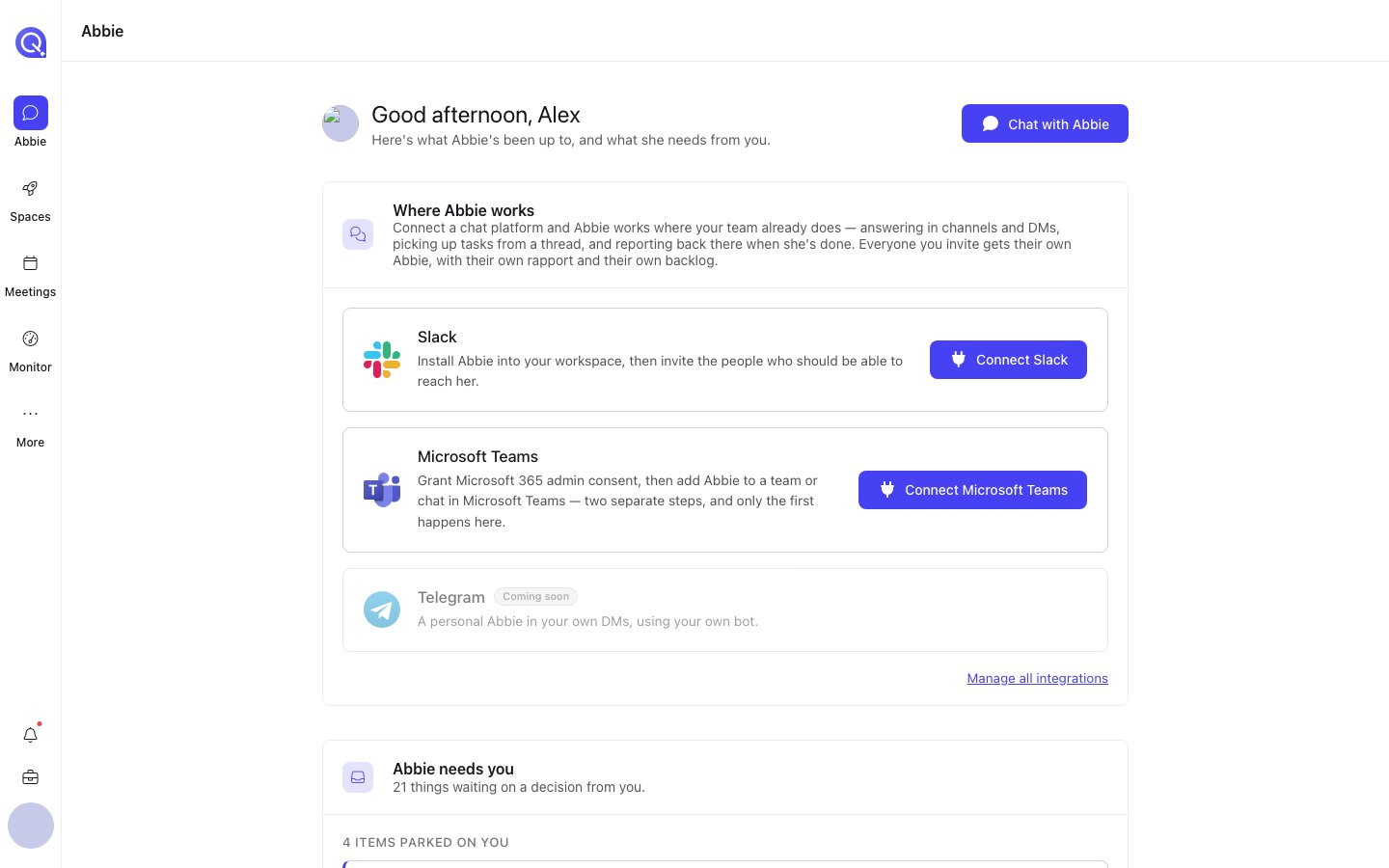 Which chat platforms Abbie is connected to. If your workspace has Slack installed, this shows it and lets you invite people or link your own account. See [Slack](/abbie/connecting/slack).
Everything currently waiting on a decision from you, gathered in one place: backlog items she's parked, a rapport change she's proposing, and any unread messages from her that need a response. Nothing is dismissed from here directly; every row takes you to the place it's actually resolved.
Your last few chats with Abbie, including threads that started in Slack, so you can pick one up where you left off.
Two account-wide dials: her model routing mode (cost, balanced, performance or accuracy) and whether she's allowed to reach out to you proactively. Everything finer-grained lives in [Abbie's settings](/abbie/configuring/settings-overview).
Some cards show account-wide settings as read-only if you aren't an account admin, so you can see how Abbie is configured even if you can't change it.
## "Abbie needs you" in detail
This card is worth understanding early, because it's the one place that gathers up everything that's genuinely blocked on you:
* **Parked backlog items**: something Abbie was working on that needs a decision, a missing piece of information, or ran out of room to keep going on its own. Opens straight into the [Backlog page](/abbie/backlog/backlog-page).
* **A proposed rapport change**: if Abbie's noticed a pattern in how you like to work and wants to adjust her personal calibration to you, it shows up here as a suggestion you can approve or ignore. See [Rapport](/abbie/teaching/rapport).
* **Unread messages from Abbie**: things like a check-in or a follow-up she's sent you. See [Proactive Abbie](/abbie/proactive/check-ins-and-follow-ups).
If nothing is waiting on you, the card simply says so.
Which chat platforms Abbie is connected to. If your workspace has Slack installed, this shows it and lets you invite people or link your own account. See [Slack](/abbie/connecting/slack).
Everything currently waiting on a decision from you, gathered in one place: backlog items she's parked, a rapport change she's proposing, and any unread messages from her that need a response. Nothing is dismissed from here directly; every row takes you to the place it's actually resolved.
Your last few chats with Abbie, including threads that started in Slack, so you can pick one up where you left off.
Two account-wide dials: her model routing mode (cost, balanced, performance or accuracy) and whether she's allowed to reach out to you proactively. Everything finer-grained lives in [Abbie's settings](/abbie/configuring/settings-overview).
Some cards show account-wide settings as read-only if you aren't an account admin, so you can see how Abbie is configured even if you can't change it.
## "Abbie needs you" in detail
This card is worth understanding early, because it's the one place that gathers up everything that's genuinely blocked on you:
* **Parked backlog items**: something Abbie was working on that needs a decision, a missing piece of information, or ran out of room to keep going on its own. Opens straight into the [Backlog page](/abbie/backlog/backlog-page).
* **A proposed rapport change**: if Abbie's noticed a pattern in how you like to work and wants to adjust her personal calibration to you, it shows up here as a suggestion you can approve or ignore. See [Rapport](/abbie/teaching/rapport).
* **Unread messages from Abbie**: things like a check-in or a follow-up she's sent you. See [Proactive Abbie](/abbie/proactive/check-ins-and-follow-ups).
If nothing is waiting on you, the card simply says so.