> ## Documentation Index
> Fetch the complete documentation index at: https://docs.quiva.ai/llms.txt
> Use this file to discover all available pages before exploring further.
# Model pool
> Which AI providers and models Abbie can use, how she routes between them, and how to add your own.
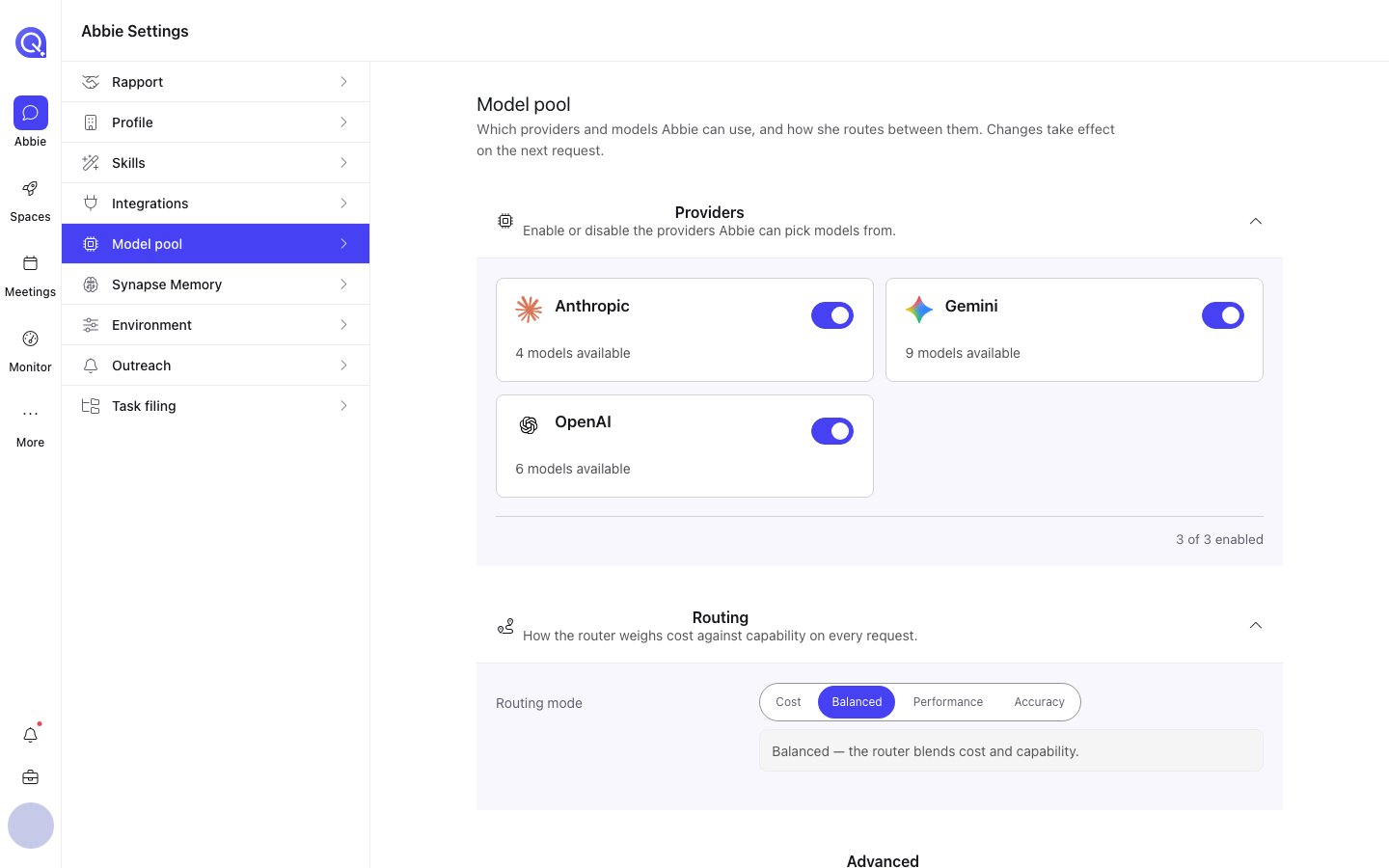
The **Model pool** tab controls which underlying AI models power Abbie, and the rules she uses to pick between them. Changes take effect on your next request; nothing needs a restart.
## Providers
Toggle which built-in providers (Anthropic, OpenAI, Gemini) are active for your account. Only active providers are considered when Abbie routes a request.
 ## Routing mode
Choose how Abbie weighs cost against capability for everyday requests:
| Mode | What it does |
| --------------- | -------------------------------------------------------------------------------------------------------------------- |
| **Cost** | The cheapest model that can still do the job. |
| **Balanced** | Blends cost and capability. |
| **Performance** | The strongest model that matches the task. |
| **Accuracy** | Every request runs multiple models per task and a judge panel votes on the answer. Highest cost, highest confidence. |
## Expert strategy
* **Auto**: experts are allocated per task; a genuinely complex single-task request can still get multiple models even outside Accuracy mode.
* **Arbitrage**: every request runs multiple models on each task and the judge picks or combines the best answer.
## Judge quorum
How many independent judges vote on an answer before it's delivered: **1**, **3**, or **5**. Odd numbers so a vote can't tie. If a majority of judges fail an answer, it goes back for another attempt. More judges cost more per request.
## Run time limit
The longest a single request is allowed to run before it's stopped: **15**, **30**, **45**, or **60 minutes**. Complex work on a slower model can legitimately take a long time; you get the answer as soon as it's ready either way, this just sets the outer bound.
## Pinning models to a tier
Abbie routes ordinary requests through three complexity tiers: **Low (fast)**, **Medium (balanced)**, **High (powerful)**, and you can pin a specific model to any tier rather than letting her choose automatically.
You can also pin specific models for the **classifier**, **judge** and **verify** stages of her pipeline independently of the tiers above.
## Custom providers
Beyond the built-in providers, you can add any OpenAI-compatible endpoint as a custom provider. One-click presets are available for several popular ones (Kimi/Moonshot, Groq, OpenRouter, Together AI, DeepSeek, Mistral, and a local Ollama endpoint), or add a fully custom endpoint of your own.
For each custom provider you'll set:
* A name and endpoint URL.
* An authentication key (stored securely; you don't need to re-enter it to keep using the provider).
* Which models it offers, including their capabilities (vision, tools, thinking, streaming), cost, and which routing tiers they qualify for.
A **Test connection** action lets you confirm a custom provider is reachable before relying on it.
If the model catalogue is temporarily unreachable, your existing pins and stage overrides are preserved and shown as-is. Nothing is silently reset.
## Routing mode
Choose how Abbie weighs cost against capability for everyday requests:
| Mode | What it does |
| --------------- | -------------------------------------------------------------------------------------------------------------------- |
| **Cost** | The cheapest model that can still do the job. |
| **Balanced** | Blends cost and capability. |
| **Performance** | The strongest model that matches the task. |
| **Accuracy** | Every request runs multiple models per task and a judge panel votes on the answer. Highest cost, highest confidence. |
## Expert strategy
* **Auto**: experts are allocated per task; a genuinely complex single-task request can still get multiple models even outside Accuracy mode.
* **Arbitrage**: every request runs multiple models on each task and the judge picks or combines the best answer.
## Judge quorum
How many independent judges vote on an answer before it's delivered: **1**, **3**, or **5**. Odd numbers so a vote can't tie. If a majority of judges fail an answer, it goes back for another attempt. More judges cost more per request.
## Run time limit
The longest a single request is allowed to run before it's stopped: **15**, **30**, **45**, or **60 minutes**. Complex work on a slower model can legitimately take a long time; you get the answer as soon as it's ready either way, this just sets the outer bound.
## Pinning models to a tier
Abbie routes ordinary requests through three complexity tiers: **Low (fast)**, **Medium (balanced)**, **High (powerful)**, and you can pin a specific model to any tier rather than letting her choose automatically.
You can also pin specific models for the **classifier**, **judge** and **verify** stages of her pipeline independently of the tiers above.
## Custom providers
Beyond the built-in providers, you can add any OpenAI-compatible endpoint as a custom provider. One-click presets are available for several popular ones (Kimi/Moonshot, Groq, OpenRouter, Together AI, DeepSeek, Mistral, and a local Ollama endpoint), or add a fully custom endpoint of your own.
For each custom provider you'll set:
* A name and endpoint URL.
* An authentication key (stored securely; you don't need to re-enter it to keep using the provider).
* Which models it offers, including their capabilities (vision, tools, thinking, streaming), cost, and which routing tiers they qualify for.
A **Test connection** action lets you confirm a custom provider is reachable before relying on it.
If the model catalogue is temporarily unreachable, your existing pins and stage overrides are preserved and shown as-is. Nothing is silently reset.