> ## Documentation Index
> Fetch the complete documentation index at: https://docs.quiva.ai/llms.txt
> Use this file to discover all available pages before exploring further.
# The Backlog page
> The full management view of everything on Abbie's backlog, for you and, if you administer it, your whole team.
The Backlog page is the complete view of Abbie's backlog: every item you're tracking personally, plus everything on the team's shared backlog.
This page is **Abbie's** backlog — the work she is tracking for you. It is a different thing from
[Tasks in a Space](/spaces/tasks), which is your team's own task tracker. An Abbie backlog item can
be handed over to it with **Promote to task**, described below.
## Backlog and scheduled
The page splits into two segments:
* **Backlog**: the queue of outstanding work, sorted so the item that's been stalled longest surfaces first.
* **Scheduled**: a diary of what's coming up, reminders and scheduled work sorted soonest-first, including anything overdue.
Within the scheduled view you can further narrow to just reminders or just scheduled work.
## Filtering
Filter the backlog by status (to do, in progress, waiting on you, done, cancelled) or toggle to show only open items.
## Acting on an item
Depending on the item, you'll see some combination of these actions:
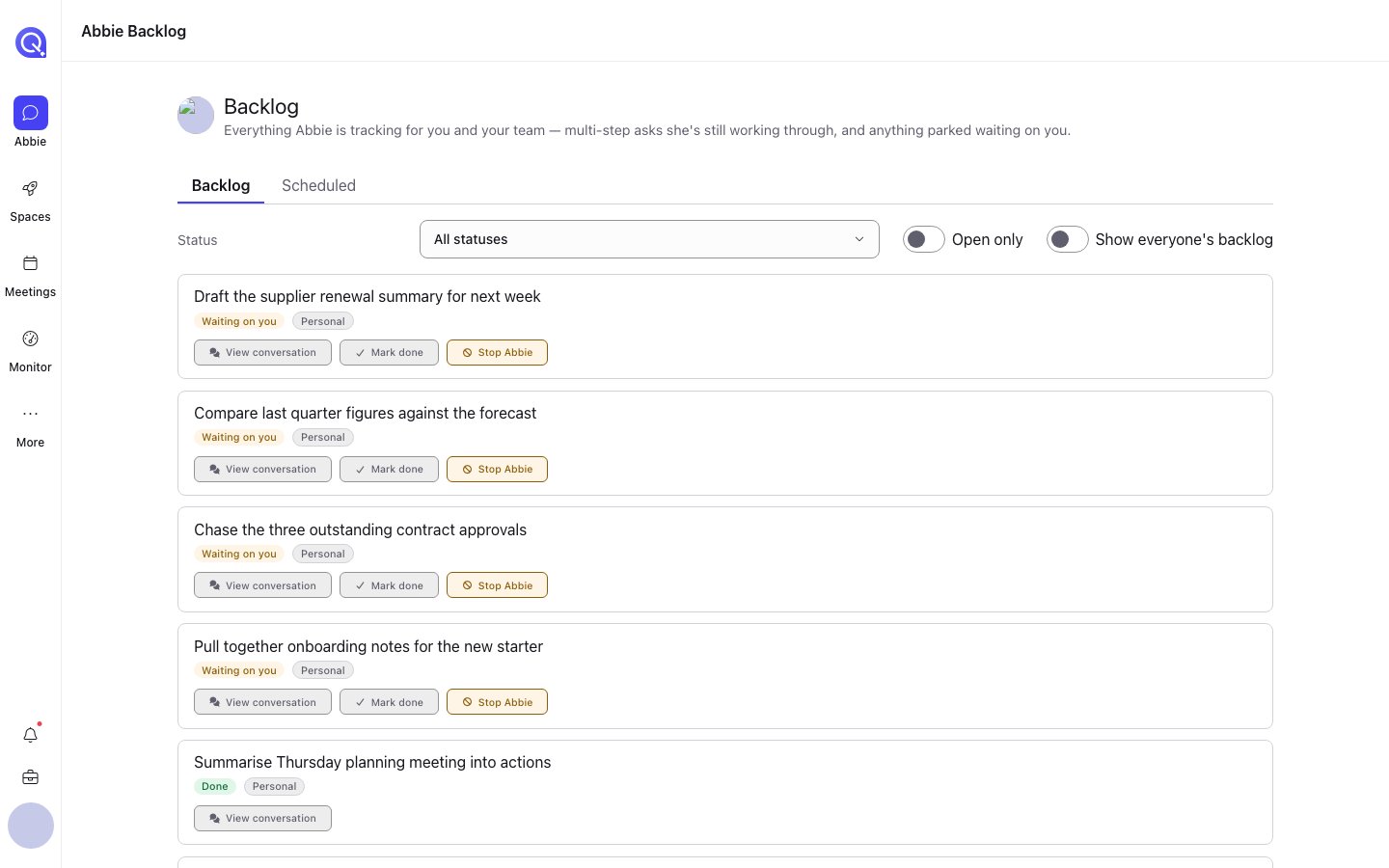 * **Mark done**
* **Defer** / **Change follow-up**: push out the date Abbie should next check back with you on this
* **Clear follow-up**
* **Promote to team**: move a personal item onto the shared team backlog
* **Promote to task**: hand the item off to your [Space's own task tracker](/spaces/tasks); a real task is created there and the backlog item is marked done. Which Space it files into is set by the [Task filing](/abbie/configuring/task-filing) setting
* **Reschedule** / **Cancel reminder** / **Stop repeating**: for scheduled items and recurring reminders, see [Reminders and schedules](/abbie/backlog/reminders-and-schedules)
* **Open chat**: jump to the conversation the item came from
* **Stop Abbie**: cancel the item, see [Cancelling and deferring](/abbie/backlog/cancelling-and-deferring)
## Deep links
A link to a specific item (for instance from the "Abbie needs you" card on the home page) opens the Backlog page with that item highlighted.
If you're an account admin, you can also switch to a cross-account view to see what's on other people's personal backlogs, useful for keeping an eye on what Abbie is doing for your team without anyone reporting it manually.
* **Mark done**
* **Defer** / **Change follow-up**: push out the date Abbie should next check back with you on this
* **Clear follow-up**
* **Promote to team**: move a personal item onto the shared team backlog
* **Promote to task**: hand the item off to your [Space's own task tracker](/spaces/tasks); a real task is created there and the backlog item is marked done. Which Space it files into is set by the [Task filing](/abbie/configuring/task-filing) setting
* **Reschedule** / **Cancel reminder** / **Stop repeating**: for scheduled items and recurring reminders, see [Reminders and schedules](/abbie/backlog/reminders-and-schedules)
* **Open chat**: jump to the conversation the item came from
* **Stop Abbie**: cancel the item, see [Cancelling and deferring](/abbie/backlog/cancelling-and-deferring)
## Deep links
A link to a specific item (for instance from the "Abbie needs you" card on the home page) opens the Backlog page with that item highlighted.
If you're an account admin, you can also switch to a cross-account view to see what's on other people's personal backlogs, useful for keeping an eye on what Abbie is doing for your team without anyone reporting it manually.